
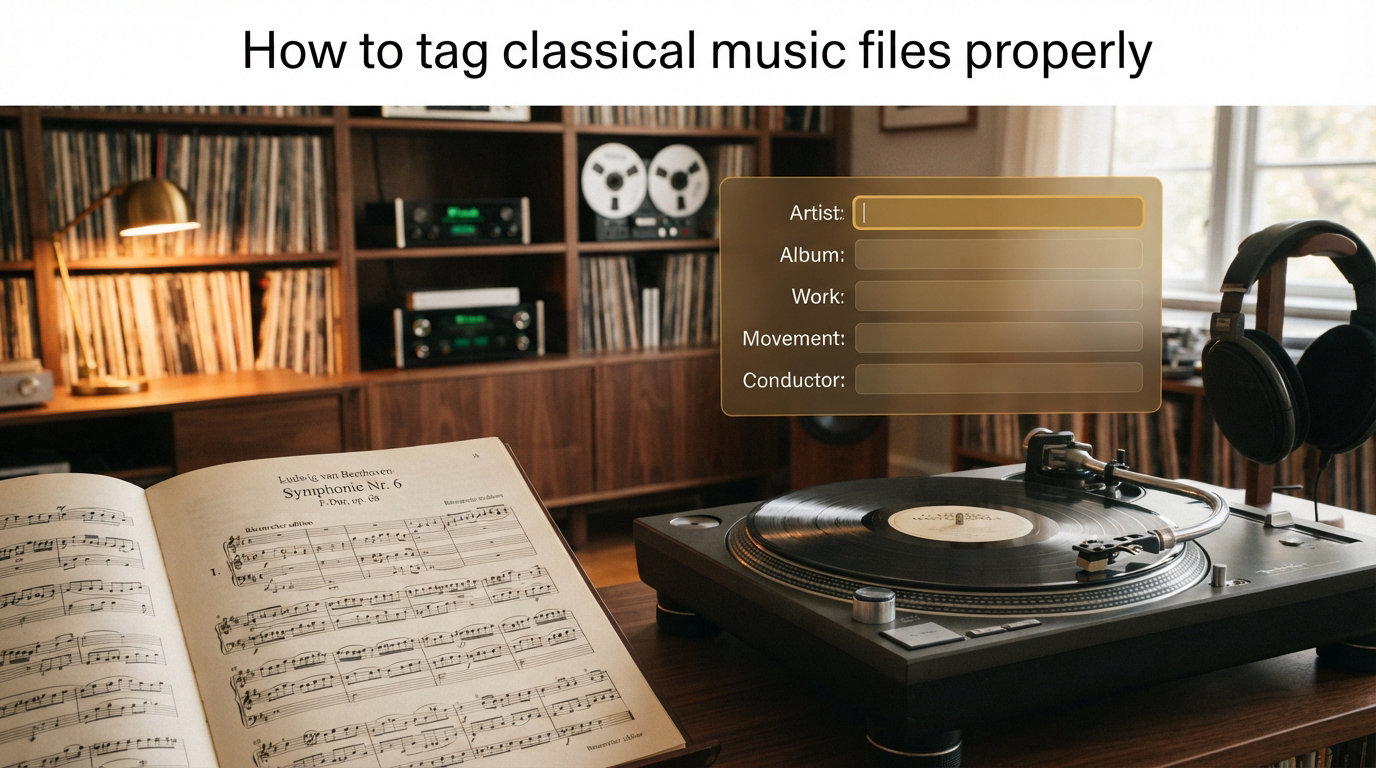
If you have ever ripped a classical CD and watched your music player turn it into a chaotic mess of split albums and truncated titles, you are not alone. Learning how to tag classical music files properly is the single most important skill for building a searchable, organized digital classical library. The standard pop-music tagging approach simply falls apart the moment you introduce multiple works, conductors, soloists, and catalog numbers into a single album.
Our team has spent years testing tagging workflows across hundreds of recordings, from solo piano collections to multi-disc opera sets. We have made every mistake in the book so you do not have to. This guide walks you through the exact fields, formats, and tools that actually work for classical collections in 2026.
You will learn the difference between Composer, Album Artist, and Artist fields, how to handle catalog numbers like Opus and BWV, and a step-by-step workflow you can apply immediately. Whether you use MusicBrainz Picard, MP3tag, or Foobar2000, the principles here apply universally. By the end, your classical library will sort cleanly by composer, display proper work and movement titles, and stop fragmenting into duplicate albums.
Table of Contents
Why Classical Music Tagging Is Different
Classical recordings break the assumptions built into every mainstream music player. Pop music follows a simple model: one artist releases one album with individual songs. Classical music follows a layered model where one recording can contain multiple compositions, each split into several movements, performed by a different combination of conductor, orchestra, and soloists.
A single Beethoven symphony cycle box set might contain nine symphonies, each with four movements, conducted by one person and performed by one orchestra across five discs. That is 36 tracks with deeply interconnected metadata. Pop tagging has no framework for this hierarchy.
The core problem comes down to three things. First, classical albums often contain multiple unrelated works by different composers. Second, the person who wrote the music (the composer) is usually different from the person performing it (the conductor or soloist). Third, individual tracks are typically movements within a larger work, not standalone songs.
Without a tagging scheme built for this structure, your player will display movements as separate songs, fragment box sets into scattered tracks, and bury your favorite composer under a wall of performer names. Forum users on Reddit and the MusicBrainz community repeatedly describe classical tagging as one of the hardest parts of building a digital collection.
The good news is that once you understand the right fields and adopt a consistent approach, everything falls into place. The rest of this guide gives you that framework.
Essential Tag Fields Explained
Classical music relies on a specific set of metadata fields that go beyond the basic Artist, Album, and Title tags most people know. Getting these fields right is the foundation of a well-organized library. Here is what each one does and how to fill it.
Composer
The Composer field stores the name of the person who actually wrote the music. For classical recordings, this is one of the most important fields in your entire library. It lets you sort and browse by Bach, Mozart, or Mahler regardless of who is performing.
Use a consistent name format. We recommend the full surname-first convention (Bach, Johann Sebastian) if your player sorts by this field, or the natural name format (Johann Sebastian Bach) if you primarily browse visually. Pick one and stick with it across your entire collection.
Album Artist
The Album Artist field tells your music player what holds an album together. For classical recordings, this should typically be the main performer or conductor, such as Carlos Kleiber or the Berlin Philharmonic. This field prevents your player from splitting albums into separate entries when individual tracks have different artist names.
Many collectors put the conductor here, since the conductor often defines the character of a recording. Others use the primary soloist for concerto recordings. Either approach works as long as you stay consistent within each album.
Artist
The Artist field lists the performers on that specific track. For a symphony, this might be the orchestra and conductor. For a concerto, include the soloist as well. This field can vary from track to track within the same album, which is exactly why the Album Artist field exists to keep things grouped.
Some tagging schemes combine multiple performers with semicolons (Berlin Philharmonic; Herbert von Karajan). Others use a dedicated conductor or orchestra field if the format supports it.
Album
For classical music, the Album field typically holds the release title as it appears on the physical packaging. This might be something like Beethoven: Symphonies Nos. 5 and 7 or Bach: The Goldberg Variations. Use the label’s album title rather than inventing your own, since this helps match releases in databases like MusicBrainz and Discogs.
Title (Movement Name)
The Title field holds the name of the individual track, which for classical music is usually a movement. Use the standard format: movement number in Roman numerals followed by the tempo marking. For example: I. Allegro con brio or II. Andante con moto.
Some people include the full work title in every track title (Beethoven: Symphony No. 5, I. Allegro). This is redundant if you also use a Work field, and it creates cluttered displays. We prefer keeping the Title field focused on just the movement.
Work and Movement Fields
Modern tagging formats support dedicated Work and Movement fields. The Work field holds the composition name (Symphony No. 5 in C minor, Op. 67) and the Movement field holds the movement number and name. iTunes and Apple Music Classical now read these fields natively, grouping movements under their parent work.
Genre
Set Genre to Classical for all classical recordings. If you want finer control, you can use subgenres like Symphony, Concerto, Chamber, Opera, or Solo Instrumental. Avoid mixing subgenre granularity across your collection, as this creates an inconsistent browsing experience.
| Tag Field | What to Put Here | Example |
|---|---|---|
| Composer | The person who wrote the music | Ludwig van Beethoven |
| Album Artist | Main performer or conductor | Carlos Kleiber |
| Artist | Performers on this track | Vienna Philharmonic; Carlos Kleiber |
| Album | Release title from the label | Beethoven: Symphonies Nos. 5 and 7 |
| Title | Movement number and tempo | I. Allegro con brio |
| Work | Full composition name | Symphony No. 5 in C minor, Op. 67 |
| Movement | Movement number and name | 1. Allegro con brio |
| Genre | Classical or subgenre | Classical |
| Year | Recording year, not composition year | 1974 |
Catalog Numbers: Opus, BWV, and KV Explained
Catalog numbers are the identification system classical music uses to tell compositions apart. A composer like Bach wrote over a thousand works, many of them titled simply Prelude, Fugue, or Sonata. Without catalog numbers, you would have no reliable way to identify which specific piece a recording contains.
Each major composer has a dedicated catalog system maintained by scholars. These systems assign a unique identifier to every known work. Including these numbers in your tags makes your library searchable and prevents confusion between similarly titled pieces.
Opus (Op.)
The Opus number is the most general catalog system. Publishers assigned opus numbers to works as they were published during the composer’s lifetime. Beethoven, Brahms, and Chopin all use opus numbers. For example, Beethoven’s Symphony No. 5 carries the catalog reference Op. 67.
Not all works have opus numbers. Some were published posthumously and received WoO (Werke ohne Opuszahl, meaning works without opus number) designations. Beethoven’s popular Fur Elise is officially WoO 59.
BWV (Bach-Werke-Verzeichnis)
The BWV catalog is the definitive numbering system for Johann Sebastian Bach’s works. Every Bach composition has a BWV number. The Well-Tempered Clavier is BWV 846 through BWV 893, and the Brandenburg Concertos are BWV 1046 through BWV 1051.
Always include BWV numbers in your Bach tags. They are the standard reference used by every classical database and recording label.
KV (Kochel-Verzeichnis)
The KV (sometimes written as K.) catalog covers everything Mozart wrote. Compiled by Ludwig von Kochel in 1862, it assigns chronological numbers to Mozart’s compositions. The Requiem is KV 626 and Symphony No. 40 is KV 550.
Other Catalog Systems
Schubert uses D numbers (Deutsch catalog), Haydn uses Hob. numbers (Hoboken catalog), and Vivaldi uses RV numbers (Ryom-Verzeichnis). When in doubt, check MusicBrainz or the album liner notes for the correct catalog reference.
We recommend putting the catalog number in the Work field alongside the composition title: Symphony No. 5 in C minor, Op. 67. This keeps it visible during browsing and makes searching by catalog number straightforward.
Handling Multiple Performers
Classical recordings often involve several performers simultaneously. A concerto recording features a soloist, an orchestra, and a conductor. An opera might have a dozen singers plus the orchestra and conductor. Handling these multi-performer recordings is one of the biggest challenges in classical tagging.
The key is deciding which fields hold which performer information. There is no single universally accepted standard, but the community has converged on several reliable approaches through years of discussion on forums like Reddit, MusicBrainz, and Foobar2000 communities.
The Standard Approach
Put the conductor and orchestra in the Artist field, separated by a semicolon. Put the soloist there too for concerto recordings. For example: Vladimir Horowitz; New York Philharmonic; Bruno Walter. The Album Artist field holds the primary name that groups the album, usually the conductor or soloist.
The Dedicated Field Approach
If your tagging format and player support it, use dedicated fields. ID3v2 and some other formats support Conductor, Orchestra, and Soloist fields. Foobar2000 and MP3tag can read and write these natively. This keeps the Artist field cleaner while still preserving all performer information.
The downside is that many mainstream players ignore these fields. If you primarily use iTunes, Spotify, or a phone-based player, the dedicated fields may never appear. Test with your specific setup before committing to this approach.
Opera and Vocal Recordings
Opera recordings are the hardest to tag because each track may feature different singers. A duet track has two soloists, a chorus track adds the choir, and an overture has none. Use the Artist field for the primary performers on each track, and store the full cast in a custom field or the album comment.
For consistency, put the conductor in Album Artist for operas. This keeps the recording grouped as one album even though individual tracks list different singers.
How to Tag Classical Music Files Properly: Step-by-Step Guide
Now that you understand the fields and concepts, here is a practical workflow you can follow for every classical album. This process works whether you are tagging a single disc or a massive box set.
Step 1: Rip your CDs with accurate metadata.
When ripping CDs, use a secure ripper that queries the MusicBrainz or freedb database. Exact Audio Copy (EAC) on Windows and dBpoweramp on both platforms are the community favorites. These tools pull metadata from online databases, giving you a starting set of tags to refine rather than typing everything by hand.
Step 2: Open your tagging software and load the album.
Launch MP3tag, MusicBrainz Picard, or your preferred tagger. Load the freshly ripped files. Review what the automatic lookup returned. Classical metadata from automated sources is frequently incomplete or inconsistent, so expect to make manual corrections.
Step 3: Fill in the Composer field for every track.
This is your first priority. Make sure the Composer field contains the correct composer name in a consistent format. If the album contains works by multiple composers, set each track individually. A common mistake is leaving the Composer field blank or filled with the performer name.
Step 4: Set the Album Artist field.
Choose the conductor or primary soloist and enter their name in the Album Artist field for every track on the album. This single step prevents the most common classical tagging problem: albums splitting into fragments in your music player.
Step 5: Verify and correct the Album title.
Check that the Album field matches the release title shown on the physical packaging or the label’s website. Remove any stray text that databases sometimes add, like release dates or label names appended to the title.
Step 6: Format the Work and Movement information.
Enter the full composition name including catalog number in the Work field: Symphony No. 5 in C minor, Op. 67. Set the Movement field with the movement number and tempo marking. Format the Title field to display the movement cleanly: I. Allegro con brio.
Step 7: Fill in performer fields.
Enter the conductor, orchestra, and soloist information in the Artist field or dedicated performer fields. Use semicolons to separate multiple performers within a single field. Be consistent with name spelling across your collection.
Step 8: Add catalog numbers.
Include the appropriate catalog number (Op., BWV, KV, D, Hob.) in the Work field. This makes your collection searchable by catalog reference and prevents confusion between similarly titled works.
Step 9: Set Genre and Year.
Set Genre to Classical or a subgenre like Symphony or Concerto. Enter the recording year, not the year the composition was written. The recording year identifies which specific performance you have in your library.
Step 10: Review in your music player.
Load the tagged files into your music player. Check that the album appears as a single entry, that movements are grouped under their work, and that browsing by composer works correctly. Fix any remaining issues before moving on to the next album.
Step 11: Save and back up your tags.
Save all changes. Export your tags to a backup file if your software supports it. Tagging takes significant effort, and losing that work to a hard drive failure is easily avoidable.
File Naming Conventions for Classical Music
While metadata tags are what your music player reads, the underlying filenames still matter. A good file naming convention keeps your raw files organized on your hard drive and makes them browsable even outside a music application.
The most widely recommended folder structure for classical music organizes by composer first. The top-level folder is the composer name, the second level is the work or album, and the files inside are individual movements sorted by track number.
A typical path looks like this: Music/Classical/Beethoven, Ludwig van/Symphony No. 5 – Carlos Kleiber/01 – I. Allegro con brio.flac
Use Leading Zeros for Track Numbers
Always pad track numbers with leading zeros: 01, 02, 03 rather than 1, 2, 3. Without leading zeros, your operating system will sort track 10 before track 2 because it reads character by character. Leading zeros fix this instantly.
For collections with more than 99 tracks, use three digits: 001, 002, 003. This is common for complete edition box sets.
Include Movement Numbers in Roman Numerals
Start filenames with the movement number in Roman numerals to match the Title tag: I. Allegro con brio. This keeps movements in the correct performance order and matches what classical listeners expect to see.
Keep Folder Depth Reasonable
Avoid nesting folders too deeply. Three levels deep (Genre, Composer, Album) is the sweet spot. Deeper structures become tedious to browse in file managers and can exceed path length limits on some operating systems.
Use Consistent Separators
Pick a separator and use it everywhere. Hyphens are the most common choice for separating track numbers from titles. Underscores work well for spaces within field values. Avoid special characters like question marks, colons, or asterisks, as they cause problems on certain file systems.
Recommended Tagging Software
The right software makes classical tagging dramatically easier. While dozens of tools exist, a few have earned the trust of the classical music community through years of reliable use and strong feature sets.
MusicBrainz Picard
Picard is a free, open-source tagger that pulls metadata from the MusicBrainz database, one of the most accurate sources for classical recordings. Its standout feature for classical collections is the Classical Extras plugin, which automatically fills in composer, work, movement, conductor, orchestra, and catalog number fields.
The plugin uses acoustic fingerprinting to identify recordings and pulls detailed structured metadata that standard lookups miss. For anyone building a large classical library, Picard with Classical Extras is the recommended starting point.
MP3tag
MP3tag is the workhorse of manual tagging on Windows. It supports virtually every audio format and tag field, including the extended classical fields. Its batch editing capabilities let you apply changes across hundreds of files at once.
The community favorite workflow pairs Picard for automated initial tagging with MP3tag for manual refinement. Picard gets you 80% of the way there quickly, and MP3tag handles the fine-tuning.
Foobar2000
Foobar2000 is both a player and a tagger, popular among audiophiles for its lightweight design and powerful customization. Its tagging interface supports multi-value fields and custom field names, making it well suited for classical collections with complex performer information.
Users on the Foobar2000 subreddit frequently recommend it for quick edits during playback. You can fix a mistyped composer name without leaving the application.
Other Tools
MusicBee is a strong option on Windows with good classical tagging support. MusiCHI is a dedicated classical music management suite designed specifically for the challenges described in this guide, though it is less widely known. Yate is a capable tagger for Mac users who want fine-grained control over classical fields.
Common Tagging Mistakes to Avoid
Even with the right tools and fields, certain mistakes appear repeatedly in classical collections. Here are the most common ones and how to fix them.
Leaving the Composer field blank.
This is the most frequent mistake. Without a Composer field, you cannot sort or browse by composer, which defeats the primary advantage of classical tagging. Always fill this field for every track.
Putting the composer in the Artist field.
Some people put Bach or Mozart in the Artist field because that is who they think of first. This causes problems because the Artist field is meant for performers. Use the dedicated Composer field instead, and keep the Artist field for the actual people playing the music.
Using inconsistent name formats.
If you tag one album with J.S. Bach and another with Johann Sebastian Bach, your player treats them as two different composers. Pick one format and apply it everywhere across your collection.
Splitting movements into separate albums.
If each movement of a symphony ends up as its own album entry, the Album Artist field is missing or inconsistent. Set Album Artist to the same value for every track in the album.
Ignoring sort order fields.
Sort fields (Sort Artist, Sort Album Artist, Sort Composer) control how names appear in alphabetical lists. Without them, Beethoven sorts under L for Ludwig instead of B for Beethoven. Fill in sort fields with surname-first format for all composers and performers.
Omitting catalog numbers.
Without catalog numbers, two different symphonies with similar titles become indistinguishable. Always include Op., BWV, KV, or the appropriate reference in the Work field.
Modern Player Support for Classical Tags
Music player support for classical metadata has improved significantly in recent years. Apple Music Classical, launched as a dedicated app, reads Work and Movement fields natively and groups movements under their parent composition automatically. This is a major step forward from the original iTunes, which ignored these fields entirely.
If you use the Apple ecosystem, filling in Work and Movement fields during tagging pays off directly in how your library displays. Apple Music Classical also supports grouping by composer, making it possible to browse your collection the way classical listeners actually think about music.
On Android, options are more limited but improving. The Opus 1 player is specifically designed for classical collections and reads extended tag fields. Poweramp and other audiophile-oriented players also handle multi-value fields better than standard music apps.
For desktop playback, Foobar2000 and MusicBee remain the strongest options. Both read custom tag fields and can be configured to display composer, work, movement, and performer information in any layout you prefer. Plex users have reported mixed results, with many resorting to workarounds like using the Genre field for composer information.
DLNA streaming adds another layer of complexity, since the protocol does not consistently pass extended classical fields to network players. If you stream to a DLNA device, test which fields survive the transfer and prioritize those when tagging.
FAQs
How to properly tag music?
For classical music, fill in the Composer field with the person who wrote the music, set Album Artist to the conductor or main performer, use the Work field for the composition name with its catalog number, and format the Title field with the movement number and tempo marking. Always keep Album Artist consistent across every track in an album to prevent splitting.
How to properly name MP3 files?
Use a consistent format: track number with leading zeros, then movement title. Example: 01 – I. Allegro con brio.mp3. Organize folders by composer first, then album or work. Leading zeros (01, 02) prevent incorrect sorting where track 10 appears before track 2.
How to list classical music titles?
Format movement titles with a Roman numeral followed by the tempo marking: I. Allegro con brio. Put the full composition name including catalog number in the Work field: Symphony No. 5 in C minor, Op. 67. Avoid repeating the work title in every track’s Title field, as this creates cluttered displays.
Do I italicize classical music titles?
In formal writing, large-scale works like symphonies, concertos, and operas are italicized, while shorter pieces like songs or individual movements use quotation marks. In music file tags, do not use italics or quotation marks since tag fields are plain text. Simply write the title without formatting.
What is the best software for tagging classical music files?
MusicBrainz Picard with the Classical Extras plugin is the best free tool for automated classical tagging. MP3tag is the best tool for manual editing and batch corrections. Many collectors use both: Picard for initial automated tagging, then MP3tag for fine-tuning individual fields.
Conclusion
Learning how to tag classical music files properly transforms a chaotic digital pile into a library you can actually browse and enjoy. The process comes down to filling in the right fields consistently: Composer for who wrote it, Album Artist for who performs it, Work for the composition with its catalog number, and Title for the individual movement.
Start with one album and work through the full step-by-step workflow. Once you internalize the pattern, tagging becomes second nature. Use MusicBrainz Picard with the Classical Extras plugin for the heavy lifting, then refine in MP3tag. Pay attention to catalog numbers, leading zeros in filenames, and consistent name formats.
Your future self, browsing a clean classical library sorted by composer, will thank you for the effort you put in today. The initial investment of time pays back every single time you sit down to listen.