
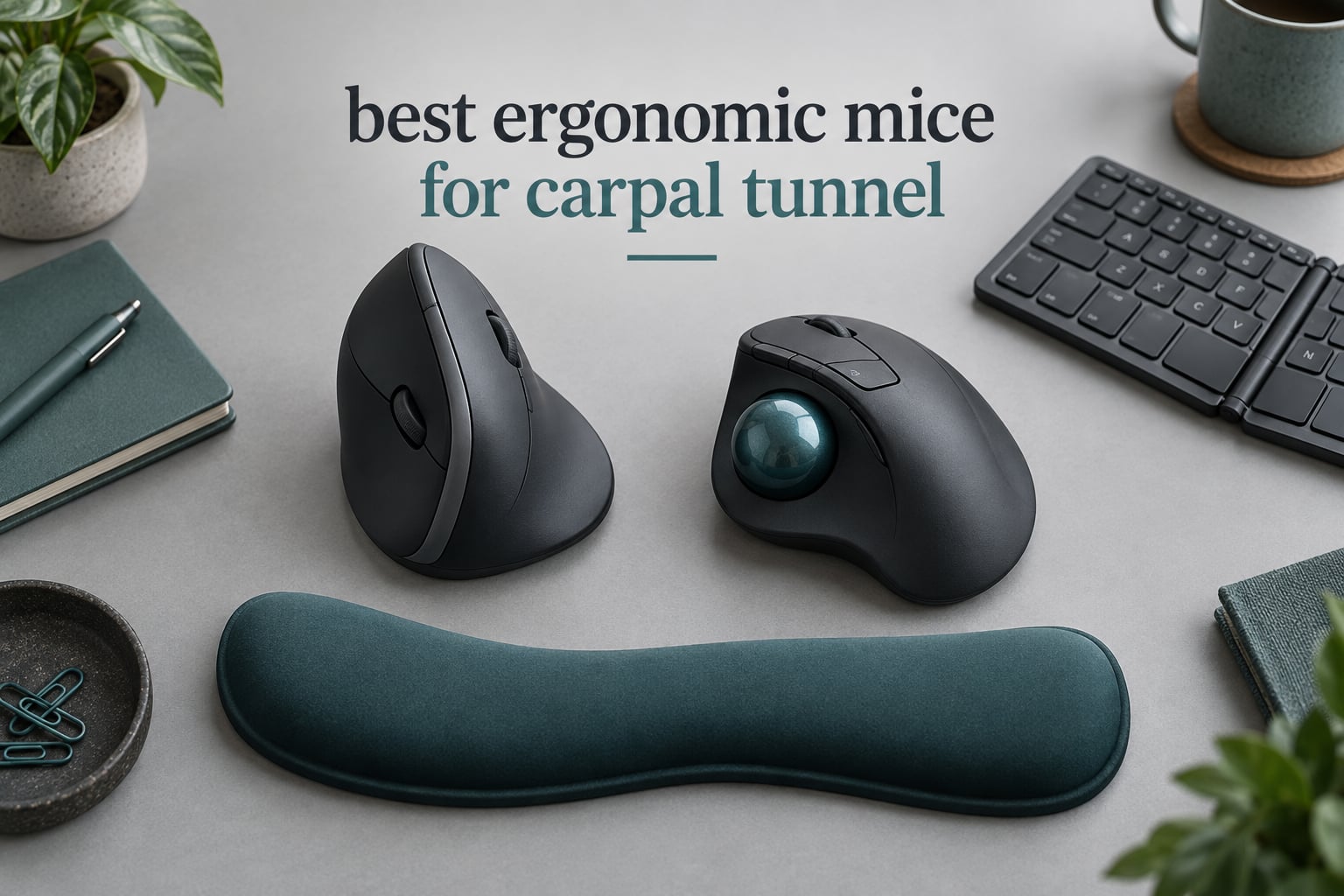
If your wrist aches by 4pm every day, the mouse on your desk is the first thing to change. The best ergonomic mouse for carpal tunnel relief is the Logitech MX Vertical, a 57-degree vertical body that holds your forearm in a neutral handshake angle instead of forcing it flat, palm down, for eight hours straight.
That is the direct answer, and the rest of this guide backs it up. We compared 12 pointing devices across four design families – true vertical mice, thumb-operated trackballs, contoured productivity shapes, and budget test models – and mapped each one to the pain it actually addresses. We also cover the mechanism that causes most mouse-related wrist pain, a symptom-to-design matching guide, and a hand-size protocol so you do not buy a body that is too big for your palm.
One important limit before we go further: no mouse cures or reverses carpal tunnel syndrome. An ergonomic mouse reduces the strain that contributes to symptoms, and it may slow progression, but it cannot undo nerve compression that already exists. If you have numbness, weakness, or symptoms that are worsening, stop reading and talk to a clinician. Everything below is about strain management at a desk, not treatment.
Table of Contents
Why Flat Mice Hurt Your Wrists – Forearm Pronation Explained
A standard mouse forces one specific mechanical problem. To place your hand on a flat mouse, you rotate your forearm roughly 90 degrees into a palm-down position called forearm pronation, and you hold that rotation there for hours.
The rotation itself is not dangerous. Holding it under load while repeating small movements thousands of times is what fatigues the pronator muscles along the forearm and irritates the wrist. Repetitive strain injury, or RSI, is the name for that pattern, and it is the mechanical reason vertical mice exist.
There is a second factor most buyers ignore: how far your hand travels. A low-DPI mouse demands big arm sweeps to cross the screen, which means more movement, more repetition, and more opportunity for the shoulder to creep forward. Raising sensitivity reduces hand travel without changing the shape of anything.
So the three levers a buyer actually controls are forearm rotation, travel distance, and the surface your hand rests on. A vertical mouse attacks the first. A trackball attacks the first two by removing arm movement almost entirely. A high-DPI sensor and a soft surface handle the third.
Do Vertical Mice Actually Help With Carpal Tunnel?
Yes – vertical mice help by reducing forearm pronation, but they do not reverse existing nerve damage. A vertical body holds the hand in the neutral handshake angle, which removes the sustained forearm rotation that a flat mouse demands, and that lowers the strain load on the wrist and forearm muscles over a full working day.
Here is who should expect a real improvement. If your pain is mechanical – aching, fatigue, soreness at the base of the thumb, or a wrist that feels twisted after a long spreadsheet session – a vertical mouse can make a noticeable difference within two to three weeks. Reviewers of the models below describe end-of-day hand pain disappearing, including owners with arthritis.
Here is who should not expect a full fix. If you have been diagnosed with carpal tunnel syndrome and the symptoms include numbness, tingling at night, or grip weakness, the nerve compression is the problem, not the posture. Change the mouse anyway, but change the rest of the desk too, and see a clinician.
One more honest note. Every study-grade claim in this category is a manufacturer claim, not an independent verdict. Logitech states its 57-degree angle reduces muscular activity by 10 percent against a standard mouse, and states the MX Ergo S tilt reduces muscle strain by 27 percent. Those are useful anchors, but they describe lab conditions, not your Tuesday.
Top 3 Ergonomic Mice for Carpal Tunnel (October 2026)

Logitech MX Vertical
- 57-degree vertical angle
- 4000 DPI sensor
- Thumb rest
- Switches between 3 computers


Nulea M501 Trackball
- Thumb-operated ball
- Removable tilt wedge
- 3 device switching
- Rechargeable
All 12 Ergonomic Mice Compared in 2026
| Product | Specifications | Action |
|---|---|---|
| Logitech MX Vertical |
|
Check Latest Price |
| Logitech Lift Vertical |
|
Check Latest Price |
| Nulea M501 Trackball |
|
Check Latest Price |
 TECKNET 4800 DPI Vertical TECKNET 4800 DPI Vertical |
|
Check Latest Price |
 Lekvey Rechargeable Vertical Lekvey Rechargeable Vertical |
|
Check Latest Price |
 TECKNET 16-Degree Trackball TECKNET 16-Degree Trackball |
|
Check Latest Price |
 ProtoArc EM11 NL Vertical ProtoArc EM11 NL Vertical |
|
Check Latest Price |
 Logitech MX Ergo S Logitech MX Ergo S |
|
Check Latest Price |
 seenda Thumb Trackball seenda Thumb Trackball |
|
Check Latest Price |
 Evoluent VerticalMouse Wired Evoluent VerticalMouse Wired |
|
Check Latest Price |
 ELECOM EX-G Left-Handed Trackball ELECOM EX-G Left-Handed Trackball |
|
Check Latest Price |
 Anker 2.4G Vertical Ergonomic Anker 2.4G Vertical Ergonomic |
|
Check Latest Price |
1. Logitech MX Vertical – Best Overall for Carpal Tunnel Strain
Logitech MX Vertical Wireless Mouse Ergonomic Design – Graphite
57-degree angle
4000 DPI
4 month battery
10 meter range
Pros
- 57-degree angle with dedicated thumb rest
- 4000 DPI sensor cuts hand travel
- Switches among three computers
- Textured rubber grip
Cons
- Rubber coating wears tacky after a couple of years
- Fewer buttons than the MX Master line
- Scroll wheel does not free-spin
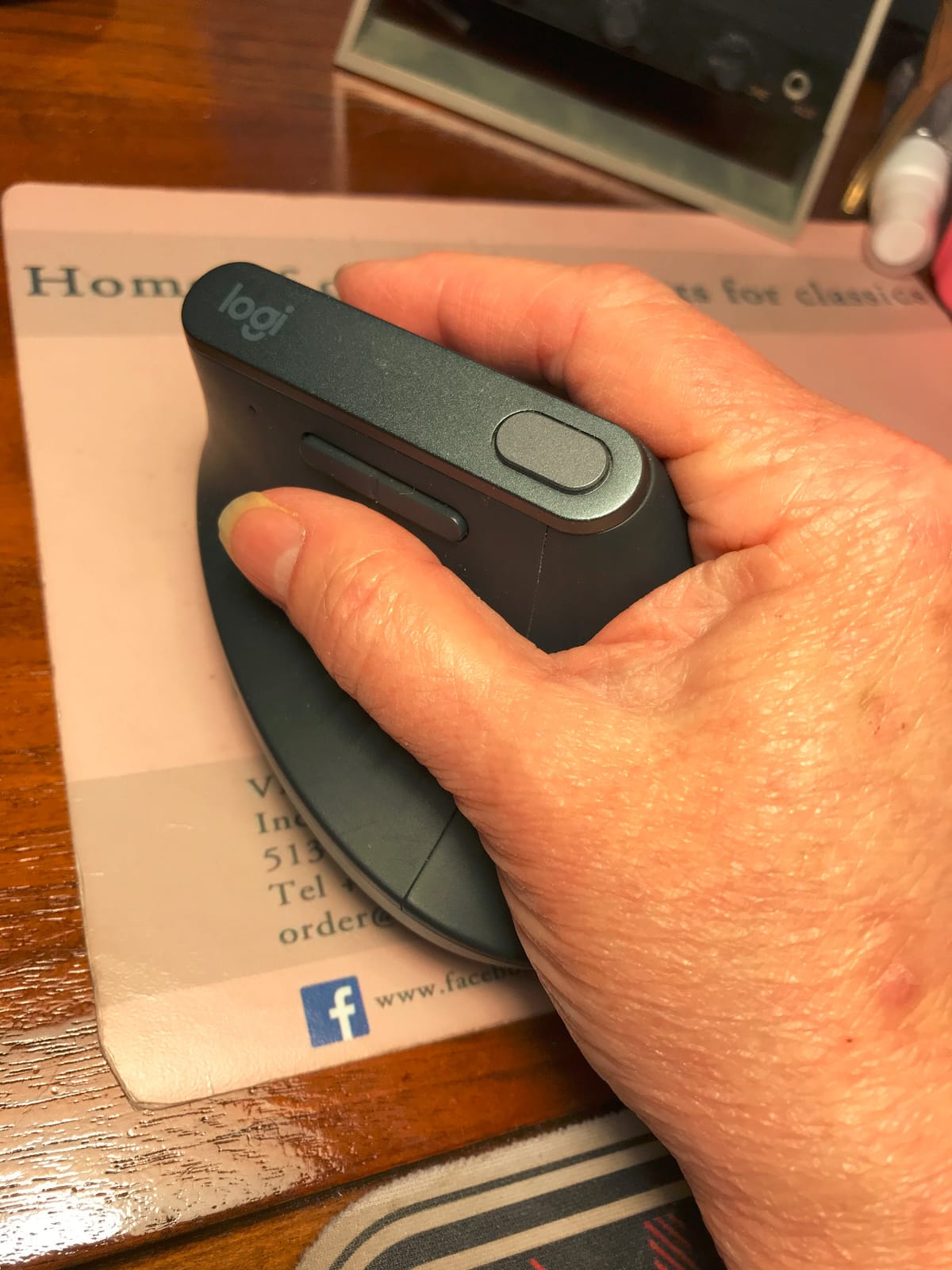
The MX Vertical is the reason this category exists in the shape it does today, and it is the model we would put in the hands of anyone whose wrist hurts after a normal day of spreadsheet work. The 57-degree body is steeper than almost anything else in this roundup, and the dedicated thumb rest means the thumb is parked rather than clamped against the side of the mouse.
Multiple long-term owners describe it as the only mouse that eliminated end-of-day wrist and forearm ache for them, including users with rheumatoid arthritis and a documented carpal tunnel diagnosis. That is anecdotal, not clinical evidence, but the consistency across thousands of reviews is meaningful.
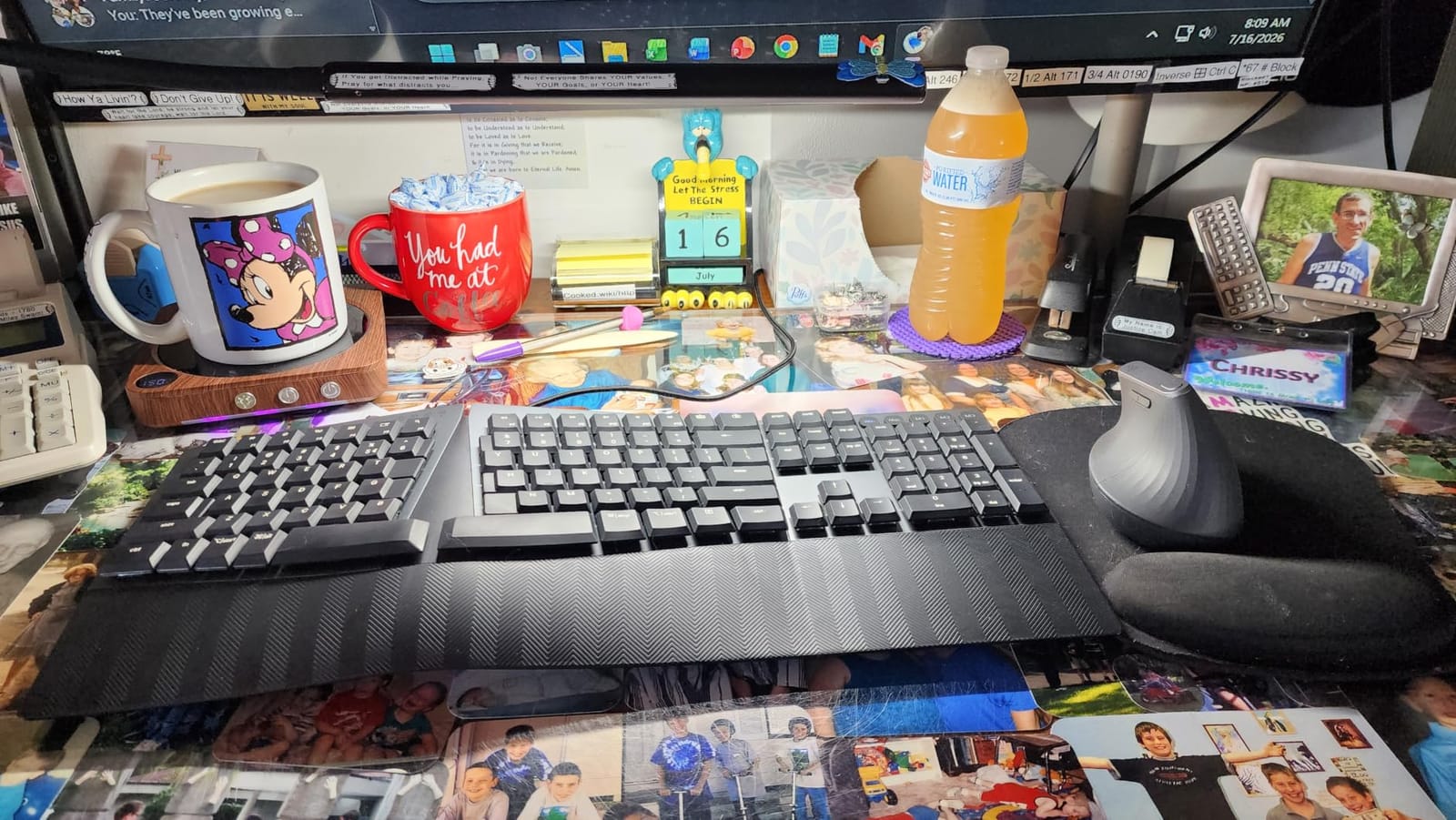
The 4000 DPI sensor with the on-body cursor speed switch is the second half of the story. At that sensitivity, crossing the screen takes a fraction of the hand movement a standard 1000 DPI mouse demands, which matters for anyone whose pain is movement-driven rather than purely posture-driven.
The honest catch is the adjustment period. Reviewers consistently describe one to two weeks during which the mouse gets knocked over repeatedly before muscle memory adapts. If you quit in week one, you will conclude the category does not work without ever testing it.
How the 57-Degree Angle Changes Your Day
At 57 degrees, the forearm sits close to the handshake position you would use to shake a hand. The pronator muscles along the forearm stop working as hard to hold the rotation, and the wrist rests on the mouse edge rather than bending back over a flat shell.
Logitech designed and user tested this body against criteria set by leading ergonomists, and states the angle reduces muscular activity by 10 percent against a standard mouse. A 10 percent reduction sounds modest, and it is – but it applies every hour you are at the desk.
Where It Falls Short
This is not a gaming mouse. There is no free-spinning or tilt scroll wheel, and the button count is well below the MX Master line, so anyone who relies on a thumb wheel for navigation will feel the gap. The rubber coating is also reported to wear and become tacky after a couple of years of daily use.
Hand size is the other constraint. This is a full-size body, and buyers with small hands describe the grip as too large to hold comfortably all day. If that sounds familiar, look at number two.
2. Logitech Lift Vertical – Best for Small Hands
Logitech Lift Vertical Ergonomic Wireless Mouse – Graphite
57-degree angle
4000 DPI
24 month battery
125 g
Pros
- Scaled-down 57-degree body for small hands
- Whisper-quiet clicks
- 24 month battery life
- Ergonomist certified design
Cons
- Compact body cramps larger hands
- Logi Bolt receiver uses a second USB port
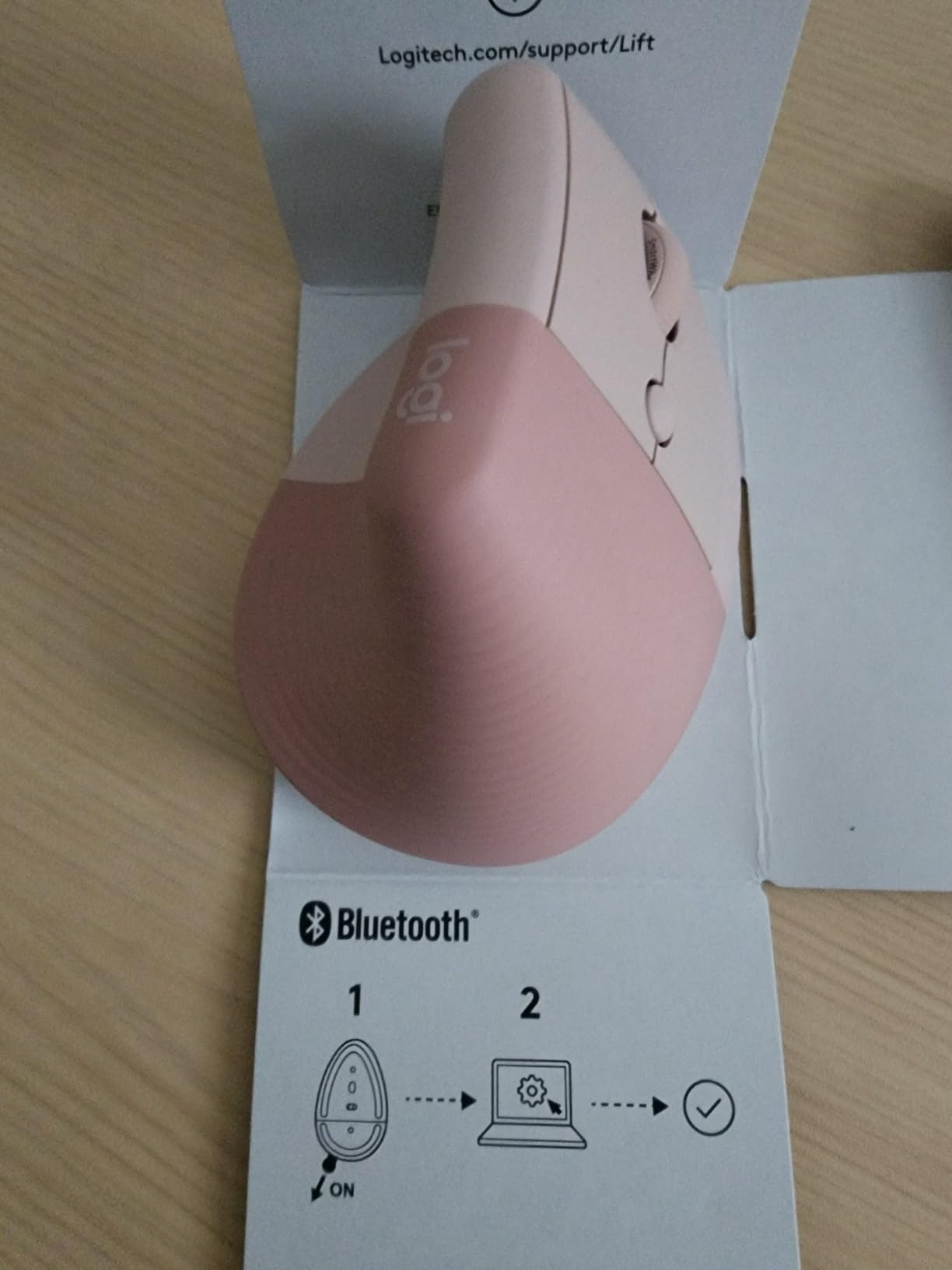
The Lift is the same 57-degree idea as the MX Vertical, scaled down, and that single design decision solves the most common complaint about premium verticals. If you have small to medium hands and have already bounced off a full-size vertical because your palm could not wrap around it, this is the retry.
Owners praise the snug thumb rest and the softly textured grip for holding the wrist upright, plus quiet clicks and a SmartWheel that switches between ratchet and smooth scrolling. The battery is rated at 24 months, which removes a whole category of nagging.
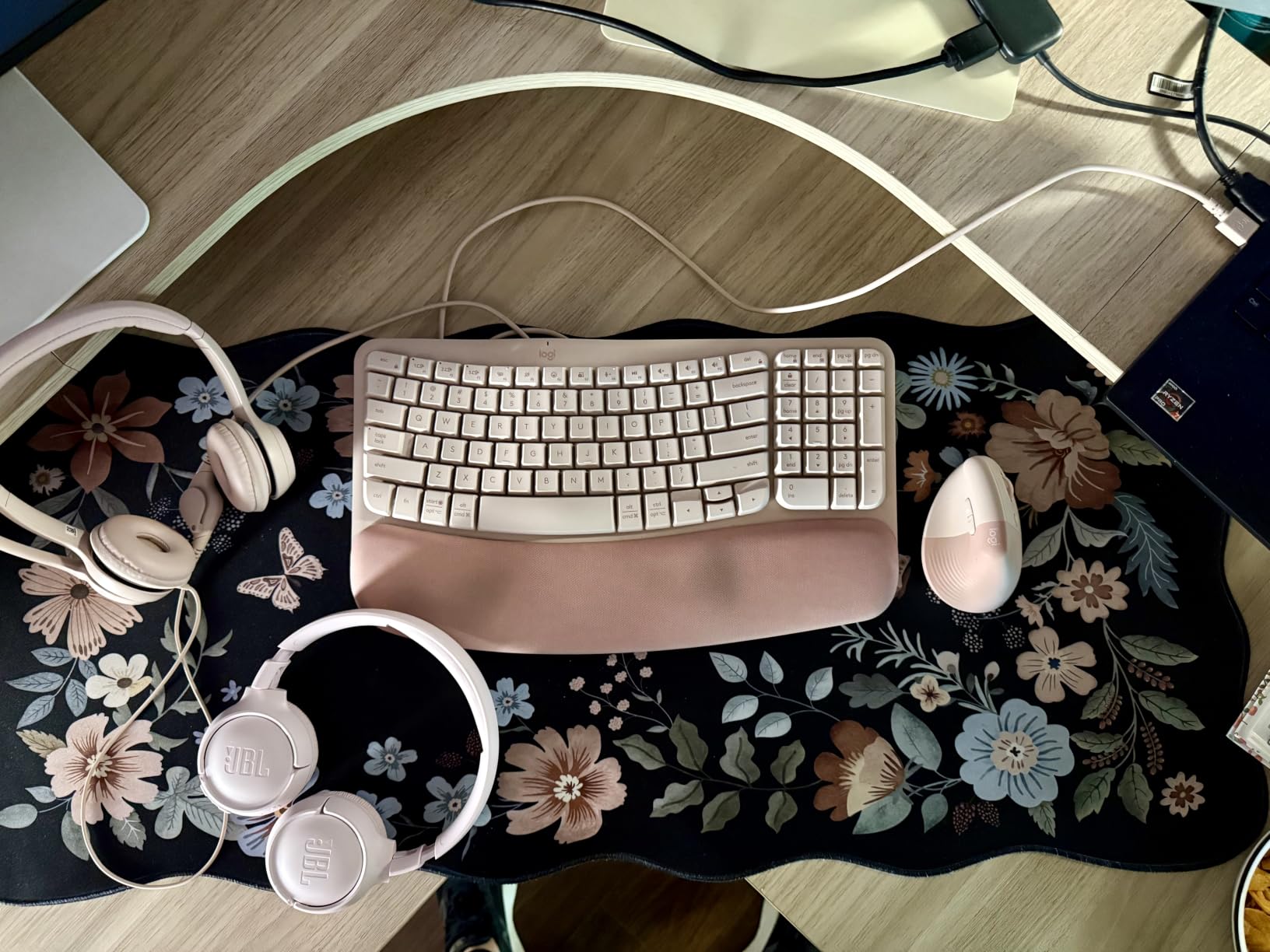
Two details separate this from a cheap vertical with the same angle. The design is ergonomist certified, and Logitech publishes explicit hand-size guidance, which is why clinicians in the review data recommend it more often than any other model here.
The Logi Bolt receiver is included alongside Bluetooth Low Energy, so you can pair directly to a laptop or use the dongle. If you use Easy-Switch, moving between machines is one press.
Who This Body Actually Fits
At 4.3 by 2.7 inches and 125 grams, the Lift is compact without feeling toy-like. The softly textured surface and snug thumb rest are what make the smaller footprint work, because your hand does not slide forward off the palm rest.
It also works on Chrome OS, iPadOS, Windows, and macOS, which matters if you move between a work laptop and a personal machine.
Where It Falls Short
The flip side of the compact body is that users with larger hands report it feeling cramped for an all-day grip. If your palm is big, the full-size MX Vertical is the better buy and this one is not.
The included Logi Bolt dongle occupies a USB port in addition to Bluetooth, which is a small annoyance on laptops with limited ports. Otherwise, this is the best-adjusted vertical on the market for most desk shapes.
3. Nulea M501 – Best Trackball for Wrist and Forearm Relief
Nulea M501 Wireless Trackball Mouse Ergonomic Thumb Control,4 DPI Levels
Thumb-operated ball
Tilt wedge included
3 device switching
Rechargeable
Pros
- Removes forearm and wrist movement entirely
- Removable tilt wedge changes the resting angle
- Built-in rechargeable battery
- Number one seller in Computer Trackballs
Cons
- Buttons are not programmable
- Device-switch button sits on the underside
- Bluetooth tracking can feel slightly fast
A trackball takes a different approach to the same problem. The hand stays put and the ball rolls under the thumb, so forearm pronation drops to nearly nothing and arm travel disappears entirely. Of everything in this roundup, that is the strongest mechanical answer to wrist and forearm pain – and it is why trackball users tend to report the most dramatic relief.
The M501 is the number one selling product in Computer Trackballs, and reviewers describe it as a convincing alternative to the well-known Logitech trackballs at a much lower cost. It switches among three devices over two Bluetooth channels plus a 2.4 GHz dongle, and the built-in rechargeable battery runs for weeks between charges.
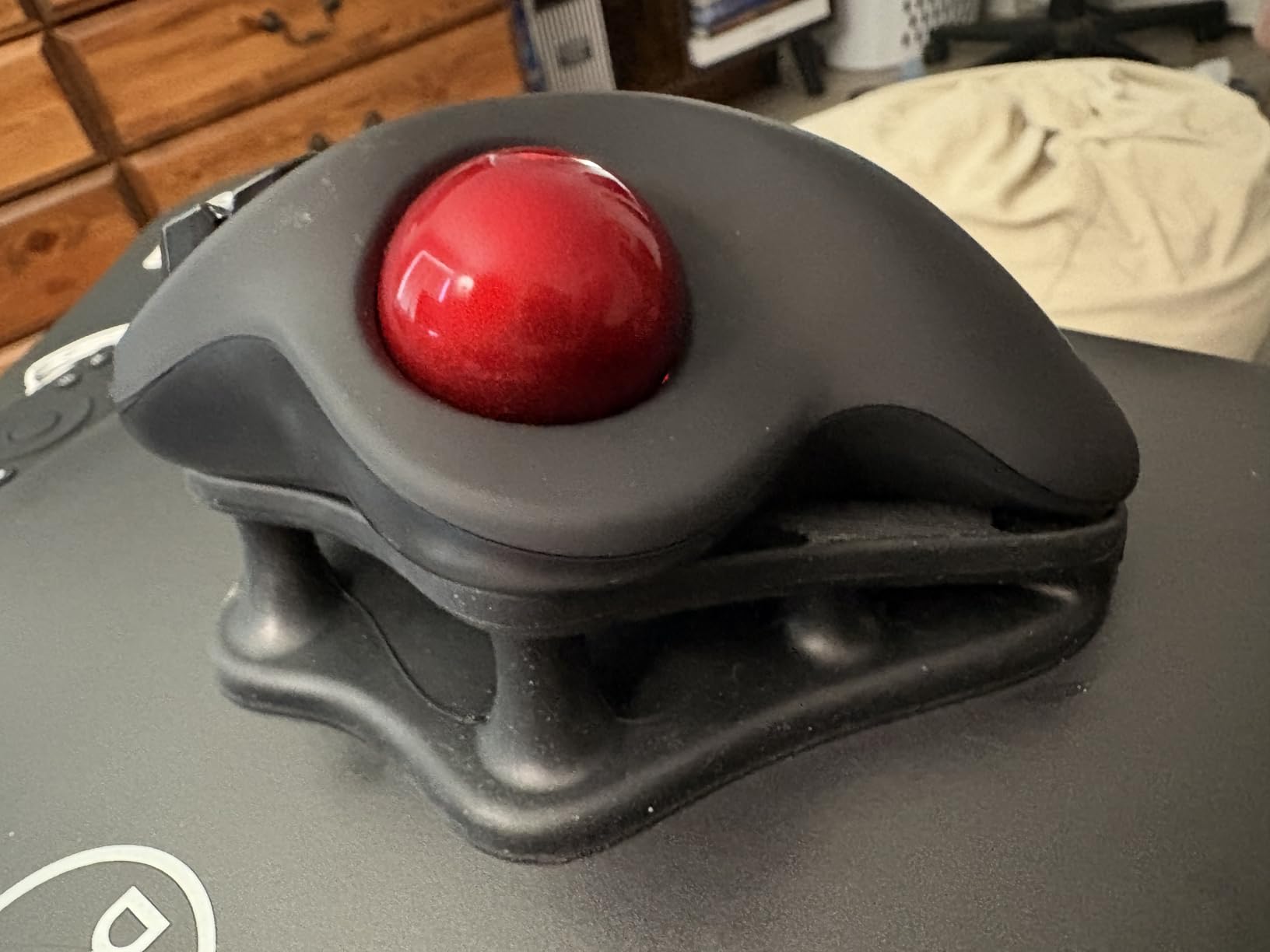
Two details make it easier to live with day to day. The grooved shelves separate the ring and pinky fingers so they stop crowding, and it tracks on a couch arm, a bed, or a small writing board, which no optical mouse here can do.
Long-term users also report the buttons holding up better than recent Logitech trackballs whose buttons have gone flaky, and the ball tracking smoothly for most of them.
Why the Tilt Wedge Matters More Than Expected
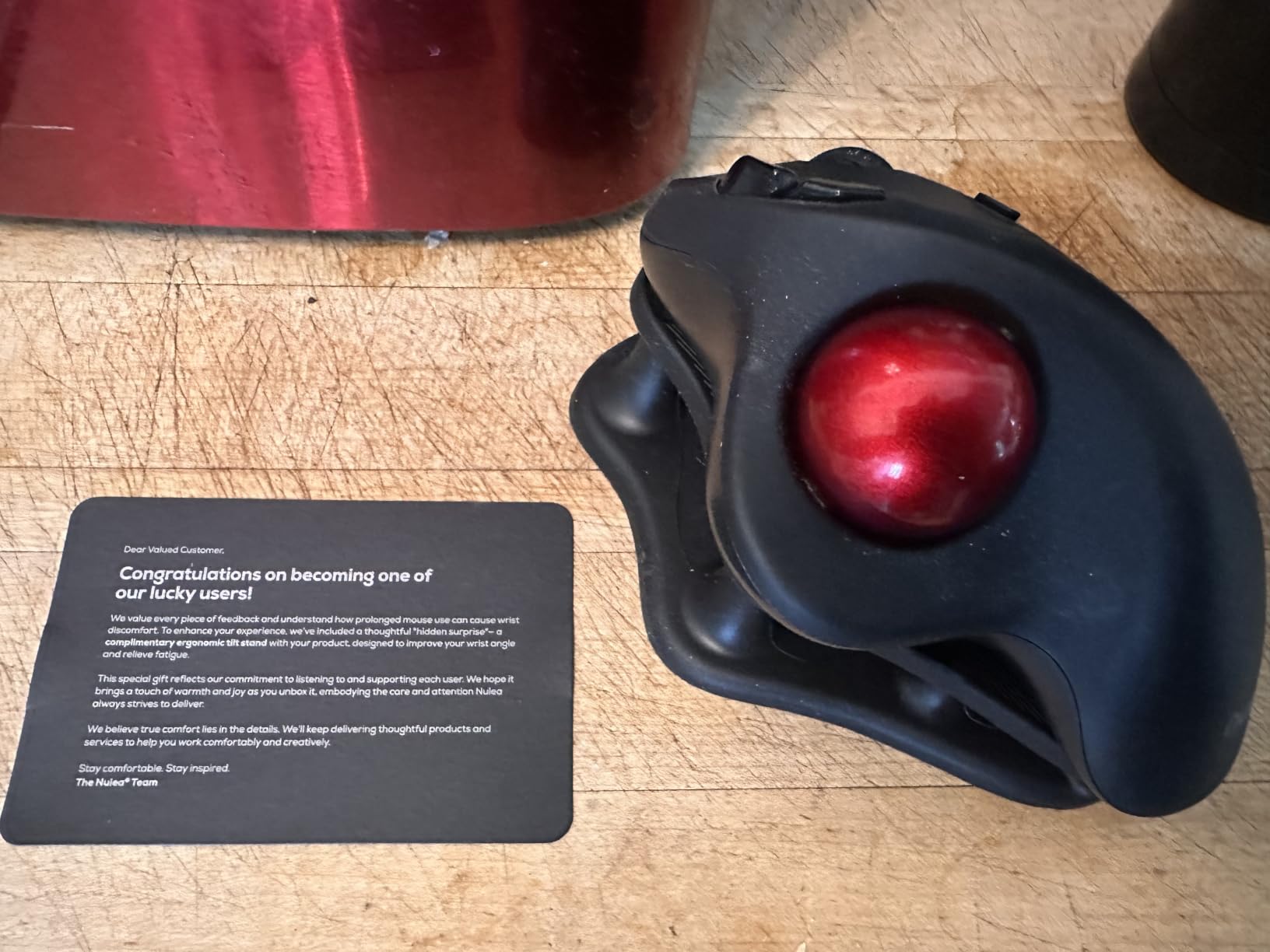
The removable tilt wedge is the feature owners single out most. Without it, the resting angle is a compromise between flat and upright; with it, you can set a more angled posture that suits your forearm. It is a small piece of plastic that changes how the whole device feels.
Forum discussion of trackballs in general keeps landing on ball diameter as the factor buyers underrate, and the same logic applies to the tilt: a device that lets you adjust angle will outlast a device with one fixed posture.
Where It Falls Short
Buttons are not programmable, so if your workflow depends on remapping middle-click or side buttons, this is the wrong tool. The device-switch button is on the underside, meaning switching requires picking the mouse up mid-task.
Trackball users also get a real thumb workload in exchange for arm relief. Reviewers with wrist pain report symptoms resolving, but the thumb is now doing the work the arm used to do. If your pain is concentrated at the base of the thumb, test a trackball before committing.
4. TECKNET 4800 DPI Vertical – Best Value Vertical Mouse
TECKNET Ergonomic Mouse, 4800 DPI Wireless Bluetooth Vertical, 3-Device
4800 DPI
Six DPI levels
Bluetooth plus 2.4 GHz
Near-silent clicks
Pros
- Highest DPI ceiling here at 4800 across six levels
- Switches among three devices
- Near-silent left and right clicks
- Works on Windows Mac Chrome and Linux
Cons
- Right-hand only
- Battery door is fragile in drops
- Side buttons not remappable on macOS
The TECKNET TK-MS027 is the pick if you want the vertical concept at the lowest cost in this roundup without giving up sensitivity options. It carries the highest DPI ceiling of the twelve at 4800, spread across six selectable levels, which means very little hand travel is needed to cross a screen.
Owners across multiple languages cite relief from wrist, finger, and shoulder strain, and several report shoulder and forearm pain easing within days of the switch. The near-silent primary clicks make it viable for libraries or shared offices, where a clicky mouse is a problem in itself.
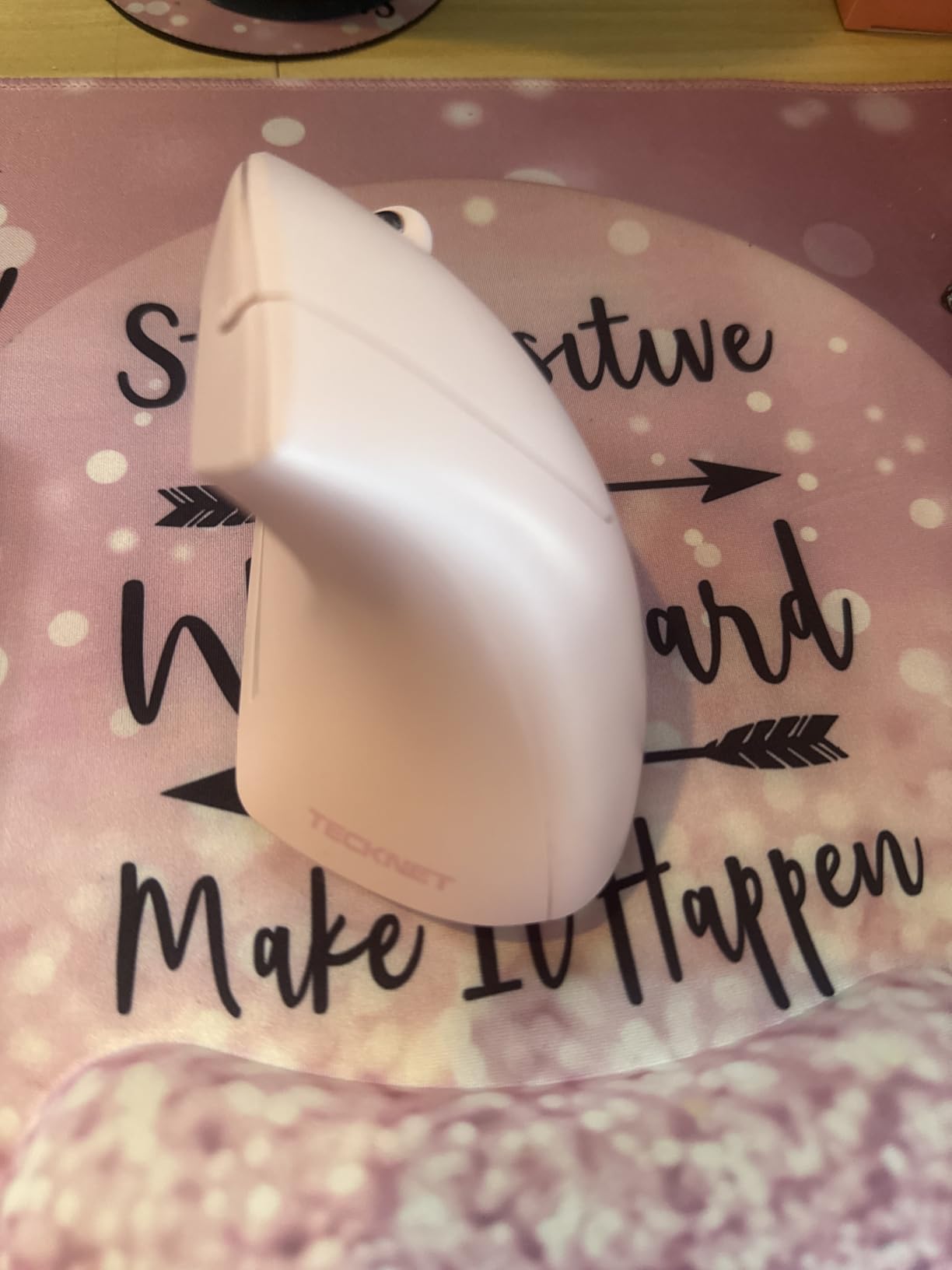
Connectivity is unusually good for the money. Two Bluetooth channels plus 2.4 GHz mean you can move between a Windows desktop, a Mac laptop, and a third machine without touching drivers, and pairing with Apple hardware is reported as reliable.
A deep sleep mode after 10 to 30 minutes of inactivity and a low-battery warning LED handle the boring parts of ownership that reviewers usually leave out.
Why Six DPI Levels Matter at This Price
Sensitivity is the cheapest ergonomic upgrade available, because it reduces movement without changing shape. Six levels between 800 and 4800 DPI let you set a high default for desk work and drop lower for drawing or precision editing on the same device.
That matters because most ergonomic advice stops at the vertical angle and ignores how much repetition you are asking your hand to perform. Fewer, larger movements beat many small ones.
Where It Falls Short
It is right-hand only, and the ABS plastic feels light in a way that reviewers notice. The battery compartment cover is reported to crack if the mouse is dropped, which is an unusual thing to flag but worth knowing.
The scroll wheel sits at a tilt and can be awkward to press straight down, and some users report the primary click split sitting too far forward for larger hands. There is also no companion software, so the side buttons cannot be remapped on macOS.
5. Lekvey Rechargeable Vertical – Best for Medium and Large Hands
Lekvey Ergonomic Mouse, Rechargeable Vertical Wireless Mouse, Comfort Grip
Rechargeable 150 hour battery
3 DPI levels
6 buttons
10 meter range
Pros
- Built-in rechargeable battery runs 150 hours
- Handshake grip reduces wrist pain for most buyers
- Three DPI levels with on-body adjustment
- Backed by a 36-month warranty
Cons
- Manufacturer recommends medium or large hands
- 2.4 GHz only with no Bluetooth
- Three to five day adjustment period
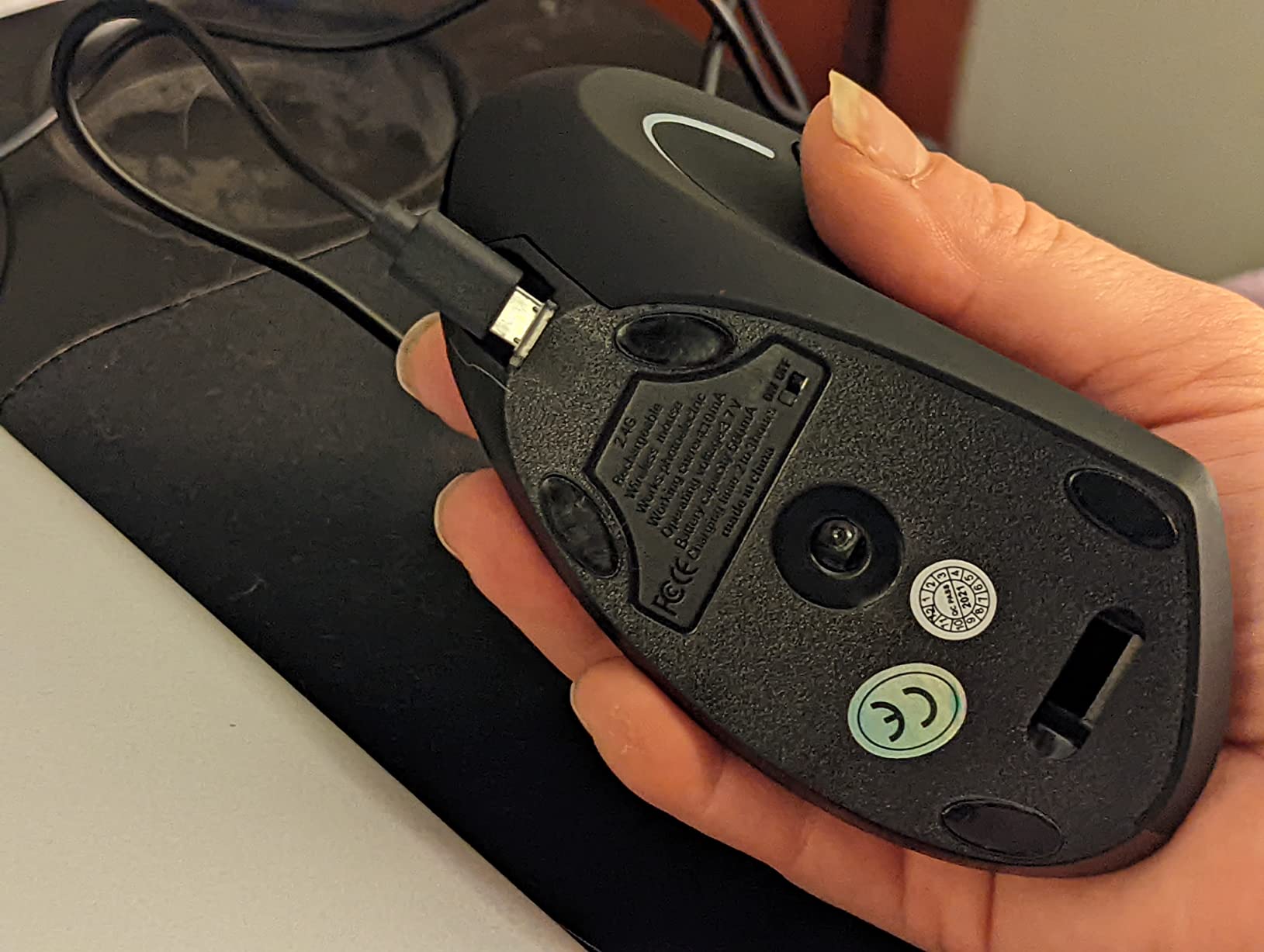
The Lekvey 7L-01 solves the one complaint every budget vertical shares: batteries. The built-in rechargeable pack runs 150 hours of continuous use, charged over the included USB-A to USB-C cable, so there is nothing to forget and nothing to buy.
Reviewers overwhelmingly credit the neutral handshake grip with reducing wrist pain, and report becoming comfortable within three to five days – faster than the two weeks the premium Logitech models typically need. That shorter reported ramp is the most practically useful thing in its review data.
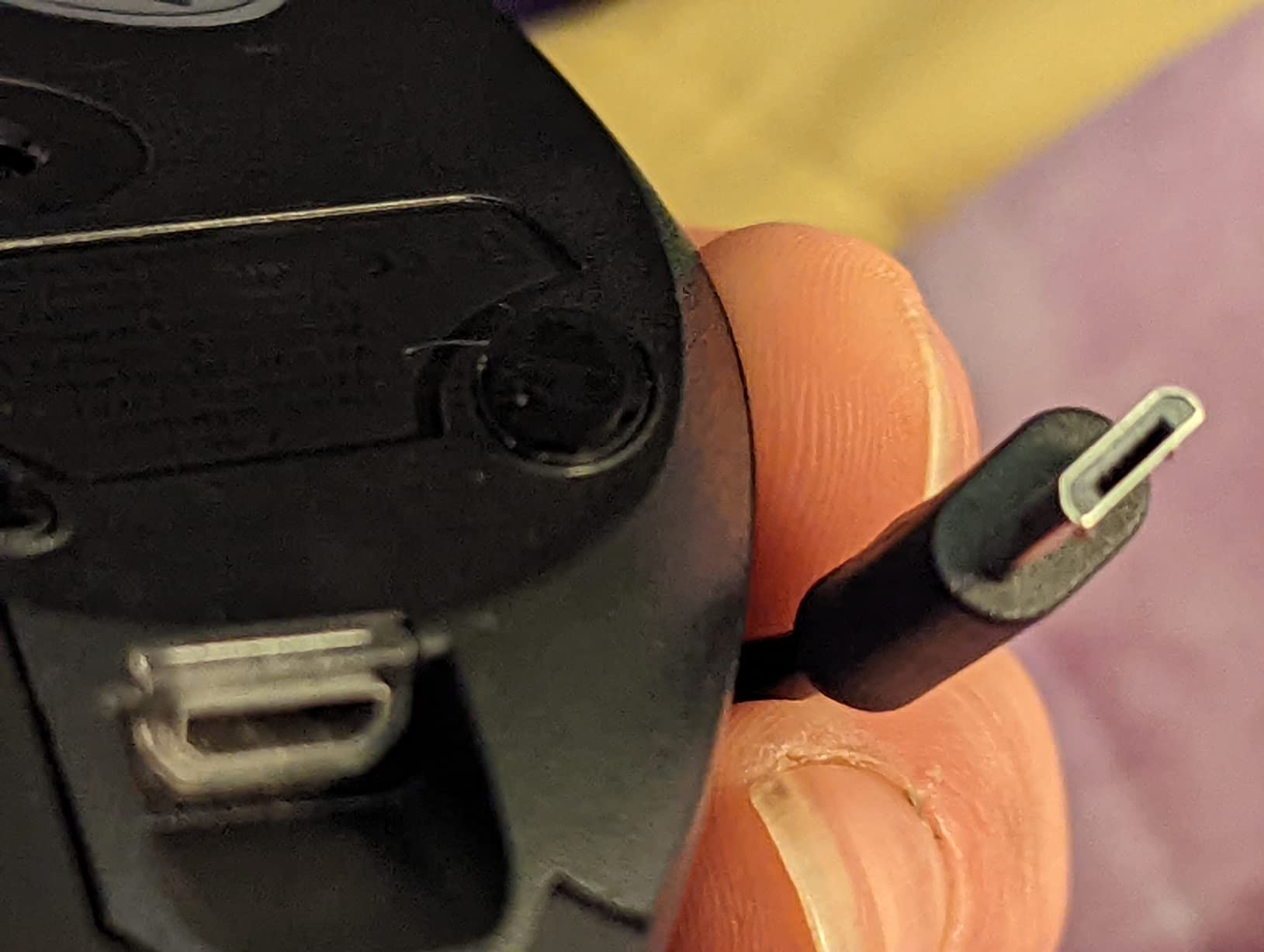
It runs Windows, Linux, and macOS, works over 2.4 GHz with the nano receiver at up to 10 meters, and includes back and forward buttons for long browsing sessions. The 36-month manufacturer warranty is the longest stated coverage in this roundup.
At 3.36 ounces it is one of the lightest bodies here, which reduces the forearm load during long sessions compared with heavier contoured shapes.
Hand Size Is the Deciding Factor Here
The manufacturer states this model suits medium or large hands at roughly 5 by 3 by 2.5 inches. That is not a throwaway line – small-handed buyers report struggling with the sculpted grip, and the product data flags it as the main caveat.
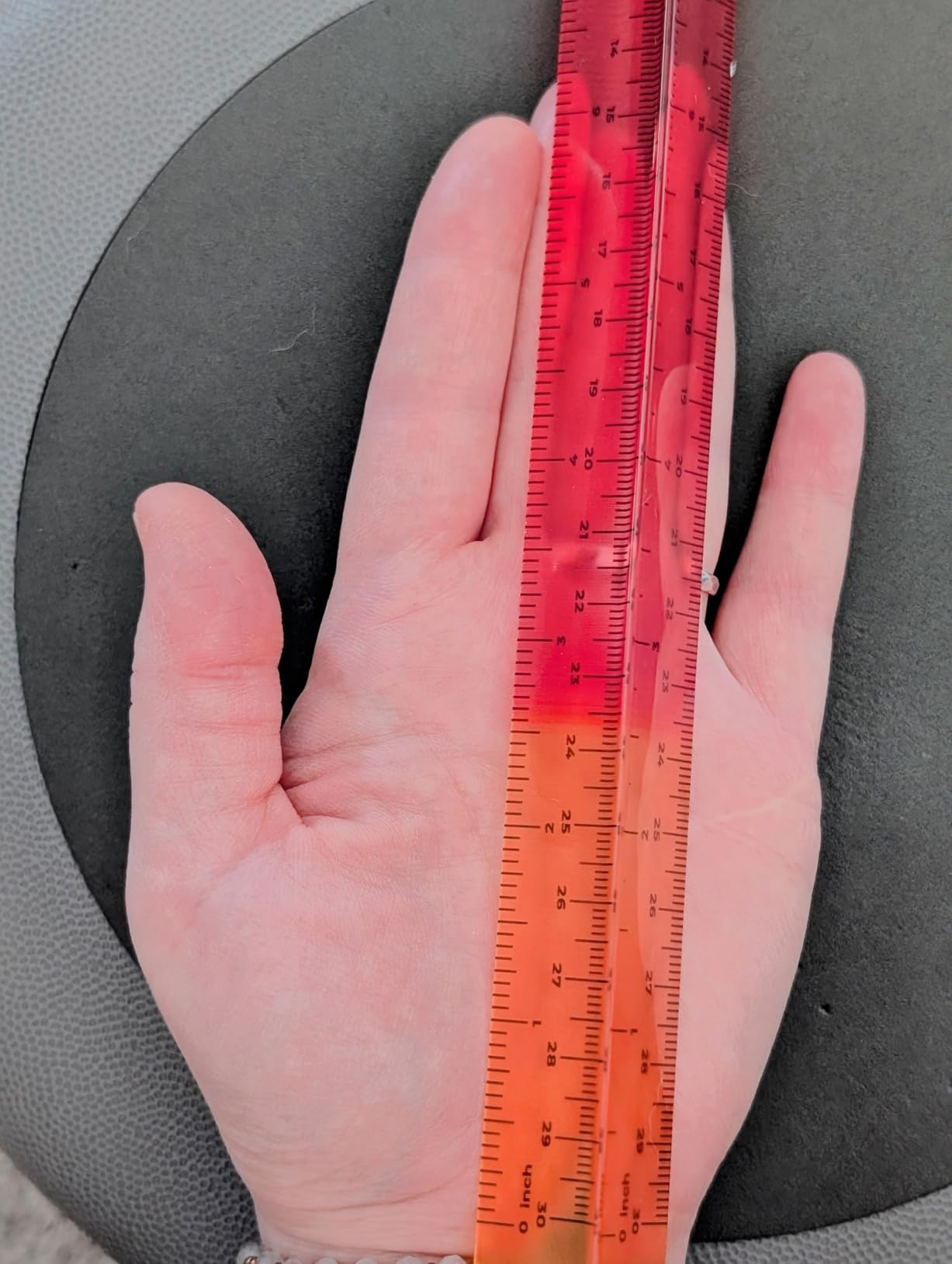
If your wrist crease to fingertip measurement is under 19 centimeters, skip this one. The Logitech Lift or the ProtoArc EM11 are built for that range.
Where It Falls Short
It is 2.4 GHz only, with no Bluetooth and no multi-device switching, so anyone working across a laptop and a desktop will be plugging in the receiver. There is no companion software, and the 1600 DPI ceiling is modest next to the TECKNET above.
The button set is fixed at six with no programmability. For most desk work that is fine; for anyone who remaps keys daily, it is a limitation you will feel.
6. TECKNET 16-Degree Trackball – Best Trackball for Medium and Large Hands
TECKNET Wireless Trackball Mouse, Bluetooth Mouse with Ergonomic, Black
16-degree tilt
500mAh rechargeable
5 DPI levels
3 device connection
Pros
- 16-degree tilt stated to cut muscle strain by up to 50 percent
- 500mAh battery gives a full day from 15 minutes of charging
- Silent clicking
- Built for medium to large hands
Cons
- DPI ceiling of 1200 is low
- Scroll wheel is pan mode only
- Matte paint wears at the thumb rest
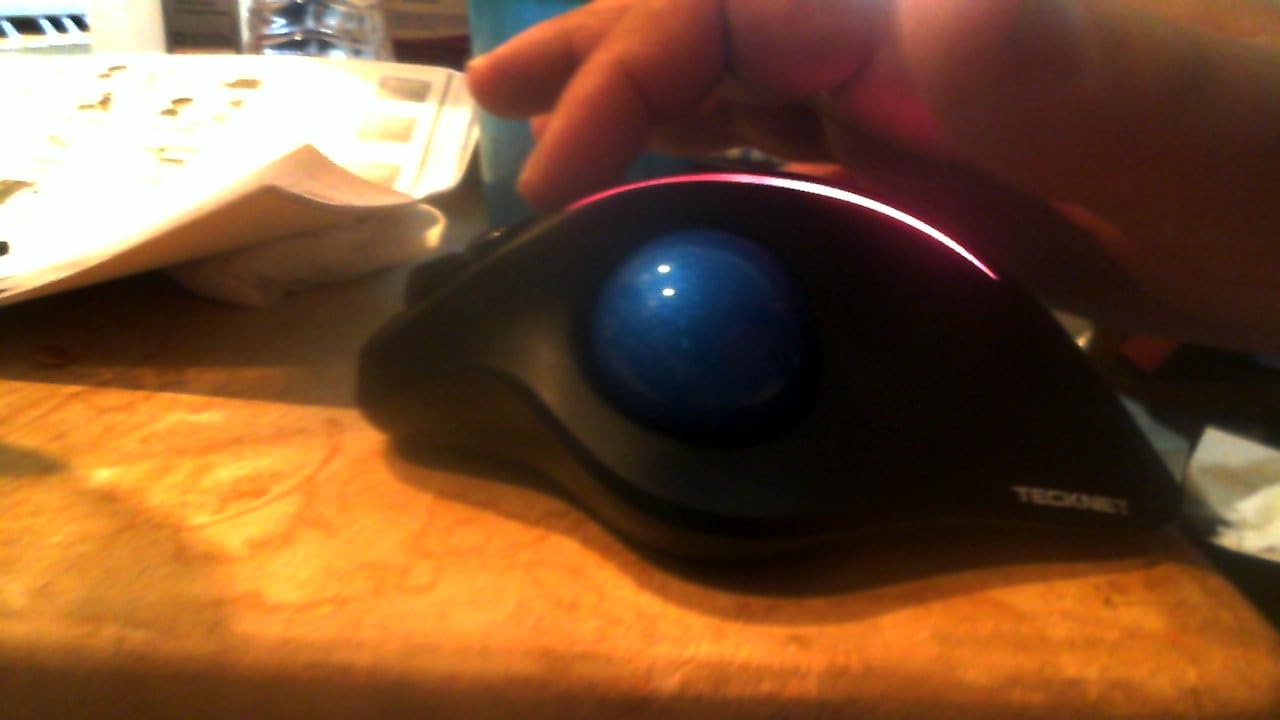
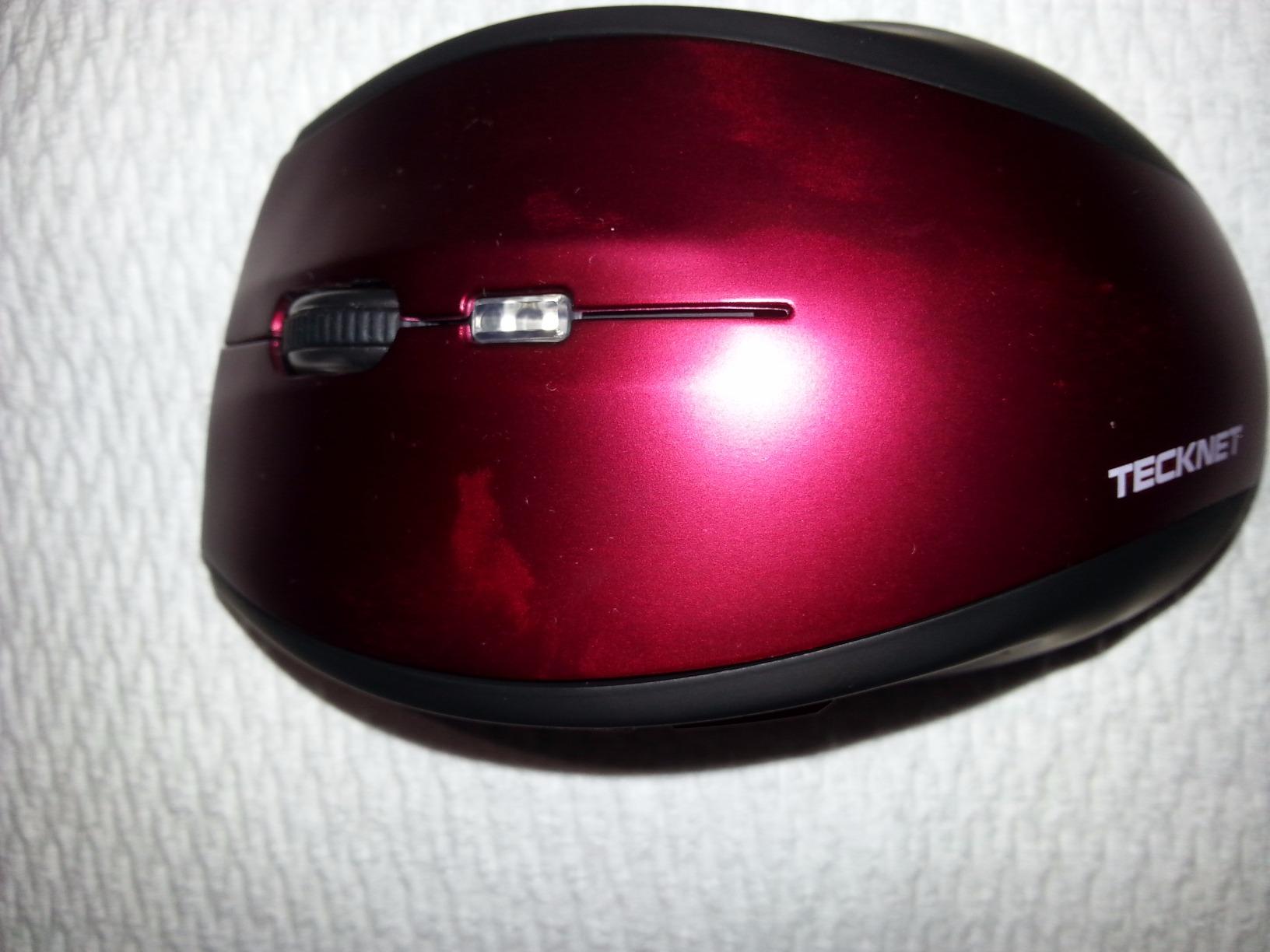
The TK-MS023 is the trackball to consider if the Nulea feels too compact. At 5.5 by 4.1 by 2 inches it is built for medium to large hands, and its 16-degree tilt is a meaningful posture improvement over a flat device – the maker states up to a 50 percent reduction in muscle strain, which is a manufacturer figure, so treat it as a directional claim.
Owners cite smooth ball tracking, a comfortable palm wedge, and durability that holds up to heavy daily use. Several report the ball survives repeated drops, which is the single most common trackball failure point.
Charging is unusually convenient for a trackball: the 500mAh pack gives about 15 minutes of charge for a full working day, and the mouse pairs with up to three devices across two Bluetooth channels plus 2.4 GHz at 34 feet of range.
It also works in confined spaces, which is where trackballs genuinely beat every optical option in this list – a lap desk, a plane tray, or a small writing board all work without a pad.
Tilt Angle Versus a True Vertical
Sixteen degrees is meaningful, but it is not the same correction as a 57-degree vertical. A tilted trackball reduces pronation and removes arm travel; it does not put the forearm in a full handshake position. If your pain is forearm-driven, expect relief but not elimination.
What the tilt buys you is a familiar shape. The learning curve is shorter than a ball, and most of the adjustment effort goes into the thumb rather than a whole new wrist posture.
Where It Falls Short
The 1200 DPI ceiling is low against the other devices here, so the pointer moves faster for the same hand motion, which partly undercuts the reduced-travel benefit. The scroll wheel offers pan mode but no hyper-scroll or horizontal scroll.
Some users needed external remapping software to customise buttons, and the painted matte finish wears off at the resting thumb contact point over time. The negatives are wear items rather than concept problems.
7. ProtoArc EM11 NL – Best Budget Vertical for Small and Medium Hands
ProtoArc EM11 NL Wireless Ergonomic Vertical Mouse, Rechargeable, Black
2400 DPI
500mAh rechargeable
USB-C charging
Silent clicks
Pros
- Reviewers rate the angle and button placement best in its class
- Silent primary click with good tactile feedback
- Some owners go months between charges
- Instant Bluetooth pairing with no software
Cons
- Scroll wheel can skip during fast scrolling and auto-scrolls when pressed
- Buttons are not programmable
- Glossy shell can feel slippery
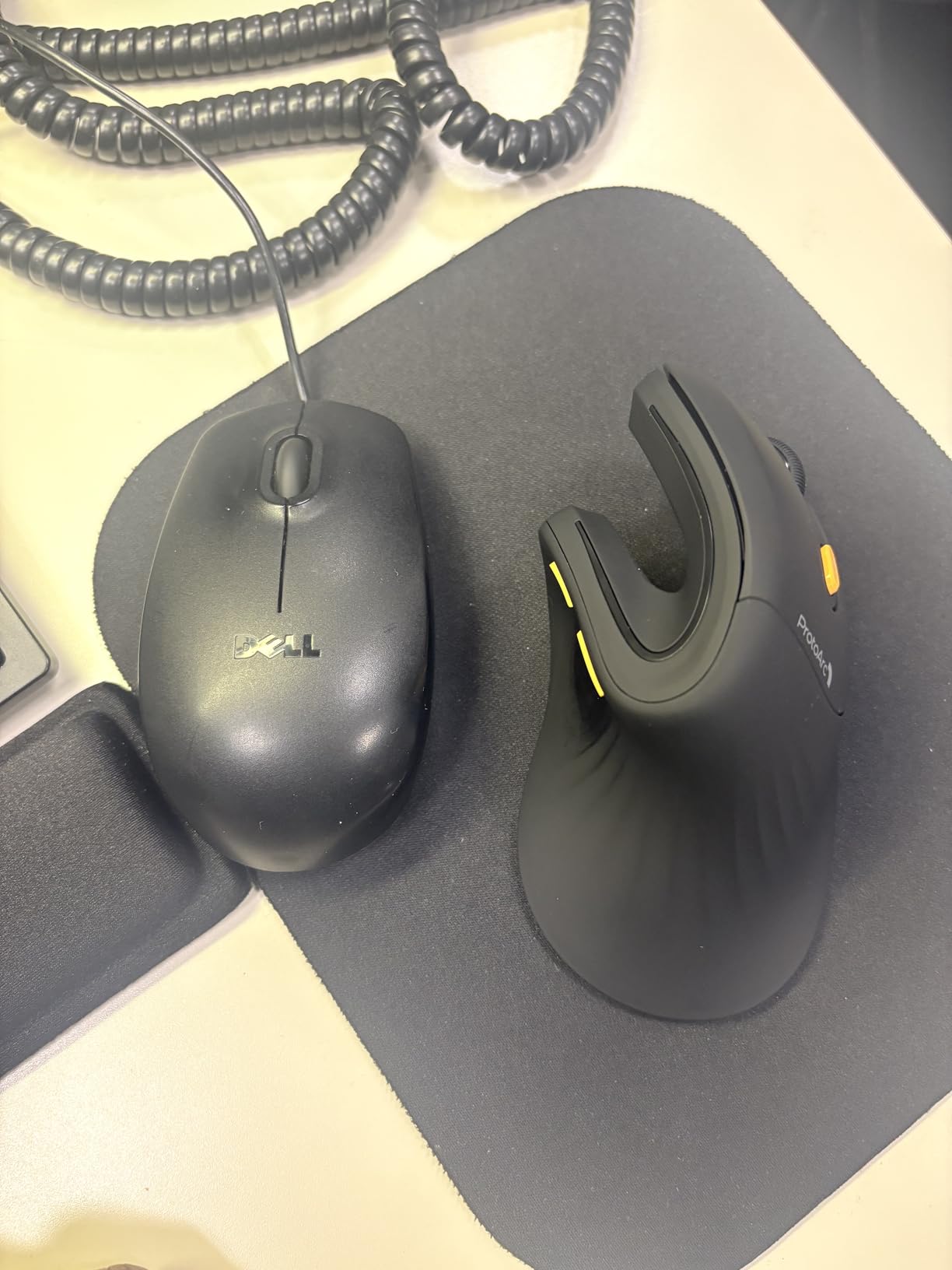
The EM11 NL is the model most often credited with replacing a far more expensive Logitech in the review data, with several owners explicitly stating they switched and preferred it for fit and cost. It is a vertical body with a wide palm rest sized for hands under 7.5 inches, so it fills the small-to-medium gap between the Lift and the Lekvey.
Battery life is its standout: the 500mAh rechargeable Li-ion pack lasts months between charges for some owners, charged over the included USB-C cable. Clicks are silent with good tactile feedback, and Bluetooth pairing is instant with no software or driver step.
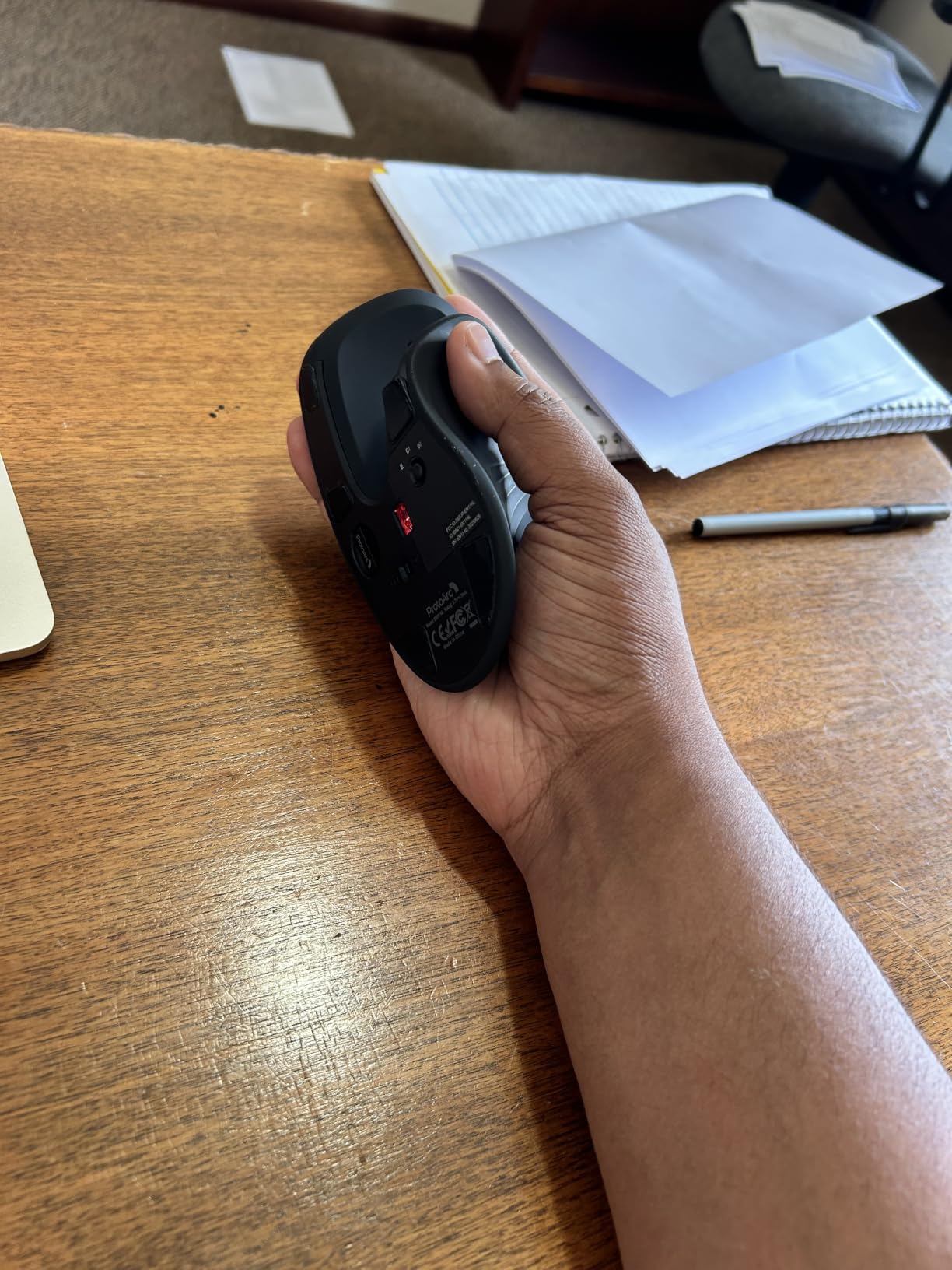
It pairs with up to three devices over dual Bluetooth plus 2.4 GHz, and runs Windows, macOS, and Android. At 2400 DPI across three levels, the sensitivity is workable though not exceptional.
Reviewers consistently rate the vertical angle and button placement as the best in this price class, and the vertical shape does keep the wrist straight with visibly less elbow and wrist discomfort over long workdays.
Why Owners Switch From a Premium Brand
The recurring story in the reviews is a person who had been using a much costlier Logitech vertical, found it too big or too rigid, and moved to the EM11 with no regret. The wide palm rest and lighter 2400 DPI body are doing the work that brand normally charges for.
It is also a reasonable way to test the vertical concept on a modest budget before committing to a premium body. If your wrist improves in a month, you can move up a tier with confidence.
Where It Falls Short
The scroll wheel is the most common complaint. It can miss steps during fast scrolling, and the middle scroll button is easy to press by accident, triggering jerky auto-scroll. That is an annoying pairing if you scroll a lot.
Buttons are not programmable, forward and back are unsupported on macOS, and some users find the glossy shell too slippery so the mouse slides forward. It is also listed for hands under 7.5 inches, so very large hands should look elsewhere.
8. Logitech MX Ergo S – Most Adjustable Trackball
Logitech MX Ergo S Advanced Wireless Trackball Mouse USB C – Graphite
20-degree tilt
2048 DPI
8 buttons
120 day battery
Pros
- Twenty-degree tilt stated to cut muscle strain by 27 percent
- One-button switch between speed and precision modes
- 80 percent quieter clicks than the previous generation
- Up to 120 days per charge
Cons
- Only a 20-degree tilt against a 57-degree vertical
- 2048 DPI is modest for its tier
- Eight buttons need Logi Options+ to be useful
The MX Ergo S is the most adjustable pointing device in this roundup. The 20-degree tilt lifts the forearm out of full pronation, the sculpted shell and soft rubber grip are contoured for medium to large hands, and a single button switches the ball between speed and high-precision tracking modes.
It also has the deepest software integration available here: six customizable buttons plus Smart Actions in Logi Options+. For a user with a diagnosed condition who wants to minimise clicks and shortcuts entirely, that combination is the point of the device.
Battery life is exceptional for a trackball: up to 120 days on a full charge, or about 24 hours from a one-minute charge over USB-C. Clicks are 80 percent quieter than the previous generation, which matters in a shared office.
It connects over Bluetooth or the included Logi Bolt receiver with Easy-Switch, and the shell uses 20 percent certified post-consumer recycled plastic.
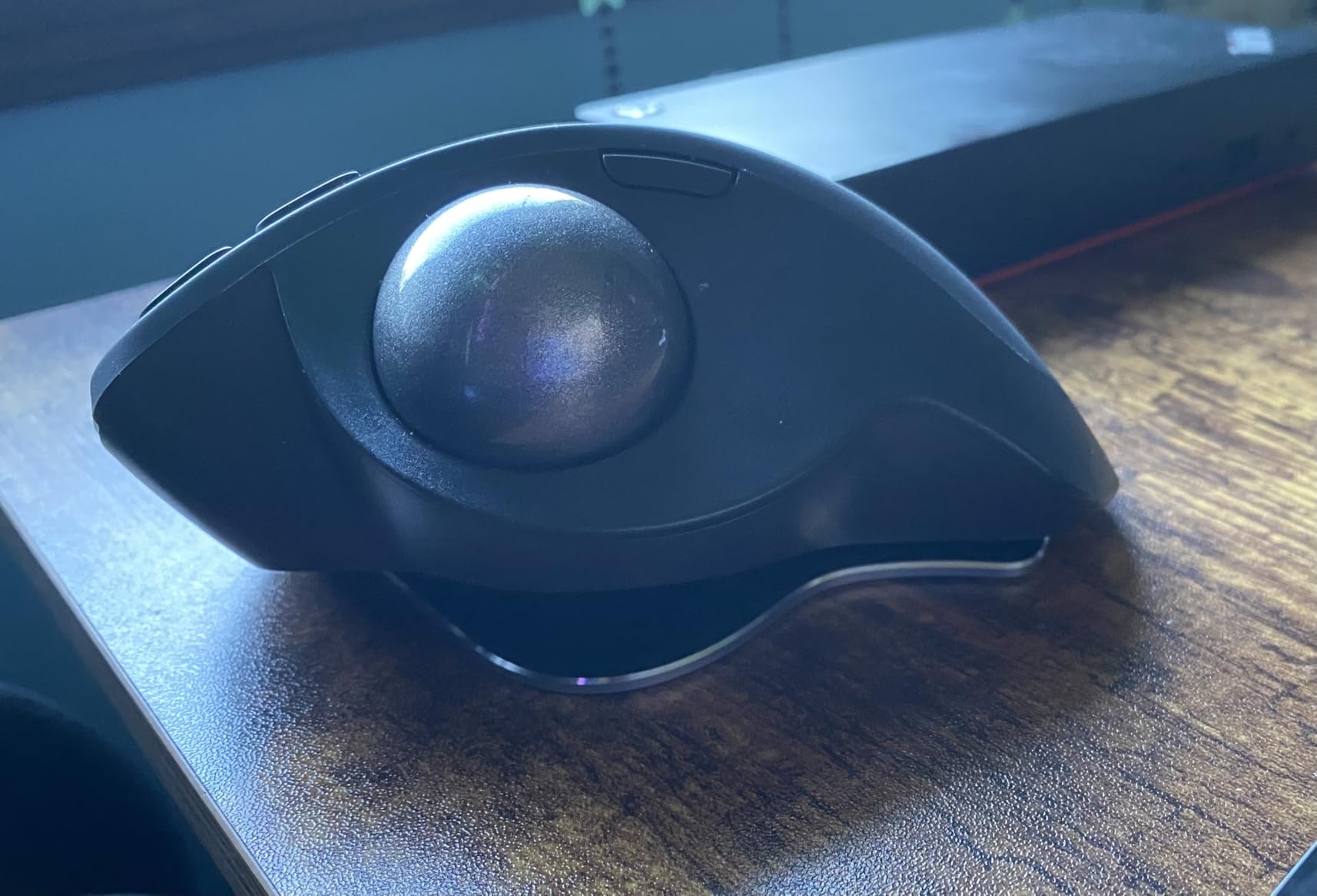
What Twenty Degrees Actually Buys You
Logitech states the 20-degree tilt reduces muscle strain by 27 percent, and the design is ergonomist certified. That is a real improvement over a flat mouse, but it is roughly a third of the correction a 57-degree vertical provides, so this is a partial answer where a vertical is a full one.
Choose it when you want arm movement removed but also want a familiar, desk-friendly shape and a full button set. If forearm rotation is your main complaint, read number one first.
Where It Falls Short
It carries the highest price point of the twelve, and the 2048 DPI maximum is modest beside the 4000 DPI of Logitech’s own vertical mice. Reviewers also note that the eight buttons are wasted without Logi Options+, which takes macOS 14 Sonoma or Windows 11 for full support.
It is also the newest listing here with the smallest body of long-term owner feedback, so durability reports are thinner than the other trackballs. At 815 reviews it is the least battle-tested recommendation we make.
9. seenda Thumb Trackball – Best Full-Size Trackball for Palm Support
seenda Wireless Trackball Mouse, Ergonomic Bluetooth Rollerball Mice,Purple
5 DPI levels
Tracks on any surface
3 device connection
Rechargeable
Pros
- Contoured full-size shape gives solid palm support
- Tracks on desks fabric and even your own hand
- Five DPI levels from 200 to 1600
- Three-device switching in one press
Cons
- Short 3.0 meter wireless range
- Button programmability is not specified
- Large footprint suits medium to large hands
The seenda MOU-301 takes the opposite approach to the compact rollerballs: it is a full-size device with a contoured shape following the natural curvature of the hand, built to give a medium to large palm real support rather than perch on a small ball housing.
Buyers cite the stationary-hand operation, which removes constant arm movement, and the cord-free freedom as the main draws. It switches among three devices over 2.4 GHz or Bluetooth with a single press, and the built-in rechargeable battery charges over the included cable.
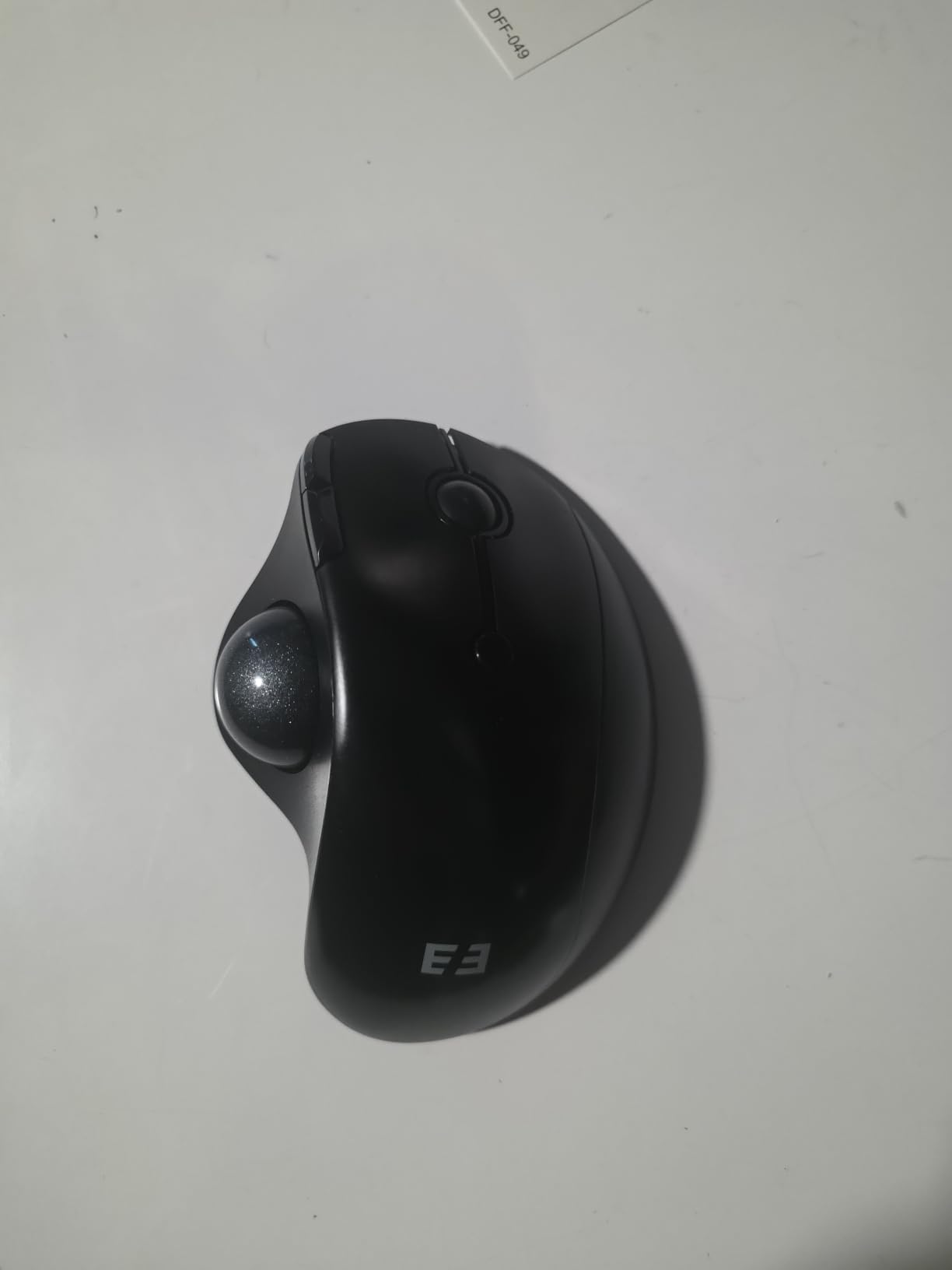
It tracks on desks, on fabric, and even on the back of your own hand, so no pad is required. Five DPI levels from 200 to 1600 give a useful range for both precision work and fast navigation, and it is offered in a wide range of colours.
If you want a trackball that still feels like a full mouse in the hand, this is the one to compare against the Nulea before you commit.
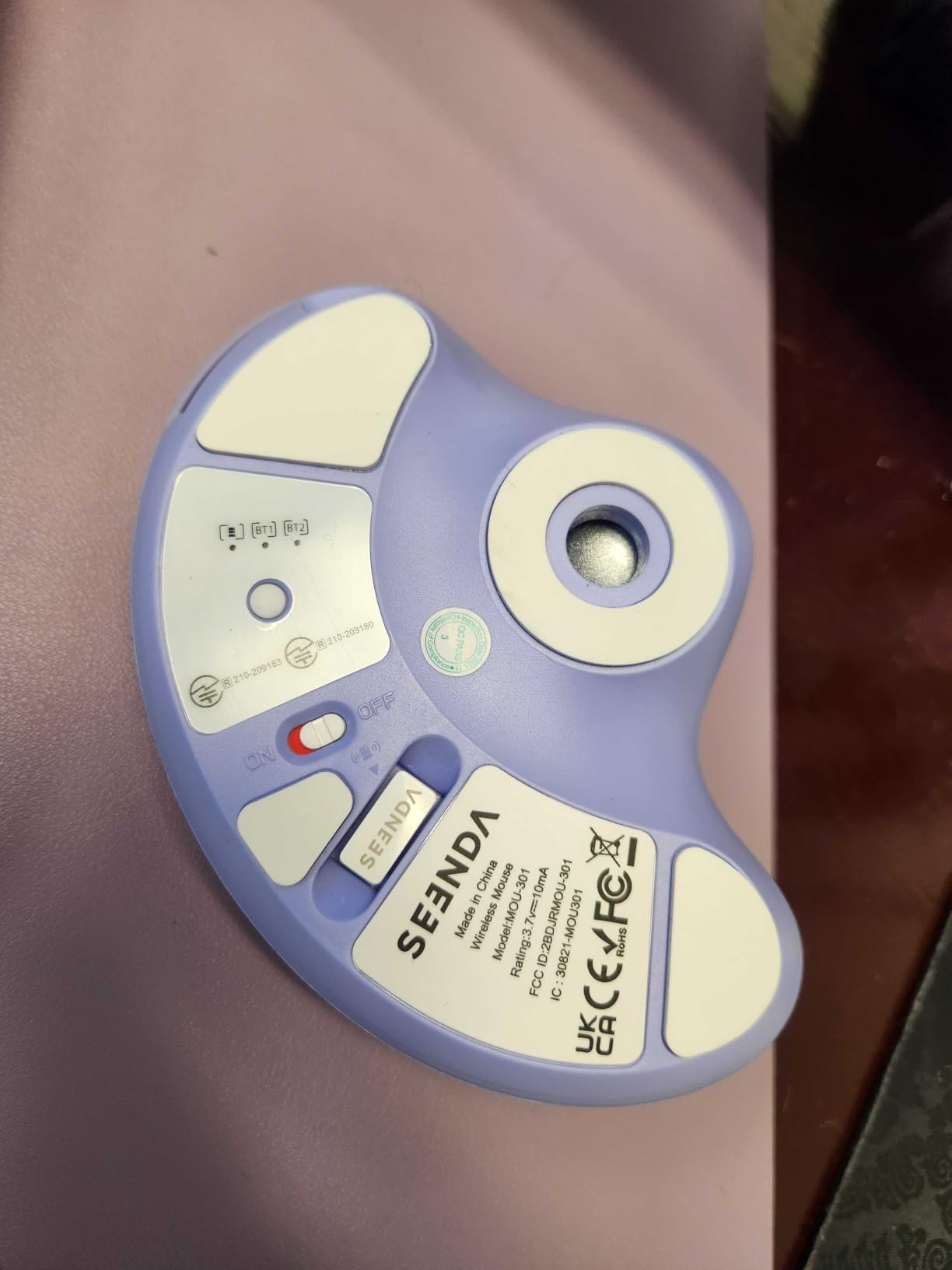
Full Size Versus Compact Rollerball
The design decision here is support. A compact rollerball asks your palm to grip a small housing, which works until you are in hour six. A full-size contoured body spreads the load across the whole hand, which is closer to what a large vertical provides.
That also means it needs desk space. If you are working in a cramped corner or a hot-desking setup with limited surface area, the size becomes a disadvantage rather than a feature.
Where It Falls Short
The 3.0 meter wireless range is short, and it is the most limited in this roundup. That is fine across a desk and a problem the moment you stand up.
Button programmability is not specified beyond the physical six buttons, and it is the newest listing here at 1462 reviews, so there is not yet a large body of long-term durability feedback. Treat it as a promising option rather than a proven one.
10. Evoluent VerticalMouse Wired – Best for Button Customisation
Evoluent – World’s Original Vertical Mouse, Wired Ergonomic Mouse for Right Hand, Medium to Large, Helps with Carpal Tunnel and Wrist Strain, Customizable 6 Buttons, 4 Speed Settings, Comfortable Grip
Steep vertical angle
6 customizable buttons
4 pointer speeds
Wired USB
Pros
- Invented the vertical mouse form factor
- Owners with diagnosed carpal tunnel report relief and no recurrence
- Separate middle click button that is not the wheel
- Finger rest keeps the pinkie off the desk
Cons
- Light body slides on a bare desk
- Regular size suits medium hands only
- Wired only with Windows-only software
The Evoluent VM4R is the original. It was designed by Jack Lo in 1994 and introduced in 2002, and it has the steepest handshake angle of anything in this roundup – a genuine vertical with no compromise in the name. Multiple owners who switched to it after a carpal tunnel or tennis elbow diagnosis report symptoms resolved.
The feature that separates it is control. Six customizable buttons with an optional Mouse Manager utility, four on-board pointer speeds with indicator lights you can change without opening OS settings, and a dedicated middle-click button that does not double as the scroll wheel.
Long-term durability is its quiet strength: several owners report using the same unit for over a decade, and it has been selected as an approved ergonomic solution by many large companies. The finger rest that keeps the pinkie from rubbing the desk is a comfort detail most competitors omit entirely.
It runs as a wired USB device, which removes charging and wireless dropouts from the equation completely. For a fixed desk, that is a feature rather than a limitation.
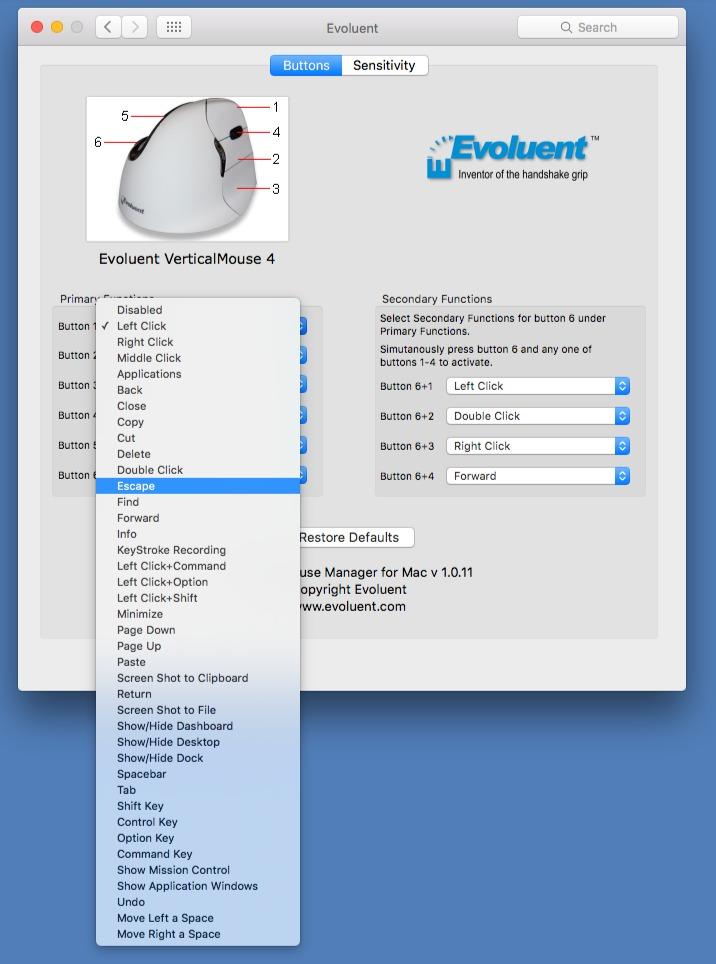
The Case for Going Wired
Wireless mice introduce two failure modes that never happen on a cable: connection dropouts mid-task and battery anxiety. If your desk is permanent and your work is high-stakes, eliminating both is worth a cable that never gets in the way.
There is a real drawback here, though. Reviewers report the light plastic body sliding on smooth surfaces, so clicks jostle the pointer. Use a mouse pad with grip and the problem disappears.
Where It Falls Short
The regular VM4 is a medium size, and very large hands need the separate large model. The customization software is Windows only, and the smooth shiny finger surfaces are reported to cause sweating and degrade over time.
A few units have reported left-button debounce failure producing double clicks after a couple of years. At over 2295 reviews, that is a real but minority pattern worth knowing about before you buy.
11. ELECOM EX-G – Best Left-Handed Trackball for Carpal Tunnel Strain
ELECOM EX-G Left Handed Thumb Control Trackball Mouse Wireless M-XT4DRBK-G
Left-handed design
6 programmable buttons
750/1500 DPI
Removable ball
Pros
- One of very few left-handed trackballs available
- Six programmable buttons with multi-profile support
- Removable red ball can be popped out for cleaning
- Lightweight 4.5 oz body
Cons
- Ball can catch at high tracking speeds
- AA battery drains about every two weeks
- Buttons lose tactility within two to three years
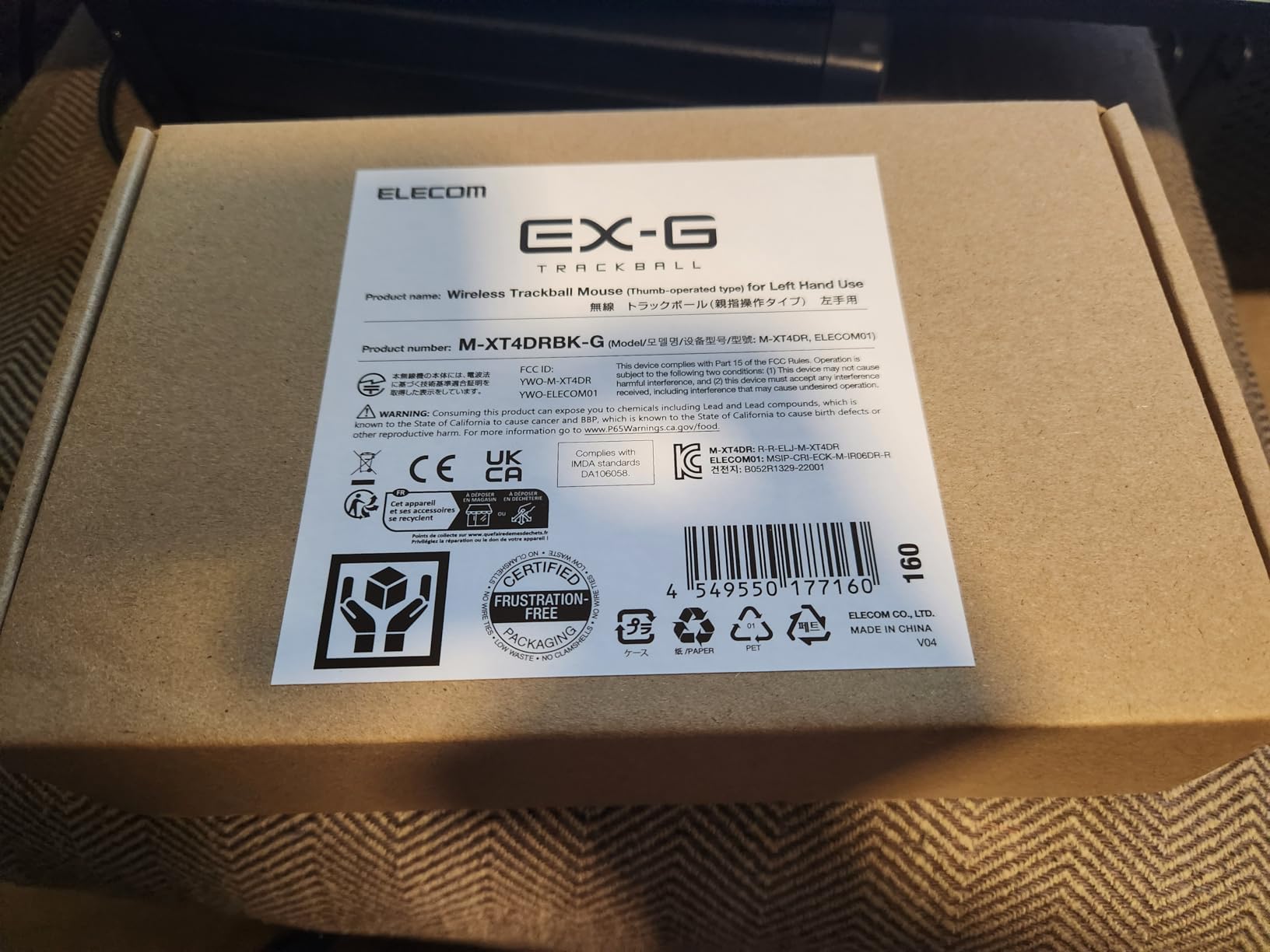
Left-handed users have almost nothing to choose from, and the complaints in forum threads about that are among the most consistent we found. The ELECOM EX-G M-XT4DRBK-G is one of the few left-handed trackballs on the market, and it fills that gap properly.
The thumb-operated ball means the left arm never crosses the midline, which avoids ulnar deviation – a contributor to wrist strain that right-handed users simply do not have. Users recovering from stroke or right-hand injury report it restored comfortable computer use entirely.
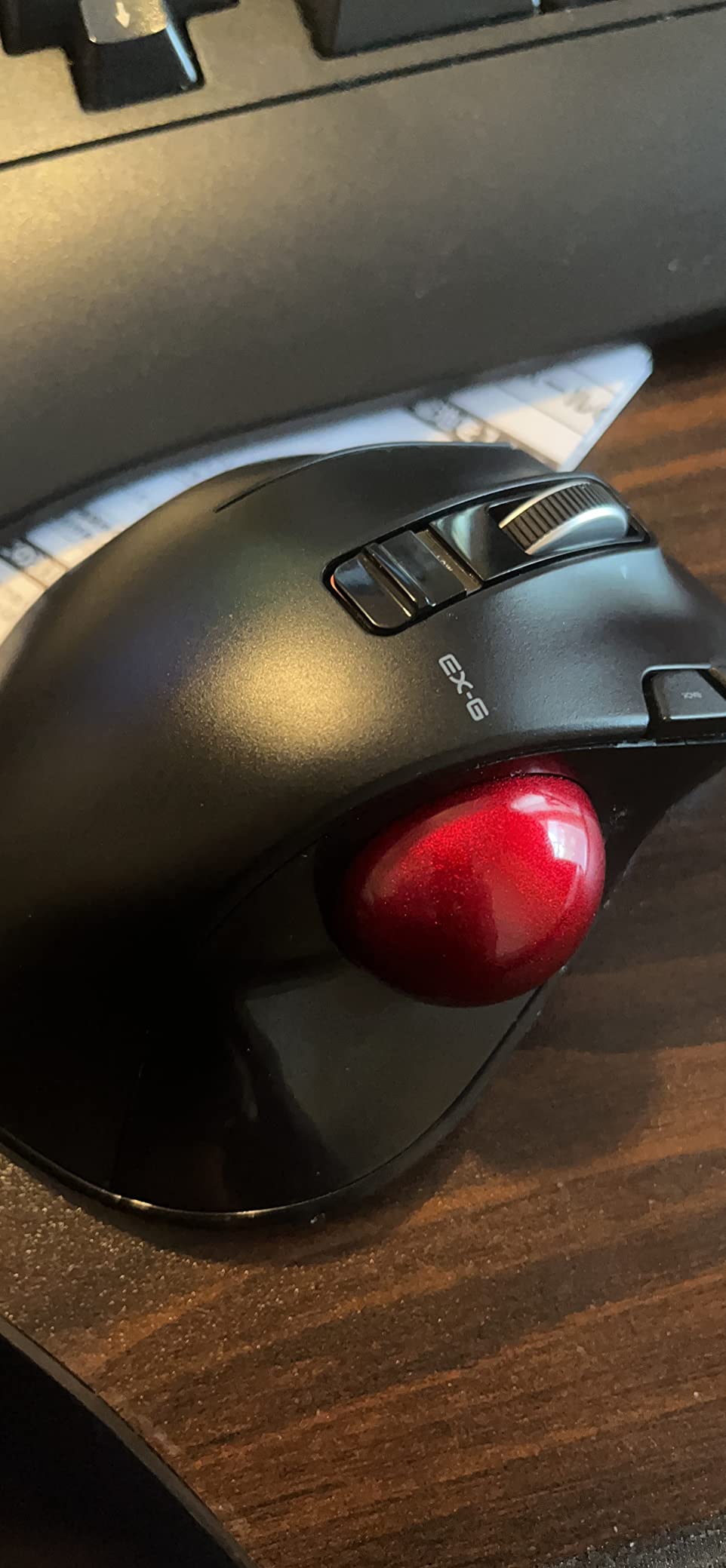
Six programmable buttons with multi-profile support are configured through ELECOM Mouse Assistant, and the ball is removable so you can pop it out and clean it, which is the maintenance step most trackball owners skip and then wonder about.
At 4.5 ounces it is one of the lightest devices here, and it carries a two-position slow and fast tracking slider under the wheel alongside switchable 750 and 1500 DPI. Owners recommend setting the underside switch to slow and raising the pointer speed slider for much finer control.
Why Left-Handed Users Need Their Own Category
Every other model in this roundup is right-hand only, and a right-handed vertical used by a left-handed user forces the arm to cross the body midline and twist, which adds a different strain pattern rather than removing one. That is why the option genuinely has to exist separately.
This trackball is also smaller than a full-size device at 3.7 by 4.9 by 1.9 inches, so it suits smaller desks. It is roughly half the price of comparable Logitech trackballs.
Where It Falls Short
The AA battery drains roughly every two weeks, which is much faster than the rechargeable devices in this list. A third side button is disabled by default and is easy to hit while rolling the ball.
The ball can develop a slight catch or bumpiness at high tracking speeds, which hurts precision for fast movements, and several owners report shortened unit lifespans with buttons losing tactility within two to three years. The software is also Windows and macOS only and can conflict with other mouse utilities.
12. Anker 2.4G Vertical – Best Low-Risk Starting Point
Anker 2.4G Wireless Ergonomic Mouse, Right Hand Vertical Mouse USB Receiver
25-degree angle
800/1200/1600 DPI
5 meter range
4.48 ounces
Pros
- Lowest barrier to testing the vertical concept
- 800/1200/1600 DPI sensor
- Next and previous page buttons
- Power saving mode after 8 minutes
Cons
- 2.4 GHz only with no Bluetooth
- Two AAA batteries not included
- Key clicks are audible
With 53464 reviews, the Anker AK-98ANWVM-UBA is the highest-volume product in this roundup and a long-standing best seller in Computer Mice. That matters for a first purchase: it is a low-risk way to find out whether the vertical shape works for your hand before you spend more on a premium body.
The 25-degree ergonomic structure delivers a neutral handshake wrist and arm position, and reviewers credit the adjustable DPI and the light 4.48 ounce body for comfort in extended sessions. The power-saving mode disconnects after 8 minutes of inactivity, which is a genuinely useful battery feature.
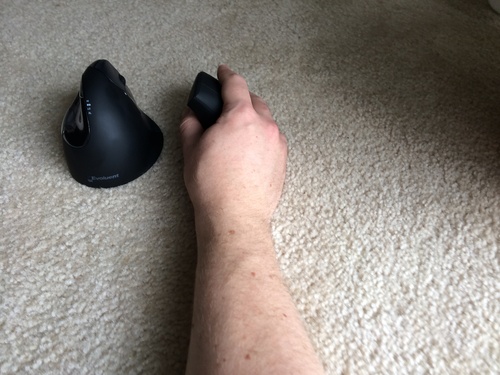
Next and previous page navigation buttons sit under the thumb, and the 2.4 GHz receiver stores in the base of the mouse so it does not get lost. It runs on Linux and Windows 10, with a 5 meter range and optical tracking.
Buyers describe a short adjustment period before the vertical shape stops feeling awkward – one of the faster ramps in this category, which suits someone who would not give a premium mouse two weeks.
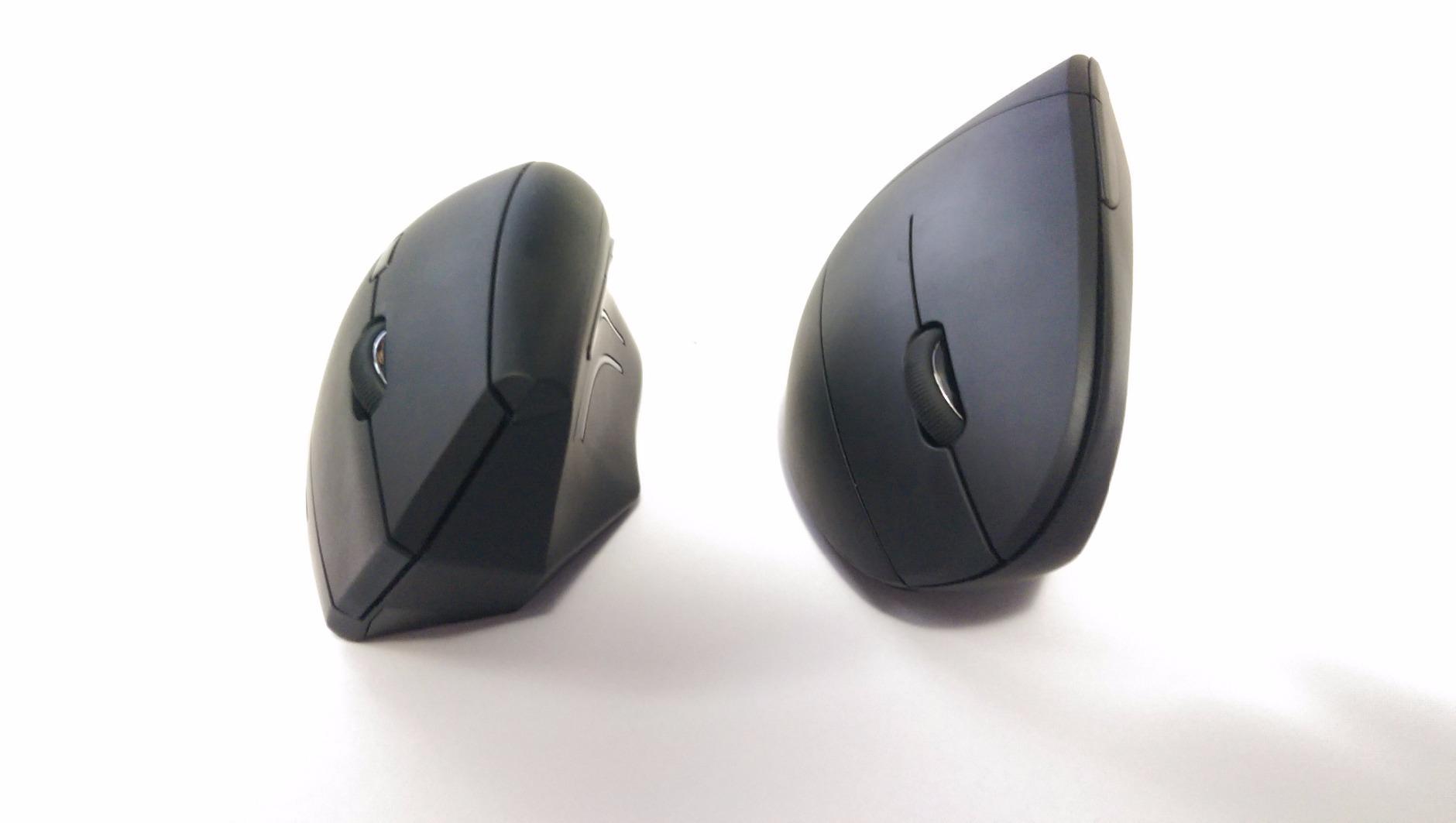
The Cheapest Useful Test of a Concept
The smartest way to spend on ergonomics is to test cheaply first. If your wrist improves on a 25-degree body within a month, you have proven the concept and can move to a steeper 57-degree vertical without guessing.
If a 25-degree angle does nothing, you have learned something valuable for very little, and a trackball is your next escalation step rather than another vertical.
Where It Falls Short
It is 2.4 GHz only with no Bluetooth, so no multi-device switching. It takes two AAA batteries that are not included, and the key clicks are audible, which rules it out for shared offices.
At 25 degrees, it is the shallowest vertical here, so the pronation correction is smaller than the 57-degree Logitech bodies. It is also the lowest rated of the twelve at 4.2, which tells you the concept works but this specific execution is not exceptional.
Which Mouse Type Matches Which Pain – Symptom To Design
Match the design to where the pain actually shows up, and the choice makes itself. Here is the symptom-to-design path.
1. Pain at the base of the thumb, or a forearm that aches after a long session: forearm pronation is the culprit. Choose a true vertical at 57 degrees – the Logitech MX Vertical for medium and large hands, the Logitech Lift for small and medium hands, or the Lekvey if you want a rechargeable body.
2. Wrist pain that shows up after heavy scrolling or trackpad work: the problem is repeated travel, not just rotation. Raise DPI on any of the models above, and the TECKNET 4800 DPI vertical gives you the widest sensitivity range to do it with.
3. Wrist pain that appears in the fingers or an aching hand even after switching to a vertical: you need a trackball. Arm movement has to go entirely, which means the Nulea M501, the TECKNET 16-degree trackball, or the Logitech MX Ergo S.
4. Shoulder and neck pain alongside wrist pain: your setup forces you to reach. A vertical mouse shortens the reach, and a trackball shortens it further. Check your monitor height at the same time, because a high screen will keep the shoulder raised regardless of what your hand is holding.
5. Pain localised to the thumb joint only, and getting worse: a trackball moves the workload onto the thumb. Test carefully, and if it is already sore, stay with a vertical.
If a vertical mouse does not help after a genuine two-week trial, the escalation step almost everyone skips is the trackball. That removes the last mechanical variable.
How To Measure Your Hand Size Before You Buy
Hand size decides whether a mouse fits, and no product page tells you this as clearly as the manual should. Measure once and you can map straight to the roundup above.
1. Lay your hand flat, palm down, fingers extended and relaxed.
2. Measure from the crease at the base of your wrist where the skin folds, to the tip of your middle finger.
3. Under 17 centimeters is small. Between 17 and 19 is medium. Over 19 is large.
Then match it. Small hands belong in the Logitech Lift or the ProtoArc EM11 NL, both of which are explicitly built below a larger footprint. Medium hands fit the MX Vertical, the Nulea, the TECKNET verticals, and the seenda trackball.
Large hands should skip the Lift, which buyers report feels cramped, and look at the Lekvey, the TECKNET 16-degree trackball, the seenda, or the MX Ergo S, all of which are sized or recommended for medium-to-large hands.
Left-handed users have one device here, the ELECOM EX-G, and should not attempt to adapt a right-handed body. The cross-body reach adds strain rather than removing it.
Your First Two Weeks With a New Ergonomic Mouse
The most common failure we see in forum discussion is not buying the wrong mouse. It is abandoning the right mouse in week one, before muscle memory has adapted, and concluding the whole category does not work. Do not evaluate an ergonomic mouse before day 14.
Days 1 to 3: expect awkwardness. Reviewers of the Logitech models describe knocking the mouse over repeatedly, and slipping at the desk. Loosen your grip deliberately and stop white-knuckling it.
Days 4 to 7: the shape starts to feel familiar. The cheaper verticals report settling faster, often in three to five days, while the premium Logitech bodies take closer to two weeks.
Days 8 to 14: this is the window that matters. Owners who pushed through to roughly two weeks report noticeably less end-of-day fatigue. If you are still evaluating on day 5, you are evaluating too early.
Trackballs have a different curve. The relief is usually immediate because arm movement stops at once, but the thumb takes longer to take over the workload, and a slight catch or bumpy ball in the first week usually means a cleaning job rather than a return.
One habit helps more than any other: move your mouse to the far side of the desk for the first week so you cannot slide back to your old mouse unconsciously.
Mouse Pads, Wrist Rests, and the Rest of Your Desk
For carpal tunnel syndrome, a mouse pad cannot rescue a badly shaped mouse. Surface choice matters, but it is third in line after the shape of the device and the angle of your forearm.
Surface for optical and vertical mice: choose a pad with enough texture that the mouse does not slide when you click. The Evoluent review data specifically flags a light body jostling on a bare desk, and a grippy pad fixes it.
Wrist rest type: memory foam supports a resting wrist without heat build-up; gel feels softer and warms up; a hard rest is the least useful option. Rest the palm and forearm on it rather than pressing the wrist into a crease.
Trackballs need almost nothing: this is the one place the pad debate is settled. A trackball tracks on a desk, a sofa arm, or a lap, which is a genuine advantage of the format rather than a workaround.
Keyboard angle: a split or tented keyboard that keeps the forearms flat does more for wrist strain than any wrist rest. If you are buying one thing alongside the mouse, make it this.
Monitor height: if the top of your screen sits above eye level, you will raise your shoulder to look at it, and no pointing device will compensate.
Gaming Mice and Wrist Pain
The honest answer is that a true 57-degree vertical is a poor competitive gaming mouse, and reviewers of the MX Vertical name its less precise feel for fast twitch aiming as a main complaint. If gaming is a large part of your week, you are choosing between two goals.
Trackballs perform worse under competitive pressure, because the precision-mode toggle and the learning curve both cost reaction time. The gaming question comes up constantly in forum threads and is rarely answered clearly.
The workable compromise most people land on is a two-device setup: a vertical or trackball for the working day, and a conventional low-latency mouse for sessions. Reviewers in the forums describe exactly this split, with the ergonomic device on the desk for everything that is not a match.
Trackballs do have one genuine gaming advantage: they need almost no surface, so they work on a lap desk or a cramped hotel table. The other side of that coin is the thumb doing more precise work than most people expect.
When To Stop Shopping and Talk To a Clinician
A mouse is a workplace adjustment, not a treatment. These signs mean the shopping phase is over.
1. Numbness or tingling in the thumb, index, middle, or half the ring finger, especially at night.
2. Grip weakness, or dropping things you normally do not drop.
3. Symptoms that are worsening rather than stable over several weeks.
4. Visible wasting at the base of the thumb, or pain that wakes you from sleep.
5. A known diagnosis of carpal tunnel syndrome, in which case a mouse is a sensible addition to your care, never a replacement for it.
Persistent, worsening, or numb symptoms warrant a clinician rather than another mouse. That is not a hedge; it is the honest limit of what any device on this list can do.
Frequently Asked Questions
Do vertical mice actually help with carpal tunnel?
Yes, but only in a specific way. A vertical mouse holds your forearm in a neutral handshake angle, which removes the sustained forearm rotation a flat mouse forces you to hold, and that lowers the strain load on the wrist and forearm muscles. It can reduce the mechanical contribution to symptoms and may slow progression. It cannot reverse nerve compression that already exists, and it is not a treatment for a diagnosed condition.
What is the best mouse that doesn’t hurt my wrist?
For most people, the Logitech MX Vertical, because its 57-degree angle is the steepest true vertical here and the dedicated thumb rest keeps the hand in a handshake position. If you have small to medium hands, the Logitech Lift is the same angle at a smaller scale. If forearm rotation is not your problem but repeated arm movement is, choose a trackball such as the Nulea M501 instead.
What is the best ergonomic mouse pad for carpal tunnel syndrome?
Choose a pad with enough texture that the mouse does not slide when you click, which matters most for lighter vertical bodies. For wrist rests, memory foam supports a resting wrist without the heat build-up of gel. If you use a trackball you need almost no pad at all, since it tracks on a desk, fabric, or your own hand. A pad cannot compensate for a badly shaped mouse, so fix the device first.
What is the best ergonomic keyboard and mouse for carpal tunnel syndrome?
Treat the desk as a system rather than a single device. A split or tented keyboard keeps the forearms flat, which does more for wrist strain than any wrist rest, and a monitor with its top edge at or below eye level stops you raising your shoulder. Pair that with a 57-degree vertical mouse such as the Logitech Lift for small and medium hands or the MX Vertical for larger hands, and the posture work is done from three directions at once.
How long does it take to adjust to a vertical mouse?
Plan on at least two weeks before you judge it, and do not evaluate before day 14. Owners describe days 1 to 3 as awkward, with the mouse getting knocked over, and days 4 to 7 as the point where the shape starts to feel familiar. Premium Logitech bodies typically take closer to a fortnight, while cheaper rechargeable verticals report settling in three to five days.
Conclusion: Pick the Angle, Not the Feature List
Twelve devices later, the pattern is clear. Every product that genuinely addresses forearm pronation does it the same way – by holding the hand in a neutral handshake angle – and the products that add buttons, software, and sensors without changing that angle are adding productivity, not ergonomics.
Our pick for the best ergonomic mouse for carpal tunnel strain remains the Logitech MX Vertical: the steepest true vertical here, a 4000 DPI sensor that cuts hand travel, and the strongest body of long-term owner reports. Small-handed buyers should take the Logitech Lift, and anyone whose pain is movement-driven rather than rotation-driven should go straight to a trackball.
Measure your hand, commit to the full two weeks before you judge, and if you have numbness, weakness, or worsening symptoms, talk to a clinician rather than a shopping cart.