
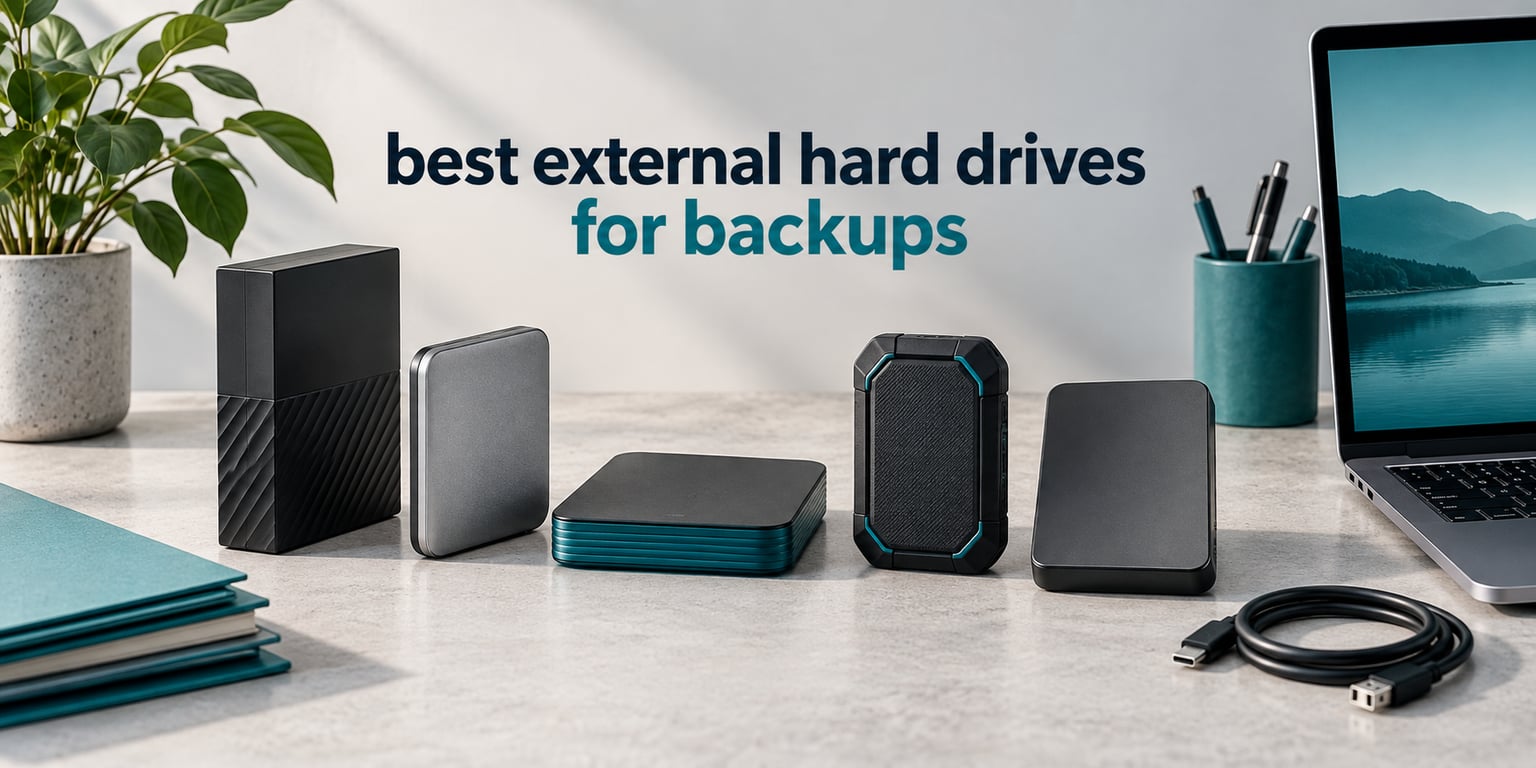
Backups fail quietly. The drive you stopped thinking about two years ago is the one that fails, and the only thing that saves you is a second copy you actually made. Choosing the best external hard drives for backups is less about raw speed than most spec sheets suggest, and more about capacity per dollar, connection type, and whether the drive stays plugged in or lives in a drawer six months at a time.
Our team pulled the specs, warranty terms and owner feedback on ten external hard drives that cover the full range of backup jobs: a 500GB portable for offloading a phone camera roll, a 6TB slim drive that fits a laptop bag, and two 8TB desktop models for archives that never leave the shelf. Every drive below is written up with who it suits, who it does not, and the honest caveats that show up in owner reviews.
One note before we start. If your music or recordings are the thing you most fear losing, storage is only half the job. Our guide to the best NAS drives for storing a music collection covers keeping an always-available library online, while this roundup stays focused on the copy that sits offline and protects you when everything else goes wrong.
Table of Contents
Top 3 Picks for the Best External Hard Drives for Backups (October 2026)
If you want the short answer, start here. These three cover the widest range of backup situations, from a single-cord desktop drive with recovery services included to the highest-rated portable on the market.

Seagate One Touch 8TB
- 8TB desktop capacity
- 7200 rpm spindle
- USB-C single-cord design
- Two-year warranty with Rescue recovery

WD Elements 6TB
- 6TB in a 2.5-inch body
- USB 3.2 Gen 1
- Plug and play on Mac and PC
- Two-year limited warranty

WD My Passport 5TB
- Hardware encryption and password protection
- Bundled ransomware-aware backup software
- Three-year limited warranty
- 0.75-inch slim profile
Every Drive We Compared at a Glance in 2026
All ten models, side by side. Capacities range from 500GB to 8TB, and the connection types differ enough to matter if you plan to move files between a desktop and a modern laptop.
| Product | Specifications | Action |
|---|---|---|
| Seagate One Touch 8TB Desktop HDD |
|
Check Latest Price |
| WD Elements 6TB Portable |
|
Check Latest Price |
| WD My Passport 5TB |
|
Check Latest Price |
 WD My Book 8TB Desktop WD My Book 8TB Desktop |
|
Check Latest Price |
 Seagate Expansion Desktop 8TB Seagate Expansion Desktop 8TB |
|
Check Latest Price |
 Toshiba Canvio Basics 4TB Toshiba Canvio Basics 4TB |
|
Check Latest Price |
 Toshiba Canvio Advance 4TB Toshiba Canvio Advance 4TB |
|
Check Latest Price |
 Maxone 1TB Ultra Slim Maxone 1TB Ultra Slim |
|
Check Latest Price |
 LaCie Rugged 4TB USB-C LaCie Rugged 4TB USB-C |
|
Check Latest Price |
 YOTUO 500GB Portable YOTUO 500GB Portable |
|
Check Latest Price |
1. Seagate One Touch 8TB – Best Overall Backup Drive
Seagate One Touch 8TB External Hard Drive Desktop HDD – USB-C Compatible with Most Windows and macOS, Rescue Recovery (STNB8000400)
8TB desktop capacity
3.5-inch form factor
7200 rpm spindle
Rescue recovery included
Pros
- Huge 8TB capacity for photos video and documents in one place
- Single-cord USB-C setup with no wall wart needed
- Consistent transfer speeds around 120 MB/s for large backups
- Two-year limited warranty plus Rescue Data Recovery Services
- Multiple owners buy a second unit for redundancy
Cons
- Spinning-disk mechanics are far slower and less shock-resistant than a portable SSD
- Some workflows report write speeds around 10 MB/s
- Needs a one-time erase and reformat in Disk Utility before Time Machine use
The Seagate One Touch 8TB is the drive we keep coming back to, and the reason is boring reliability at scale. It is a 3.5-inch desktop chassis with a 7200 rpm spindle behind it, which is the mechanical difference between a backup that takes an evening and one that takes most of a weekend when you are copying a large video or music archive.
Owners consistently report real-world throughput in the 120 MB/s range for large backups, which works out to roughly 1TB of data moving in about two and a half hours. That is the number that matters for a first full backup. Daily incremental copies of changed folders are far quicker because the amount of new data is small.
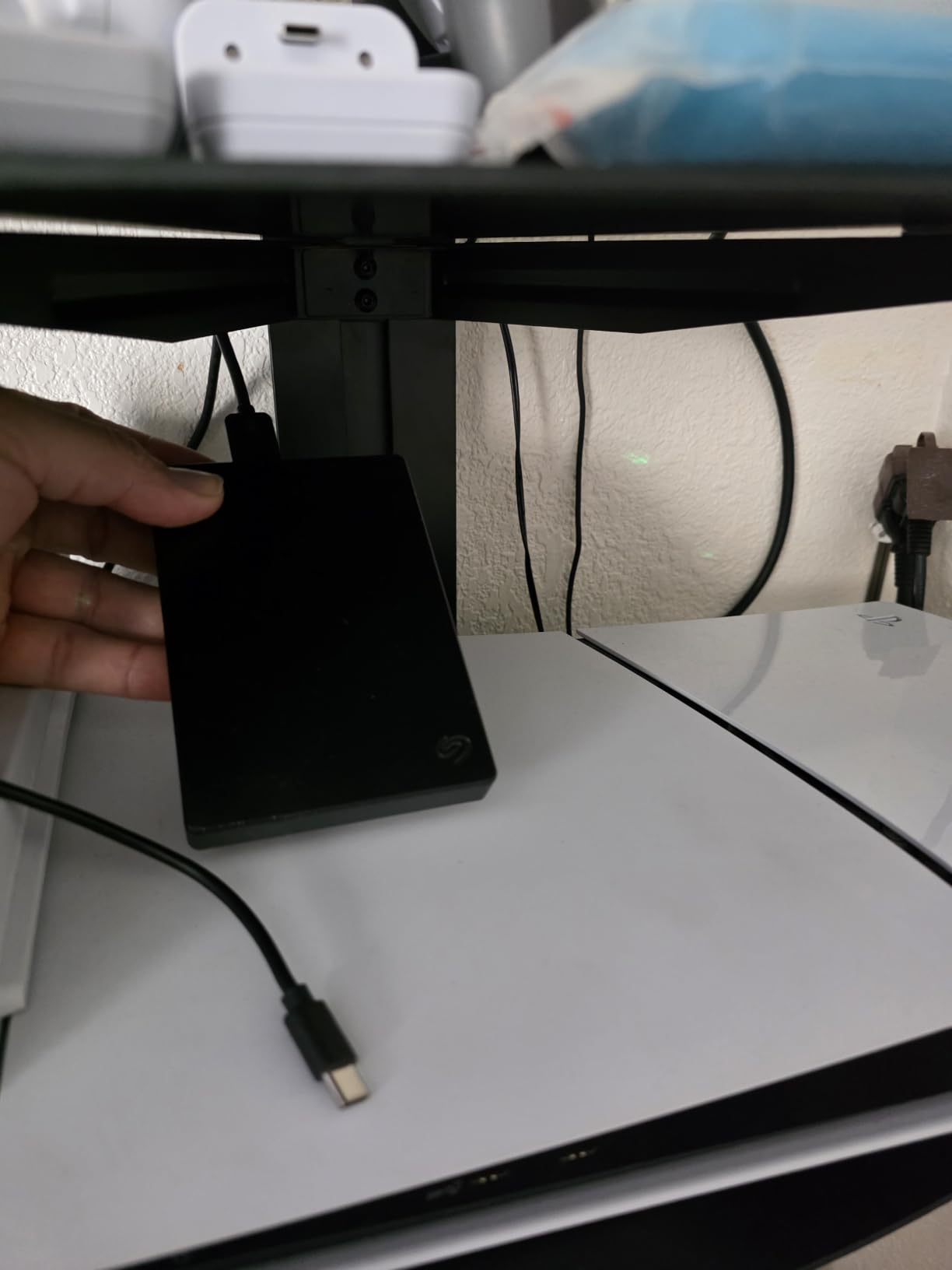
Physical design is refreshingly plain. There is one port, one cord, and a quick connect. Reviewers describe the single-cord arrangement as the reason they stopped losing the cable, which is a small thing that matters when the drive lives in a drawer between backups.
The one genuine friction point is macOS. Time Machine will not accept the drive until you run a one-time erase and reformat through Disk Utility. That takes about two minutes, and several owners flagged it as the only real setup step. It is an Apple formatting requirement rather than a fault in the drive.
Capacity labelling also deserves a note. Reported usable capacity lands slightly below the labelled figure once formatting is accounted for, which reviewers treat as normal. Plan your first backup around that headroom rather than filling the drive to the last gigabyte.
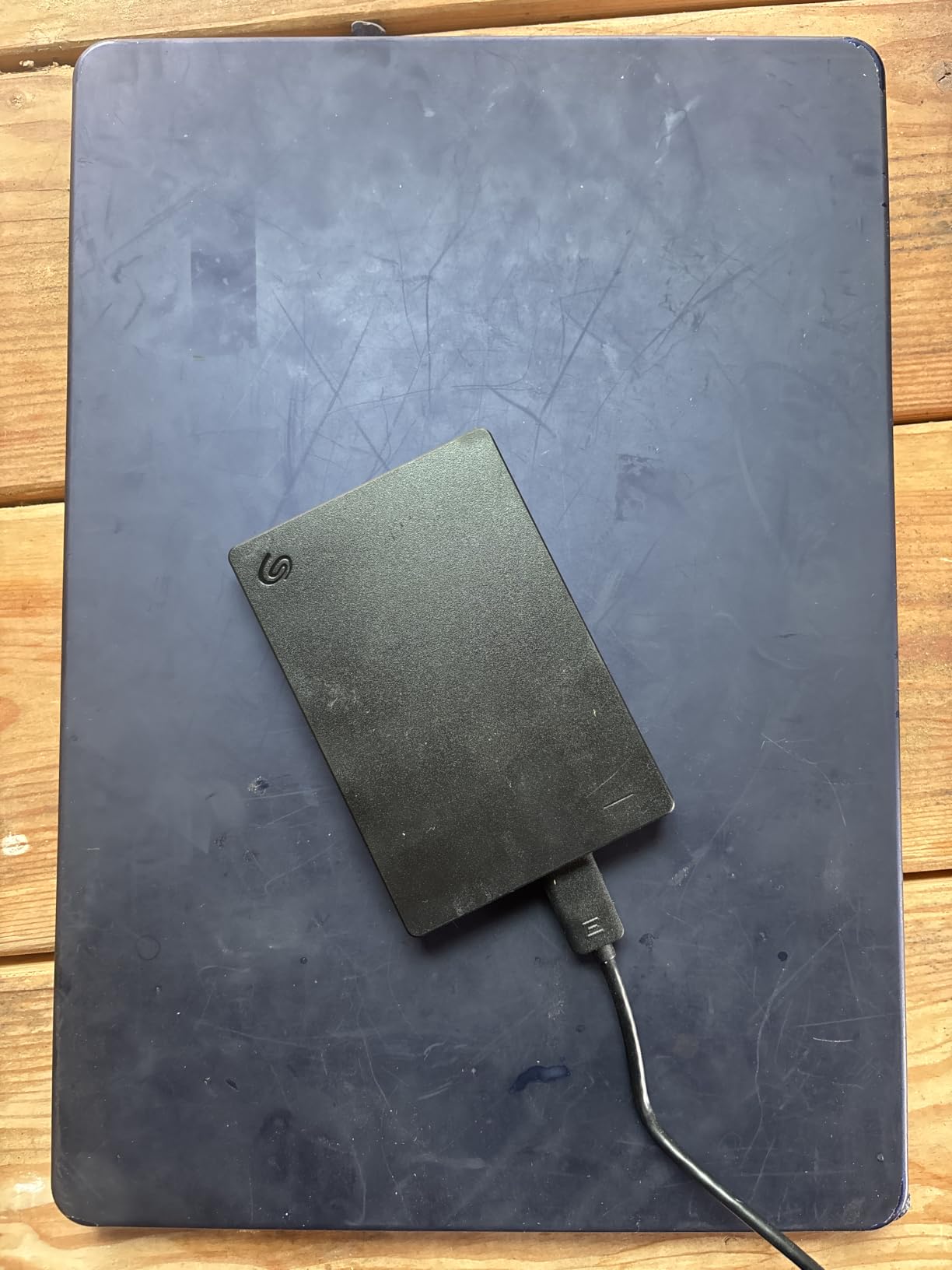
Why the One Touch 8TB works for most backup routines
At 8TB it holds a full system image plus years of added media without you thinking about capacity, and the 7200 rpm spindle keeps large sequential copies from dragging. A fast 7200 rpm drive means your first full backup finishes in one sitting, and every incremental run after that touches very little data.
Rescue Data Recovery Services are included, which matters more than it sounds. A drive that fails is a data recovery bill, and having the service attached to the purchase changes the maths on how much you should care about a cheap unit.
Where the One Touch 8TB falls short
It is a desktop drive, so it needs a shelf and a mains socket somewhere nearby. If your backup plan is to carry a copy between home and the office in a backpack, this is the wrong shape entirely.
Anyone upgrading from an SSD will notice the speed drop immediately, and reviewers report write performance dipping to around 10 MB/s in some workflows. That is normal for a spinning disk, but it is a shock if you have never used one as a write target.
2. WD Elements 6TB Portable – Highest Rated
WD 6TB Elements Portable External Hard Drive for Windows, USB 3.2 Gen 1/USB 3.0 for PC & Mac, Plug and Play Ready – WDBHJS0060BBK-WESN
6TB portable capacity
2.5-inch form factor
USB 3.2 Gen 1
Two-year limited warranty
Pros
- Highest average rating in this roundup at 4.7 stars
- Compact 6TB capacity in a slim 2.5-inch body
- Plug and play with no software installation or reformatting
- Two-year limited warranty from an established storage manufacturer
Cons
- Basic plastic enclosure offers no shock protection
- No hardware encryption or password protection
- USB-A connector only so USB-C-only laptops need an adapter
The WD Elements 6TB holds the highest average rating of any drive we reviewed, at 4.7 stars across more than 165,000 owner reviews. That is an unusually large sample for an external product, and it tells you something real about how the drive behaves over time rather than in the first week.
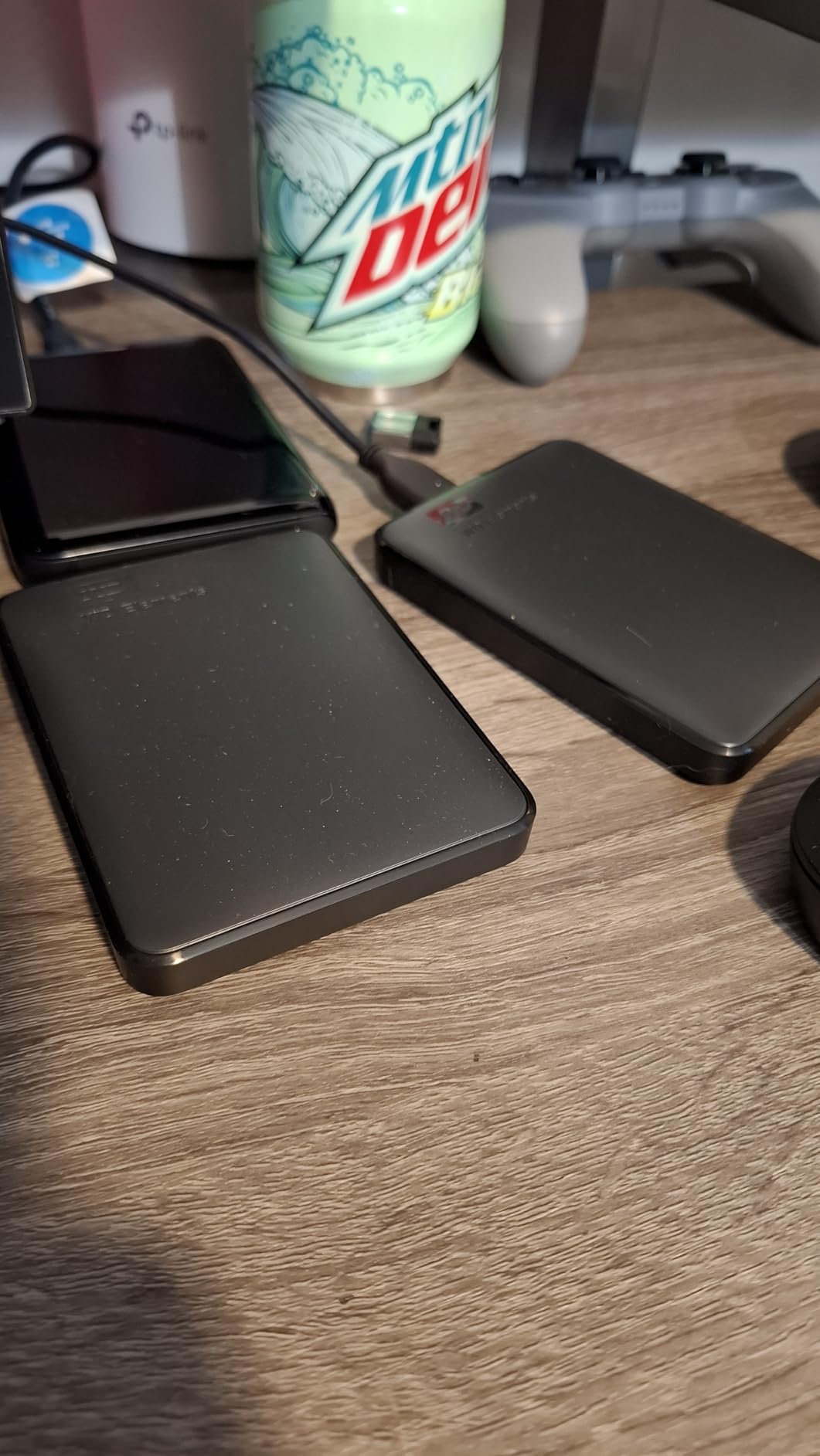
What makes it interesting for backups is the combination on offer. Six terabytes is the largest capacity we found in a 2.5-inch portable body, and it plugs straight into a laptop without an app, a driver, or a reformat step on either Windows or Mac.
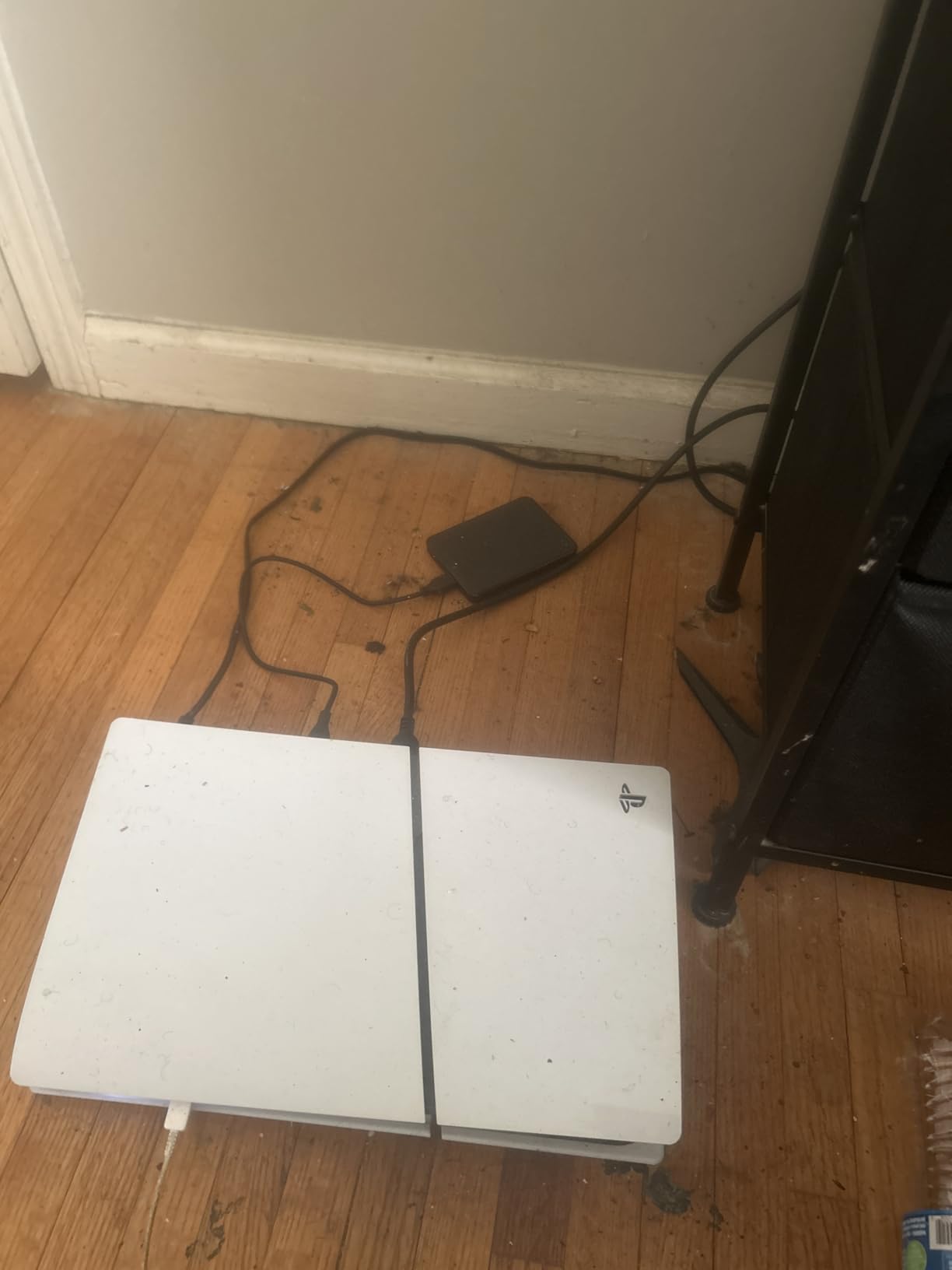
Measured media speeds sit in the 50-150 MB/s band, which is the normal range for a portable hard drive of this class. In practice a first full backup of a laptop takes a couple of hours over USB 3.2 Gen 1, and everything after that is incremental.
Several owners use it as an offsite copy rather than a desk-bound one, which tells you how much confidence they place in it. Reviewers describe the drive as doing exactly what the box says with no surprises, and that predictability is the trait we value most in a backup target.
It ships with a SuperSpeed USB-A cable, so a USB-C-only machine needs an adapter or a hub. That is the single most common complaint, and it is worth checking which port your laptop actually has before you commit.
Why the Elements 6TB earns its rating
Capacity and footprint. A 6TB drive that fits in a laptop bag changes how often you will actually take a copy offsite, and offsite is where most backup plans quietly fail.
Zero-friction setup matters more for backups than for storage. If a drive needs special software to start copying files, the software is the thing that stops working three years later. This one does not have that problem.
Where the Elements 6TB is the wrong choice
The plastic shell is the vulnerability reviewers keep flagging. It has no shock protection, so if your backup drive lives in a backpack or a camera bag, a knock can end the copy and possibly the data.
There is no hardware encryption or password protection on this model. If the drive holds client files or anything sensitive, you will need a software-based volume encryption layer on top.
3. WD My Passport 5TB – Best Value Portable With Encryption
WD 5TB My Passport, Portable External Hard Drive, Black, backup software with defense against ransomware, and password protection, USB 3.1/USB 3.0 compatible – WDBPKJ0050BBK-WESN
5TB portable capacity
Hardware encryption with password protection
Three-year limited warranty
Pros
- Built-in password protection and hardware encryption
- Bundled backup software with ransomware defense
- Three-year limited warranty is the longest portable term here
- Slim 0.75-inch design that fits a laptop bag
- 5TB at a competitive cost per terabyte
Cons
- Requires reformatting before use on macOS
- Included management software can be finicky on some systems
- No activity LED on the enclosure
The My Passport 5TB is the only portable drive in this roundup with hardware encryption and password protection built into the hardware itself. When you encrypt at that level, the protection survives being moved to another computer, which matters if the drive spends half its life in a bag and half on a desk.
It also ships with backup software that includes ransomware defense, so a malicious encryption of your source files does not automatically propagate to the copy. That feature is more valuable than it appears in a written list, because most backup failures we see are accidental rather than mechanical.
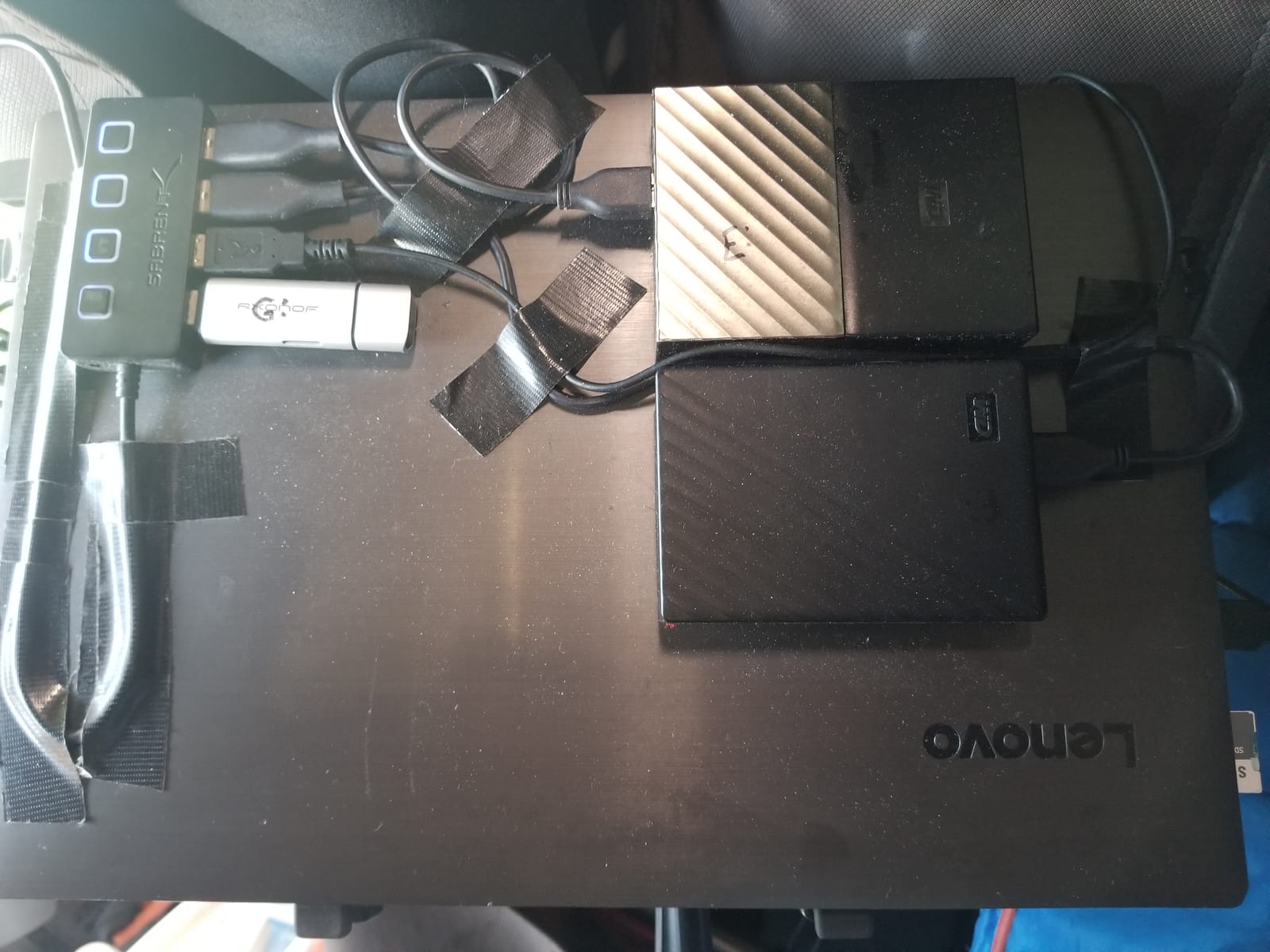
Owners report drag-and-drop backups completing quickly and the drive being recognised without fuss on Windows. The three-year limited warranty is the longest portable term in this group, and the 0.75-inch profile slides into a laptop sleeve without bulk.
The friction is software rather than hardware. Some users had to erase and reformat the drive with native macOS or Windows utilities after the WD management application misbehaved. If you hit that, the drive itself is fine; the fix is a one-time format from the operating system.
There is no activity light on the enclosure, so you check progress in software instead. Minor, but worth knowing if you are the kind of person who wants visible confirmation that a nightly copy ran.
Why the My Passport 5TB is the one to buy for security
Hardware encryption is enforced by the drive controller, not by your operating system. That means the data stays unreadable even if the drive is connected to a machine that knows nothing about your password.
Ransomware-aware backup software is included, which closes a gap that most people do not think about. A naive folder copy will happily replicate encrypted junk onto your backup and leave you with nothing usable.
Where the My Passport 5TB frustrates owners
The bundled management software draws the most criticism in reviews. Several users removed it entirely in favour of native disk utilities and had a smoother experience afterwards.
macOS users must reformat before Time Machine will accept the drive, and the USB-A connection means an adapter on modern laptops. Both are five-minute workarounds rather than real problems.
4. WD My Book 8TB Desktop – Best Encrypted Desktop Archive
Western Digital 8TB My Book Desktop External Hard Drive, USB 3.0, External HDD with Password Protection and Backup Software – WDBBGB0080HBK-NESN
8TB desktop capacity
256-bit AES hardware encryption
120-150 MB/s transfers
Pros
- True desktop 8TB capacity with a family range extending to 22TB
- 256-bit AES hardware encryption plus password protection
- Real-world large-file transfers around 120-150 MB/s
- Long track record across multiple capacity generations
Cons
- Requires a mains power adapter so it is not portable
- Factory plastic enclosure runs warm with reported temperatures around 54-56C
- Some units failed out of the box and there is no activity LED
- exFAT-formatted drives can throw a write-interrupt error that is painful to recover from
The My Book line has been around long enough that we can judge it on decades of use rather than a single production run. Owners describe migrating data forward through capacity generations, which is the behaviour you want from a device that is meant to outlive your current computer.
Encryption is 256-bit AES in hardware, with password protection on top. At 8TB this becomes a sensible archive target for a music or photo collection that you touch rarely but cannot afford to lose, because the data is unreadable without the passphrase.
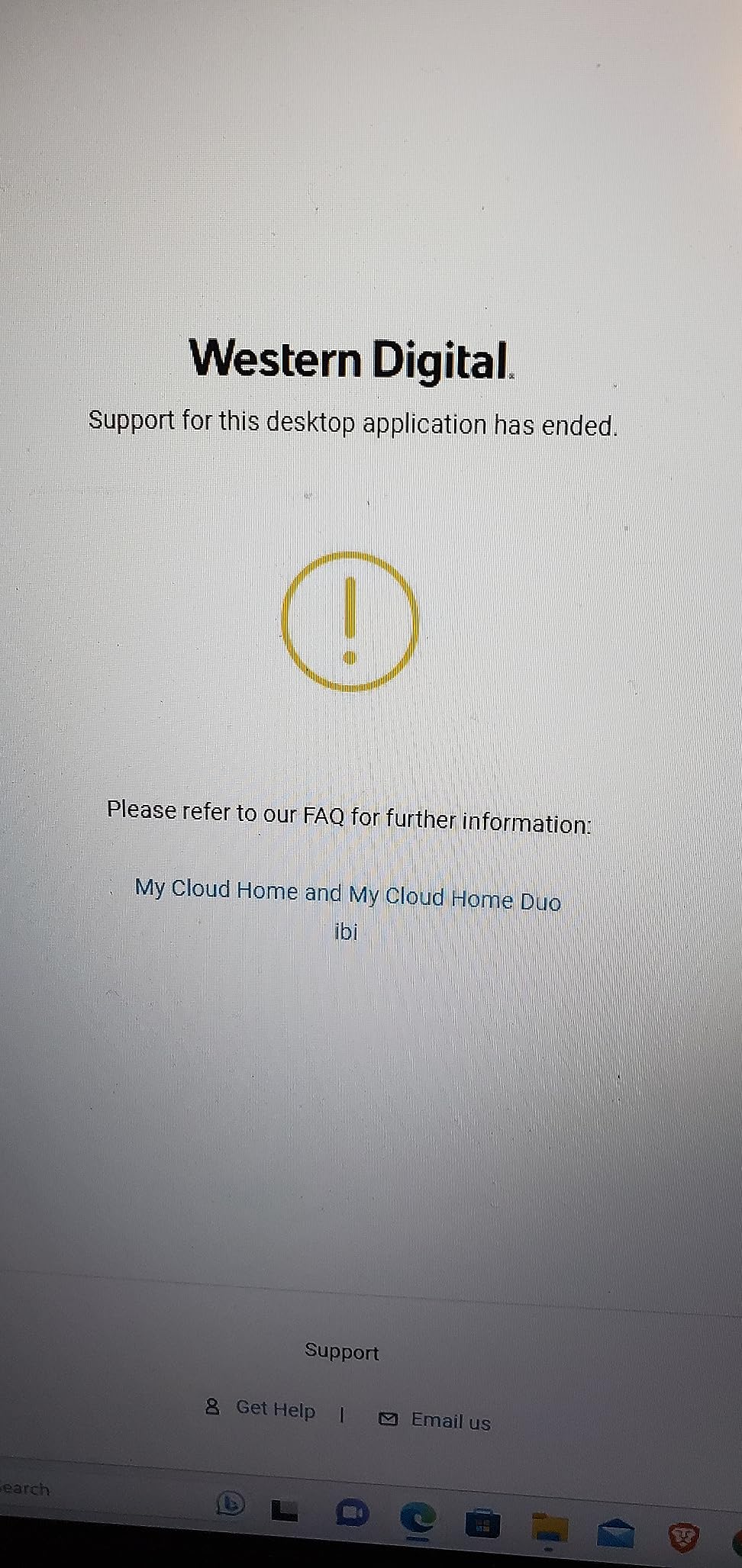
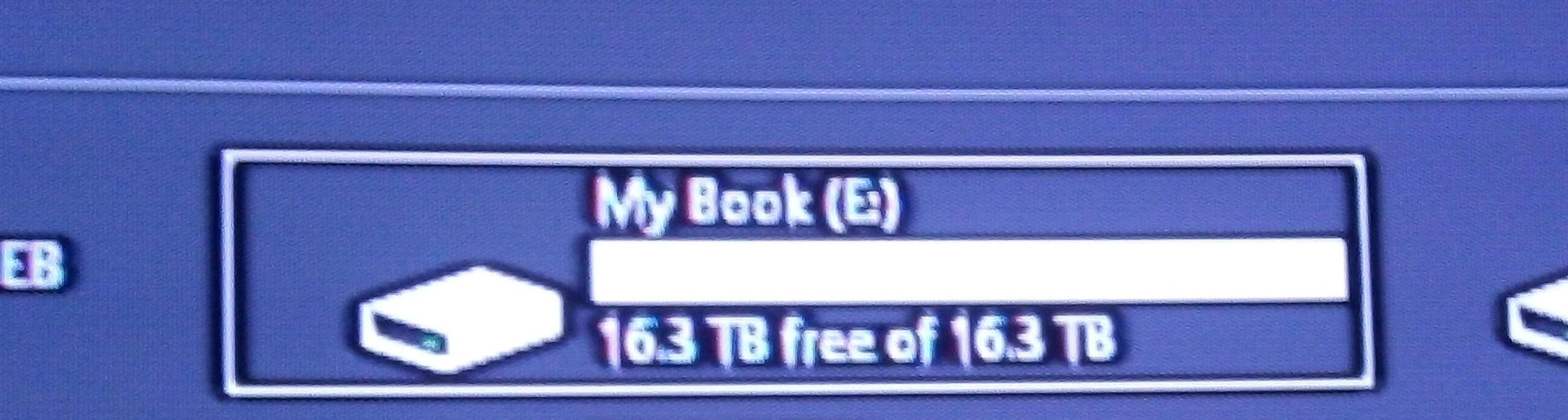
Real-world large-file transfers land around 120-150 MB/s, roughly a terabyte an hour. Owners also report much cooler operation, near 30C, when the same drive is mounted in a NAS with active airflow, which tells you the heat in the stock enclosure is about airflow rather than the drive itself.
Heat is the main complaint. Reviewers report temperatures in the mid-50s Celsius after months of use inside the factory plastic case. It has not stopped anyone copying files, but if you are stacking it with other hardware, give it clearance.
There is an early-life failure cluster in the reviews, along with a known exFAT write-interrupt behaviour that can leave a dirty filesystem and a painful recovery. Formatting the drive to exFAT before first use, or using NTFS or APFS, reduces the odds of meeting that specific problem.
Why the My Book 8TB earns a place on the shelf
Hardware AES encryption means an archive full of private recordings and photographs is protected without extra software on every machine you might plug it into. For a long-term archive, that is the feature that matters most.
Eight terabytes leaves room for a full system image plus a deep media library, and the same enclosure family extends to 22TB, so you can move up a step later without changing your habits.
Where the My Book 8TB causes problems
It needs a mains adapter, so it is a stationary drive by design. There is no scenario where this is the copy you take to a different building.
The plastic enclosure runs warm with no activity light, and some units failed early in their life. The sleep and wake delay on reconnect also shows up often in reviews, which adds a few seconds to every scheduled run.
5. Seagate Expansion Desktop 8TB – Best for Always-On Archiving
Seagate Desktop Drive 8000 GB 8TB external Hard Drive, 3.5 Inch, USB 3.0, PC & Notebook, Xbox & PS4, Modellnr.: STGY8000400
8TB desktop capacity
7200 rpm spindle
120 MB/s read
18 watt adapter included
Pros
- Strong cost per terabyte among large desktop drives
- Quiet operation despite a 7200 rpm spindle
- Plug and play with automatic recognition and no software
- 18 watt adapter supports sustained throughput with a good cable
- Owners report five or more years of continuous archival use
Cons
- The included 18 inch USB 3.0 cable is widely criticized and can cap transfers near 50 MB/s
- Only a one-year limited warranty
- Shingled recording makes large sequential rewrites slow
- The enclosure controller board can fail while the internal drive stays healthy
This is the drive we would leave plugged in and running. Owners report five or more years of continuous archival use on the same unit, and several describe it as cool and steady in a 24/7 role, which is precisely the duty cycle a backup drive is meant to handle.
The 7200 rpm spindle is genuinely quiet in practice despite the speed, and the drive is recognised automatically on Windows, Mac and consoles without any software at all. If you want something that just mounts and stays mounted, this is the model reviewers describe that way.
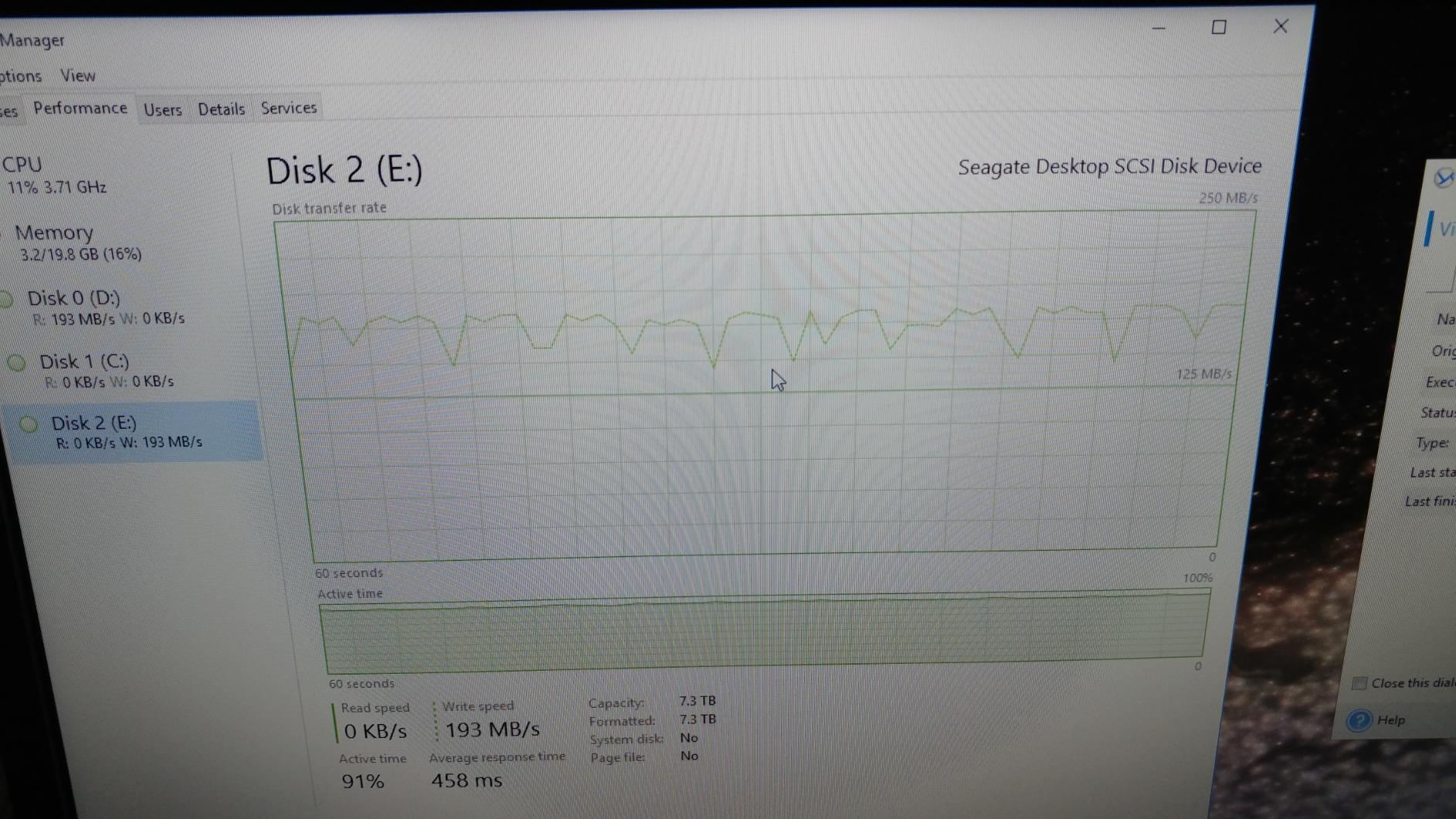
The single most useful finding in the reviews concerns the bundled cable. Multiple owners swapped the included 18-inch USB 3.0 cable for a 24-gauge or better cable and watched throughput climb from roughly 50 MB/s to around 200 MB/s. If your first backup feels inexplicably slow, replace the cable before you blame the drive.
Recording is shingled, so large sequential rewrites are slower than the headline read speed suggests. For a backup target that receives changed files rather than rewriting whole volumes, that is rarely a problem.
The warranty is one year, the shortest here among the large drives, and there is a cluster of reports where the enclosure controller failed while the internal drive survived with its data intact. The practical advice is to treat the enclosure as consumable and the disk inside as the thing worth protecting.
Why the Expansion Desktop 8TB suits constant use
Long owner runtimes are the strongest signal in the reviews. A drive that has worked for five years straight in an archive role has already survived the period when most failures happen.
Quiet running and cool operation make it a good neighbour on a desk or in a media cupboard where you would hear a chattering drive every time you walk past.
Where the Expansion Desktop 8TB falls down
That bundled cable is a genuine bottleneck, and reviewers are blunt about it. Budget for a better USB 3.0 cable, because the one in the box is the first thing to change.
A one-year warranty is thin for a drive expected to run for years, and shingled recording will feel slow if your backup method involves rewriting an entire image every time.
6. Toshiba Canvio Basics 4TB – Most Versatile for Straightforward Backups
Toshiba Canvio Basics 4TB Portable External Hard Drive USB 3.0, Black – HDTB540XK3CA
4TB portable capacity
Bus-powered USB 3.0
5400 rpm spindle
One-year limited warranty
Pros
- No external AC power needed over USB 3.0 and USB 2.0
- Genuinely plug and play with no software to install
- Compact 0.77-inch profile with a matte smudge-resistant finish
- Reliable across multiple Canvio generations
Cons
- Pre-formatted NTFS so macOS users must reformat
- No backup or password-protection software included
- Only a one-year standard limited warranty
- Can run warm during sustained transfers
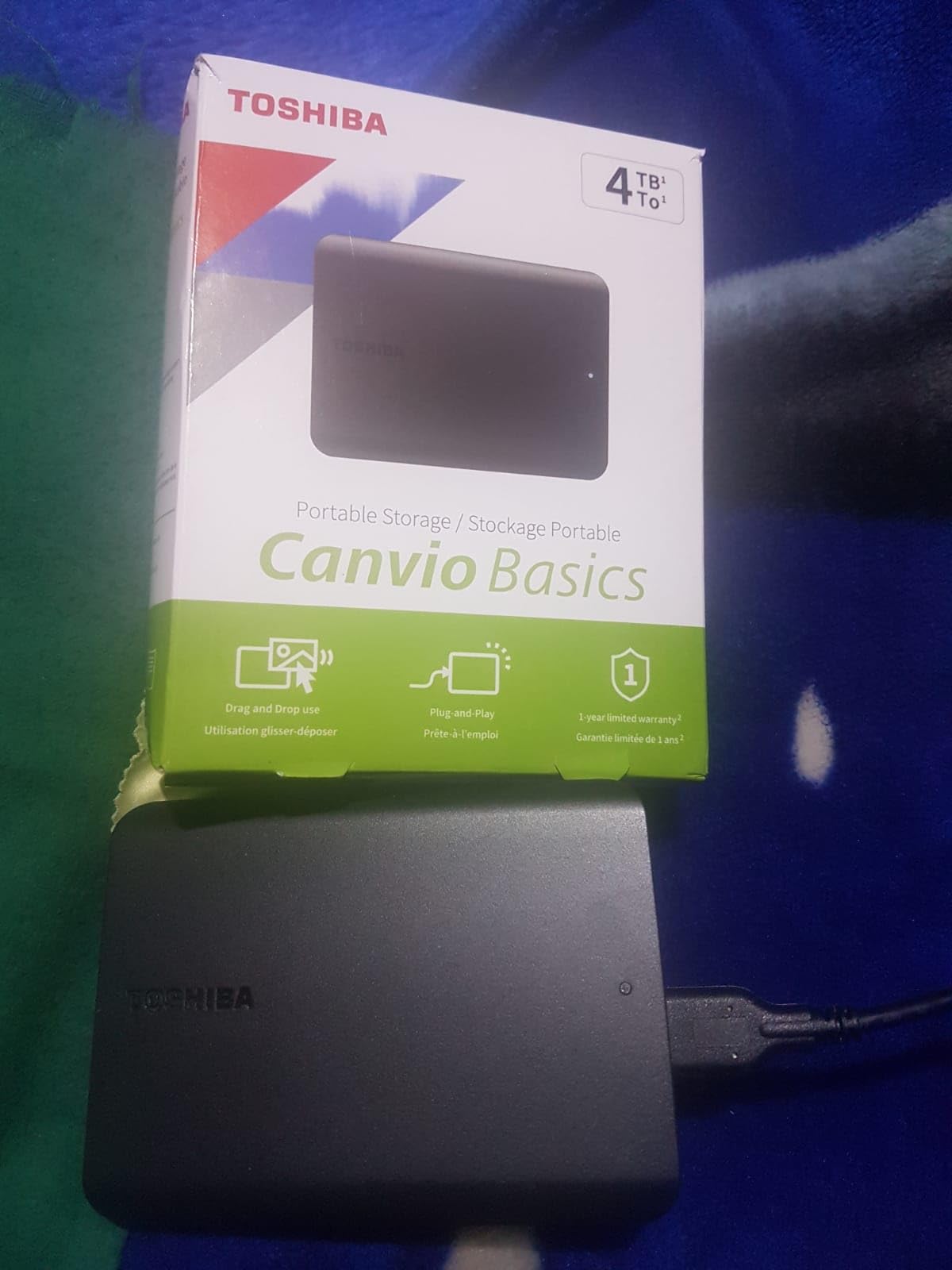
The Canvio Basics does one job: it adds capacity. Reviewers describe it in exactly those terms, and the 4.6-star average across more than 21,000 owner reviews reflects dependable, uneventful behaviour over several Canvio generations.
It draws power from the USB port, so there is no brick to lose and no second socket to find. That single decision is what makes it easy to plug in after two years of not needing it and still expect it to work.
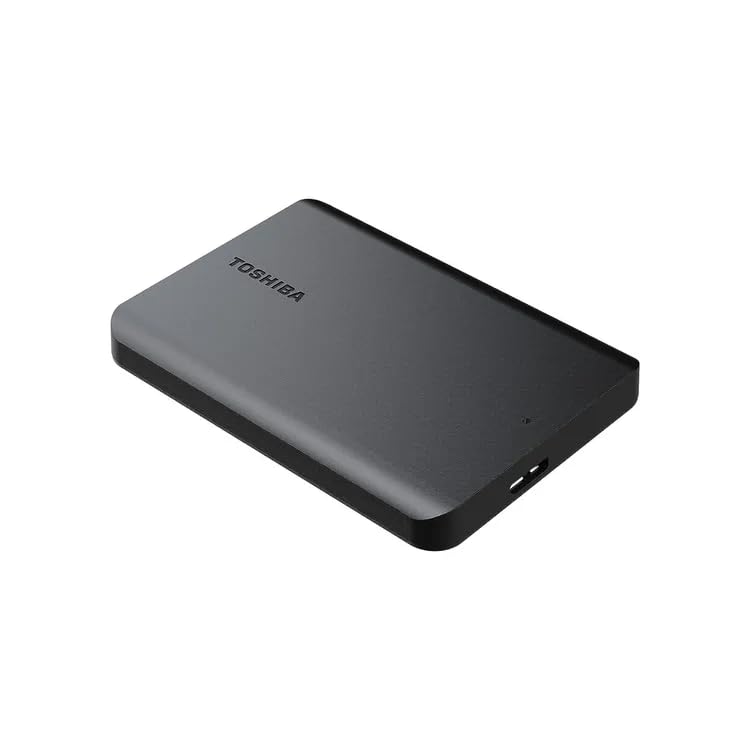
Physically it is a compact 0.77-inch body with a matte finish that resists smudges, which sounds trivial until you handle a drive bag often. Several owners replaced an older Canvio with this one after a laptop began refusing to recognise the previous drive.
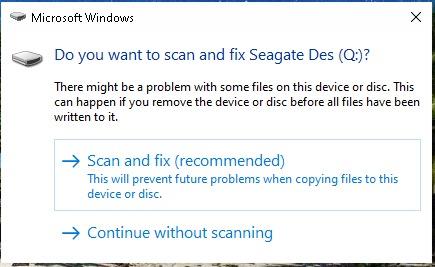
There is no bundled backup or password software, so you will use the tools your operating system provides. One detailed troubleshooting account in the reviews turns out to have been a missing safety-eject step rather than any hardware fault, which is a good reminder to eject properly every time.
The drive is pre-formatted NTFS, so Mac owners need to reformat before use, and the one-year warranty is the shortest of the Toshiba pair. It can also run warm during long transfers, which is worth keeping in mind if it lives in a tight bag.
Why the Canvio Basics 4TB is a sensible first backup drive
No software, no power adapter, no configuration. A drive you can grab two years after buying it and still trust is worth more than one with features you never configure.
Four terabytes covers a full laptop or desktop image with plenty of headroom, and the low cost per terabyte makes it a sensible second copy as well as a first.
Where the Canvio Basics 4TB leaves gaps
There is no included backup software and no password protection, so a Mac user has to reformat and a security-minded user has to add their own encryption layer.
The one-year warranty is the shortest term here, and several owners mention the enclosure getting warm during long transfers. Keep the bundled cable with the drive, because replacements are not always the same length.
7. Toshiba Canvio Advance 4TB – Best for Windows Backup Workflows
Toshiba Canvio Advance 4TB Portable External Hard Drive USB 3.0, Black – HDTCA40XK3CA
4TB portable capacity
USB 3.0 and USB 2.0
Blinking activity LED
Two-year limited warranty
Pros
- Bundled automatic backup and password-protection software
- Two-year limited warranty
- which is double the Basics term
- Compact lightweight build for laptop or camera bags
- Blinking activity LED for progress feedback
Cons
- Backup and password software are Windows-only downloads
- USB-A connection needs an adapter on USB-C-only laptops
- Bundled cable is short
- Some buyers received a dead-on-arrival unit
The Canvio Advance is the step up from the Basics, and the reason is the software. It includes automatic backup software and password-protection software, both free downloads, which turns a blank drive into a scheduled backup target in a few minutes.
Warranty is two years rather than one, and the 4.6-star average sits alongside the Basics. In practice the two behave similarly on the hardware side; you are paying for the extras and the longer term.
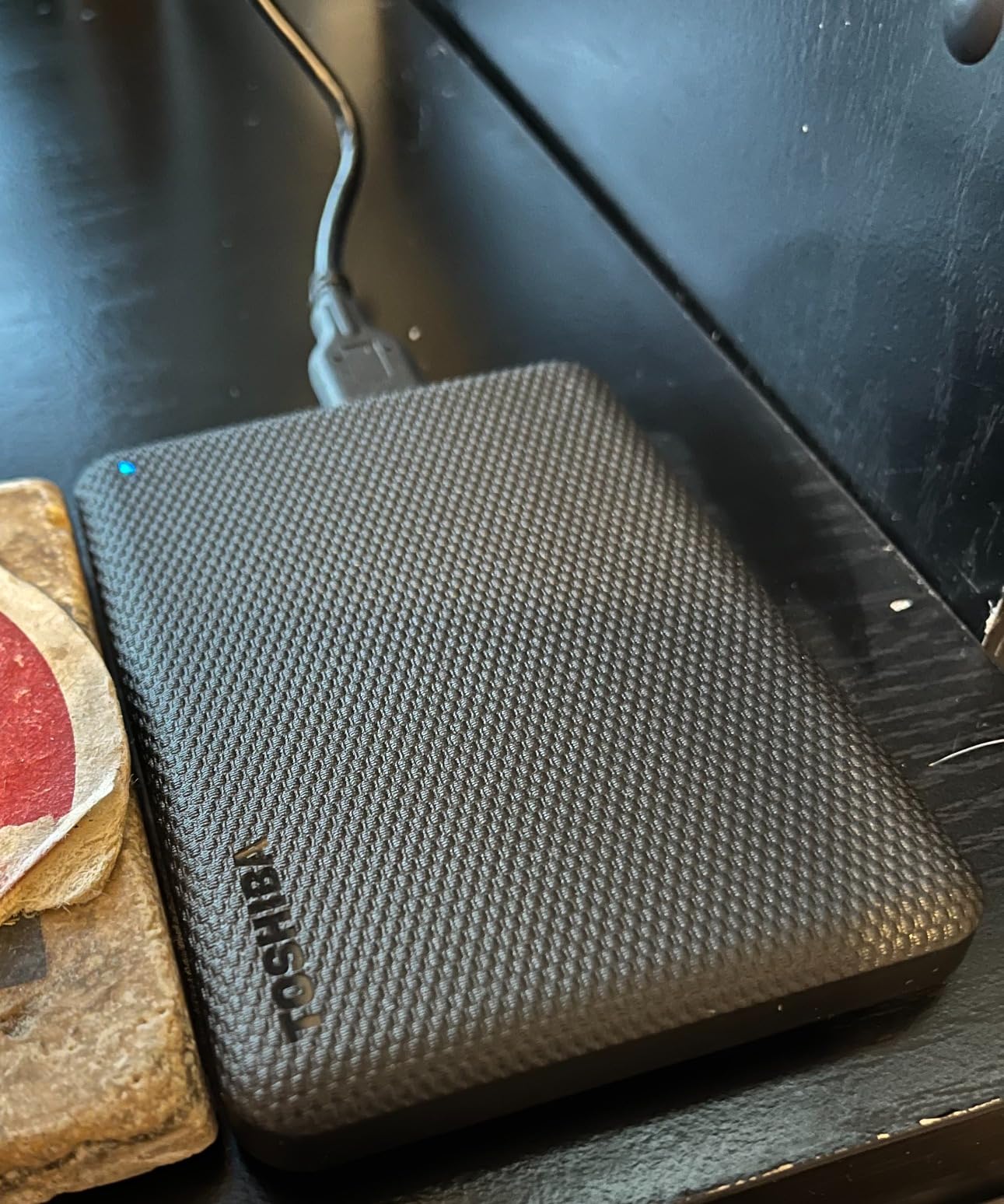
A slow-blinking activity LED is small but genuinely useful. Several owners read it as reassuring confirmation that a background copy is progressing, which is exactly what you want during an overnight run.
One review in the set documents a specific quirk worth knowing: the drive stalls and clicks when connected through a USB multi-port hub, and works correctly when plugged directly into a computer port. If you plan to use a hub, connect this drive straight to the machine.
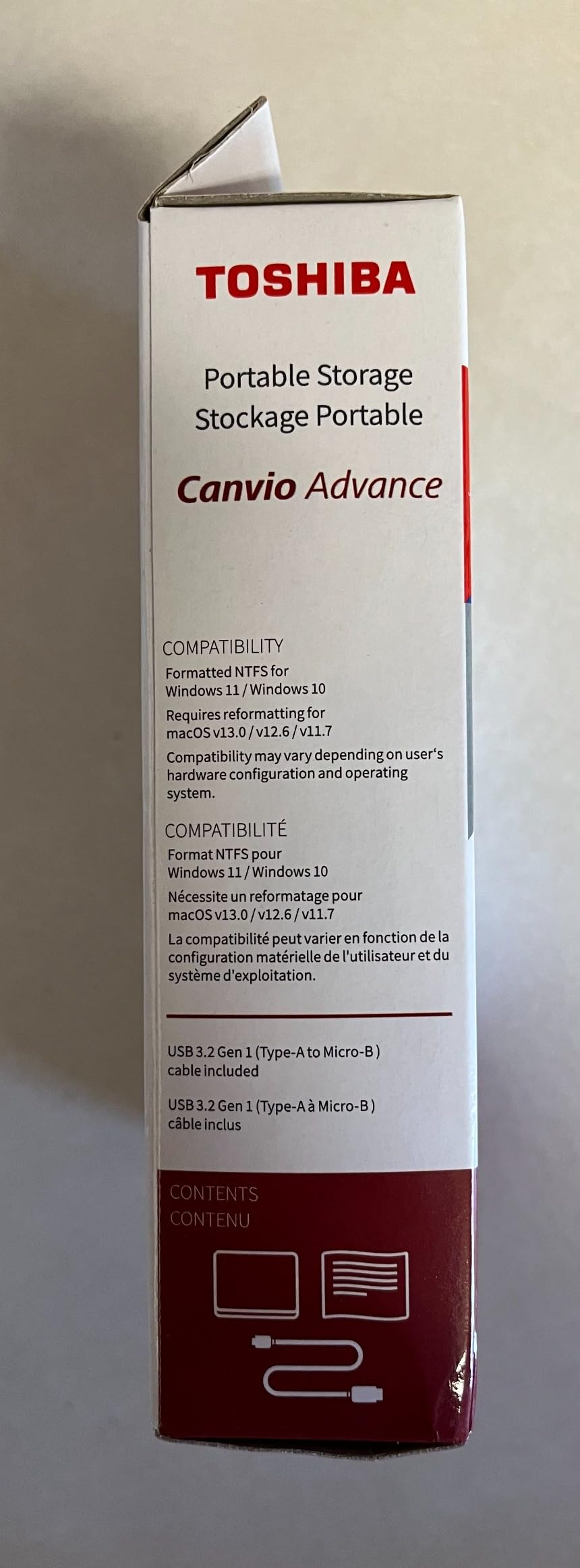
Both utilities are Windows-only downloads, and the USB-A connection means USB-C laptops need an adapter. Mac users are still expected to reformat, so this is a Windows-first choice rather than a cross-platform one.
Why the Canvio Advance 4TB works for Windows users
The included software is the differentiator. Automatic backup out of the box removes the step where people install an intention to back up and never complete it.
Password protection software is a bonus for a drive that travels between a desk and a laptop bag, where the encryption layer travels with the device.
Where the Canvio Advance 4TB is a poor fit
Windows-only utilities rule it out as a turnkey solution for Mac users, who still have to reformat and configure backups themselves.
The bundled cable is short, USB-A needs an adapter, and hub users report clicking and stalling. There is also a small cluster of dead-on-arrival reports worth factoring into any purchase.
8. Maxone 1TB Slim – Best as a Traveling Second Copy
Maxone 1TB Ultra Slim Portable External Hard Drive HDD USB 3.0 Compatible
1TB portable capacity
0.39-inch aluminum body
5400 rpm spindle
Three-year warranty
Pros
- Slimmest enclosure here at just 0.39 inch with an all-aluminum shell
- Runs cool and silent thanks to the aluminum body
- Works as a budget second copy for photos and files
- Three-year manufacturer warranty with free technical support
Cons
- Only 1TB
- which fills fast with full-resolution media
- Reports of connection failure after a drop
- Random clicking and occasional filesystem repair prompts
- Some units stop being recognised within weeks or months
The Maxone is the smallest drive in the roundup at 0.39 inches, and the all-aluminum shell is what makes that possible. Reviewers note it runs cool and silent, which is exactly the combination you want for a drive that lives in a bag all day.
At 1TB it is not a primary backup. Owners use it the way we would: a travelling second copy, a scratch drive, or an offsite copy that gets updated every few months and stored somewhere else entirely.
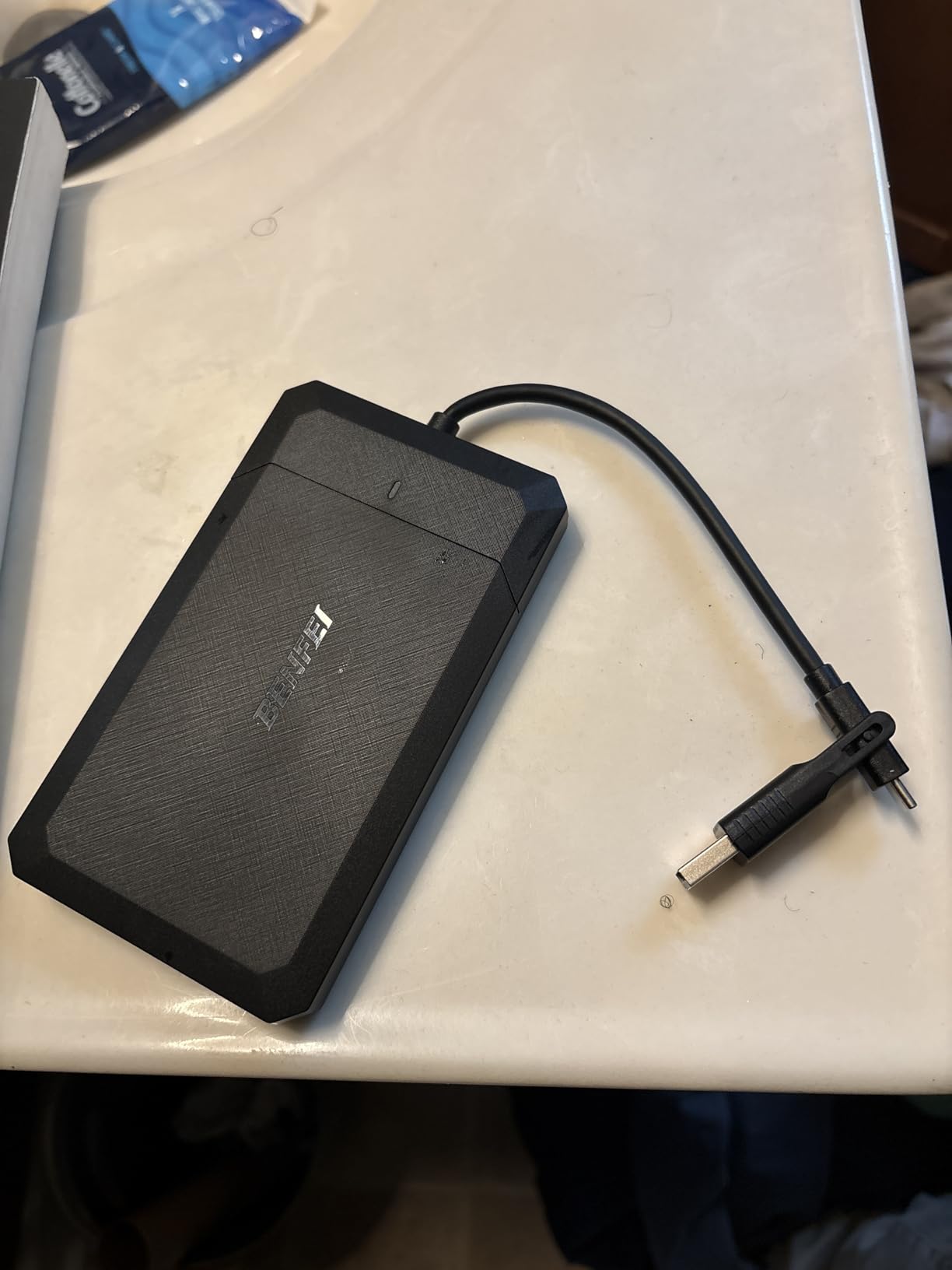
The warranty is three years, which is longer than most drives in this group carry, and there is no power supply or software to install. One photographer runs two of these for client photo archives with no failures, which is a strong endorsement of the form factor.
The reliability picture is more divided than the rating suggests. There is a cluster of owners whose drives stopped being recognised within weeks or months, sometimes after a drop, and one detailed exchange shows support attributing failures to USB port power limits.
Random clicking and occasional filesystem repair prompts also appear in reviews. If this drive holds a copy you cannot recreate, treat that as a reason to verify the copy after every run rather than a reason to trust it silently.
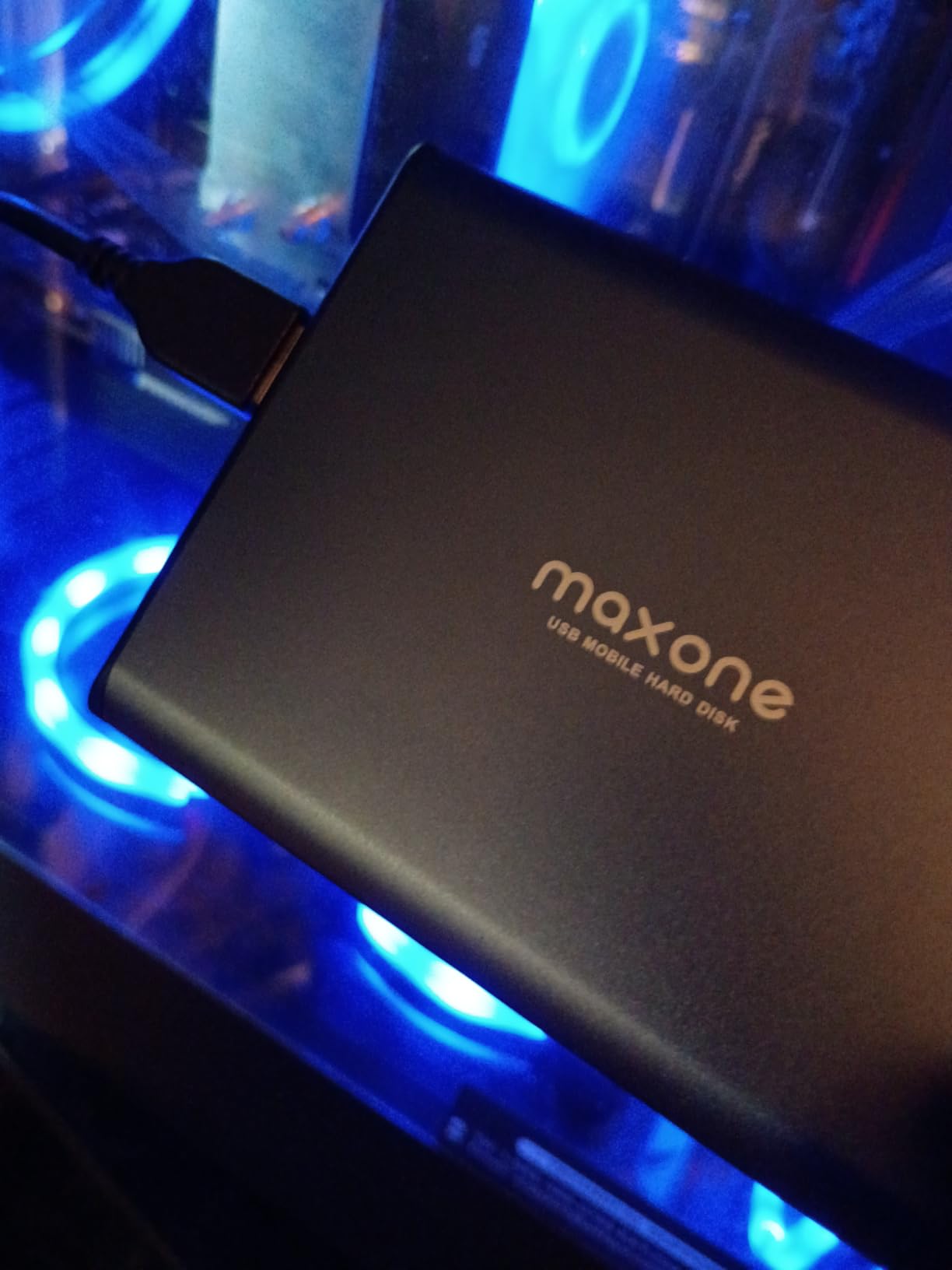
Why the Maxone 1TB earns a place in a backup kit
It is the drive you will actually remember to bring. At 0.39 inches and powered by the USB port, it takes up almost no room and needs no second cable to stay connected.
Three years of warranty cover and a silent, cool-running shell make it a sensible companion copy for a main desktop drive, giving you two physical copies in two places.
Where the Maxone 1TB is the wrong choice
One terabyte fills quickly with full-resolution photos and video, and a single drop is reported to end the connection. It is a companion, not your only copy of anything.
There is a meaningful group of owners reporting early failures, plus support responsiveness that reviewers describe as weak. Check that the copy actually completed after your first run.
9. LaCie Rugged 4TB – Best Rugged Portable
LaCie Rugged USB-C, 4TB, Portable External Hard Drive, Drop, Shock, Dust, Rain Resistant, for Mac & PC (STFR4000800)
4TB portable capacity
Rugged drop shock dust rain resistant
Native USB-C
Two-year warranty
Pros
- Only drop shock dust and rain resistant enclosure in this roundup
- Native USB-C so no adapter is needed on modern laptops
- Works out of the box on Mac and PC
- Compact and lightweight at 8.8 ounces
- Distinctive orange shell that is easy to spot
Cons
- Only 4TB at this level
- Several reviewers note a larger capacity would be better value
- Spinning-disk speeds are well below SSD levels
- Some owners report the drive failing to connect after less than a year
The LaCie Rugged is the only drive here with a genuinely ruggedised enclosure. It is rated as drop, shock, dust and rain resistant, with a rubberised orange shell over the metal body, and that is a physical design choice rather than a marketing line.
It is also one of only two portables here with a native USB-C connector, so it plugs into a modern laptop without an adapter sitting between the drive and the port. Reviewers note Time Machine backups completing in two to three hours in practice.
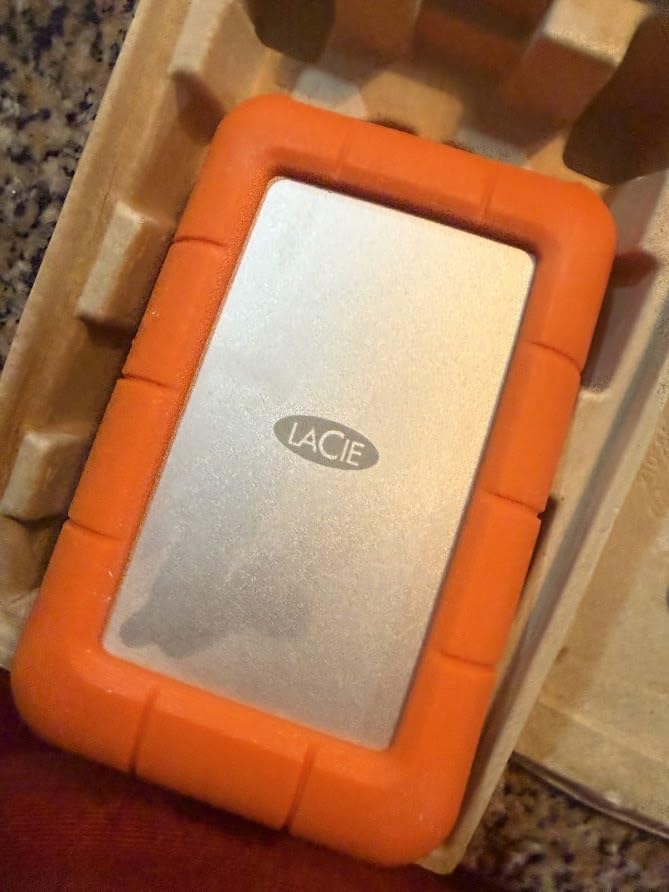
Owners use it in the field. It appears in time-lapse and video capture setups, in travel kits, and as a Time Machine target. At 8.8 ounces and 0.87 inches thick, it disappears into a camera bag without thought.
Reliability is the weak point. At 8%, its one-star share is tied for the second highest in the roundup, and that group describes a consistent pattern: the drive stops being recognised after several months, with one owner reporting the same failure across multiple drives at the same workplace.
Value is also criticised. Four terabytes at this level is below what comparable capacity costs elsewhere, and reviewers repeatedly warn that hard drive speeds are not solid state speeds, however similar the interface label looks.
Why the LaCie Rugged 4TB suits travel and fieldwork
Drop, dust and rain resistance is a real specification here, and it is the reason this drive exists. If your backup copy travels, that protection is worth more than a faster interface.
USB-C on both ends removes the adapter step, and owners confirm it works on Mac and PC straight from the box with no reformatting on Mac for Time Machine use.
Where the LaCie Rugged 4TB disappoints
The one-star cluster is not random noise. If you rely on this drive as your only offsite copy, that reliability record should push you toward a second unit or a different model.
Capacity is modest for the money, and the 130 MB/s read speed is fine for backups but nowhere near what an external solid state drive delivers. Some listing images also still show an older connector style, so check what is actually in the box.
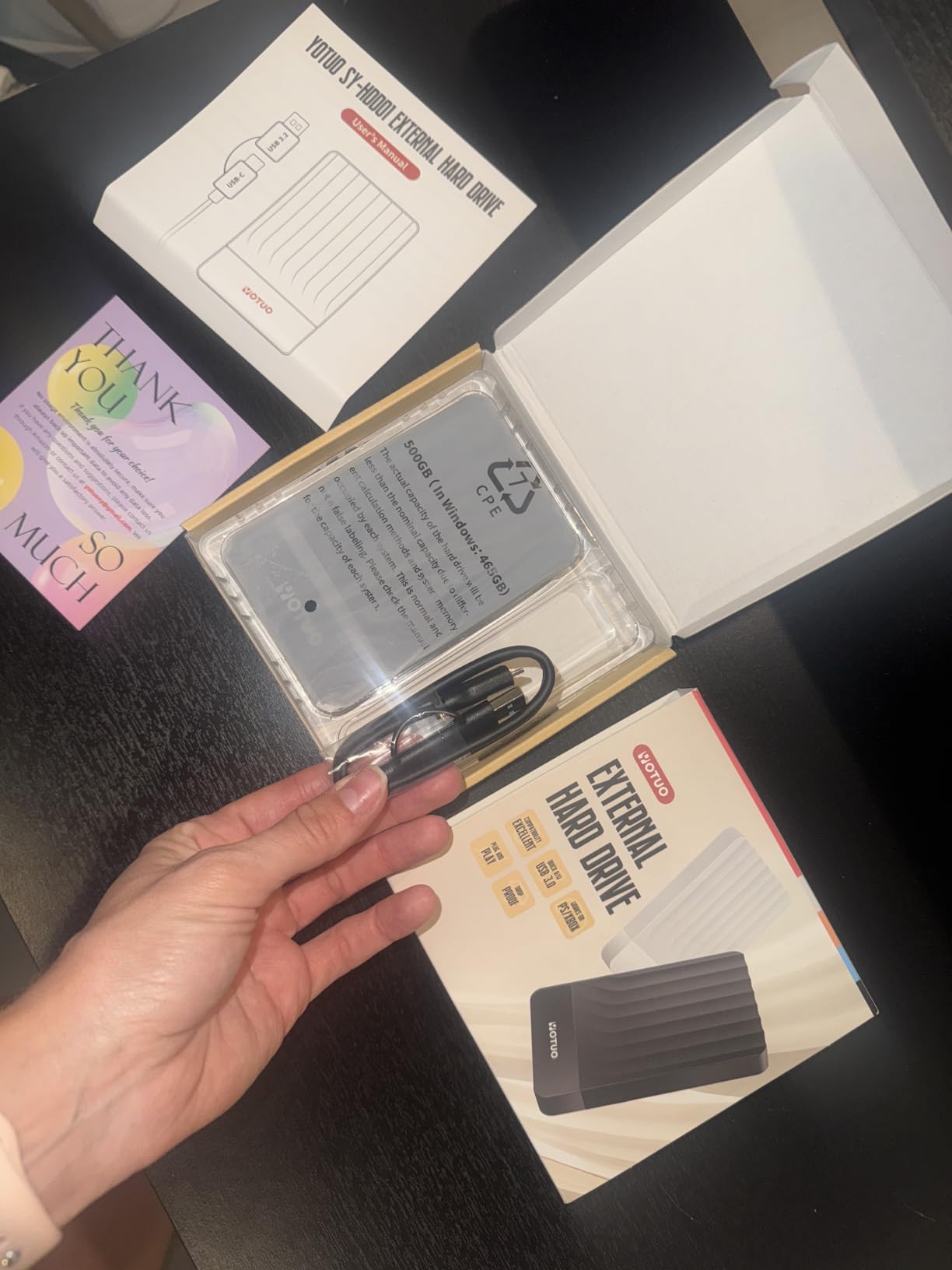
10. YOTUO 500GB – Best for Phone and Tablet Offloading
YOTUO 500GB External Hard Drive, Portable Storage Expansion HDD, USB 3.0 & USB-C for PC, Mac, Desktop, Laptop, Smartphone, PS4, Xbox One, Xbox 360, Office & Game Black
500GB compact capacity
USB 3.0 and USB-C
Built-in silicone sleeve
Plug and play
Pros
- Both USB 3.0 and USB-C connectivity at a budget level
- Patented built-in silicone sleeve absorbs shock
- Light at 0.16 kg and runs without external power
- Recognised by phones and tablets for direct camera roll offloads
Cons
- Highest one-star share here at 10% with failures reported within weeks or months
- Only 500GB which is very limited for photo or video backup
- Support responsiveness is poor
- Does not feel rugged despite the marketing
The YOTUO 500GB exists for a specific job: getting video and photos off a phone or tablet quickly and cheaply. Reviewers describe a 70GB transfer finishing in roughly half an hour as a background task, and the drive being recognised directly by mobile devices.
Having both USB 3.0 and USB-C on a drive at this level is unusual and genuinely useful. The built-in silicone sleeve is intended to absorb shock from bumps and falls, and at 0.16 kg it disappears in a pocket.
Now the part you should read twice. This drive has the lowest average rating in the roundup at 4.3 stars and the highest one-star share at 10%. The failure cluster sits just past the 30-day return point: drives that stop mounting, or emit a repeating spin-click noise, sometimes taking a second drive with them.
One reviewer lost family videos after two drives failed within two days. Peer advice in the discussions is blunt about not trusting irreplaceable data to an unfamiliar brand, and an unanswered support contact makes it worse.
Console support also has limits. It works with older Xbox and PlayStation models, but current generation console games cannot be run or stored directly from it, which is worth knowing before you buy it for a gaming library.
Why the YOTUO 500GB is still worth considering
For offloading and transfer, it is quick and it works. Owners use it for camera roll backups, console storage expansion and everyday file transfers without installing anything.
Dual USB-A and USB-C connectivity removes the adapter problem, and the light weight makes it genuinely portable rather than nominally portable.
Where the YOTUO 500GB is a bad idea
Do not make this your only copy of anything. The failure reports cluster right after the return window, and the 10% one-star share is the highest here.
Five hundred gigabytes fills quickly with full-resolution video, the enclosure does not feel as protective as the silicone marketing implies, and support responses are reported as slow or absent.
How to Choose an External Hard Drive for Backups
Capacity first, and the rest follows. A backup drive should hold at least two times the data you are protecting, because a single copy that is exactly the same size as your source fills up the first time you add a video file.
For a laptop with around 500GB in use, 1TB is workable but tight. A 4TB drive gives a full system image plus several years of additions, and 6TB to 8TB covers a desktop that also holds a large photo or music library. If you are archiving high-bitrate audio, capacity per terabyte matters more than anything else on the spec sheet.
Second decision: portable or desktop. Portable 2.5-inch drives draw power from the USB port, which means one cable and no wall socket, and they are the right choice for offsite copies. Desktop 3.5-inch drives need a mains adapter but hold more, run faster at 7200 rpm, and suit an archive that stays in one place.
Third decision: interface. Almost everything here is USB 3.0 or USB 3.2 Gen 1, which delivers about 5Gbps and a real-world ceiling near 150-200 MB/s. That is faster than any hard drive in this roundup can fill, so the interface is not the bottleneck. What is often the bottleneck is the cable, and the Seagate Expansion reviews document throughput jumping from roughly 50 MB/s to about 200 MB/s purely from swapping in a better USB 3.0 cable.
Fourth decision: encryption. If the drive holds client work, medical records or anything private, hardware AES 256-bit encryption is the feature to insist on. The WD My Passport and WD My Book both provide it in hardware, which means the protection travels with the drive instead of depending on the machine it is plugged into.
Mac users should plan for a formatting step. Most of these drives arrive pre-formatted for Windows. If you are on macOS, run a one-time erase and reformat through Disk Utility before your first backup, and give the drive to Time Machine afterwards. If you want a single drive that a Windows laptop and a Mac can both use, exFAT is the compromise, though it carries more risk on a write interruption.
Finally, the 3-2-1 rule. Three copies of your data, on two different media types, with one copy somewhere offsite. The cheapest way to comply is one desktop drive at home, one portable drive you rotate to another building every month or two, and one copy on a NAS or cloud service for the truly irreplaceable material. Our guide to the best NAS drives for storing a music collection covers the always-on tier of that setup, and a CD ripping drive is the right starting point if your source material is still on physical media that will not exist forever.
Once the drive is chosen, set it up the same way every time: format it for your operating system, turn on encryption if the data warrants it, run one full backup, then restore a folder from the copy to confirm the backup is real. Where the originals are physical media, our picks for hard cases for orchestral instruments keep those masters protected too. A backup you have never restored from is a hope, not a backup.
Frequently Asked Questions
What is the best external hard drive for data backup?
The Seagate One Touch 8TB is the strongest all-round choice, with 8TB of capacity, a 7200 rpm spindle, consistent transfers around 120 MB/s and a two-year warranty with recovery services included. The WD Elements 6TB takes the top rating at 4.7 stars if you want the most portable option, and the WD My Passport 5TB adds hardware encryption for sensitive data.
Are external hard drives good for backups?
Yes, and for large backups they are usually the most practical choice. Hard drives offer far more capacity per pound than solid state drives, and backup speed is limited by how much new data you have, not by the drive. Match the drive to at least twice the size of your data, format it for your operating system, and verify the copy by restoring a folder.
How much external storage do I need for backups?
Buy at least twice the amount of data you are protecting. Around 500GB of used data calls for a 2TB drive, 1TB of data calls for 4TB, and a photo or music archive over 2TB should go to 6TB or 8TB. A desktop drive is the better choice above 4TB because capacities grow faster there.
Should I get an SSD or HDD for backups?
For most people an HDD is the right answer, because capacity matters more than speed for a backup target. Choose an SSD only when you are backing up frequently and want near-instant incremental runs, or when the drive must survive being carried and dropped. For archival copies of music, photos or video, a hard drive holds far more for the same money.
What size external hard drive do I need for Time Machine?
Choose a drive at least twice the size of your Mac storage. A 512GB or 1TB Mac pairs well with a 2TB drive, while a 1TB or 2TB Mac needs 4TB or more. Remember that macOS cannot use a Windows-formatted drive until you erase and reformat it in Disk Utility, and Mac-native APFS is the better choice.
How long do external hard drives last?
It depends far more on use than on brand. Owners in our research report units running for five or more years in continuous archival duty, while failure clusters usually appear either in the first months or after a physical shock. Keep at least two copies, verify them by restoring a folder, and replace any drive that has been dropped hard.
Our Final Verdict for Backups in 2026
For most people, the Seagate One Touch 8TB is the best external hard drive for backups in 2026. It combines capacity, a fast 7200 rpm spindle, an uncomplicated single-cord setup and included recovery services, and the owner feedback backs it up with more than 273,000 reviews at 4.6 stars.
Go portable with the WD Elements 6TB if you want the highest-rated option and offsite copies, and add the WD My Passport 5TB when hardware encryption matters more than slimness. Whatever you choose, buy at least twice the capacity you need, run one full backup, then restore a folder to prove it works.