
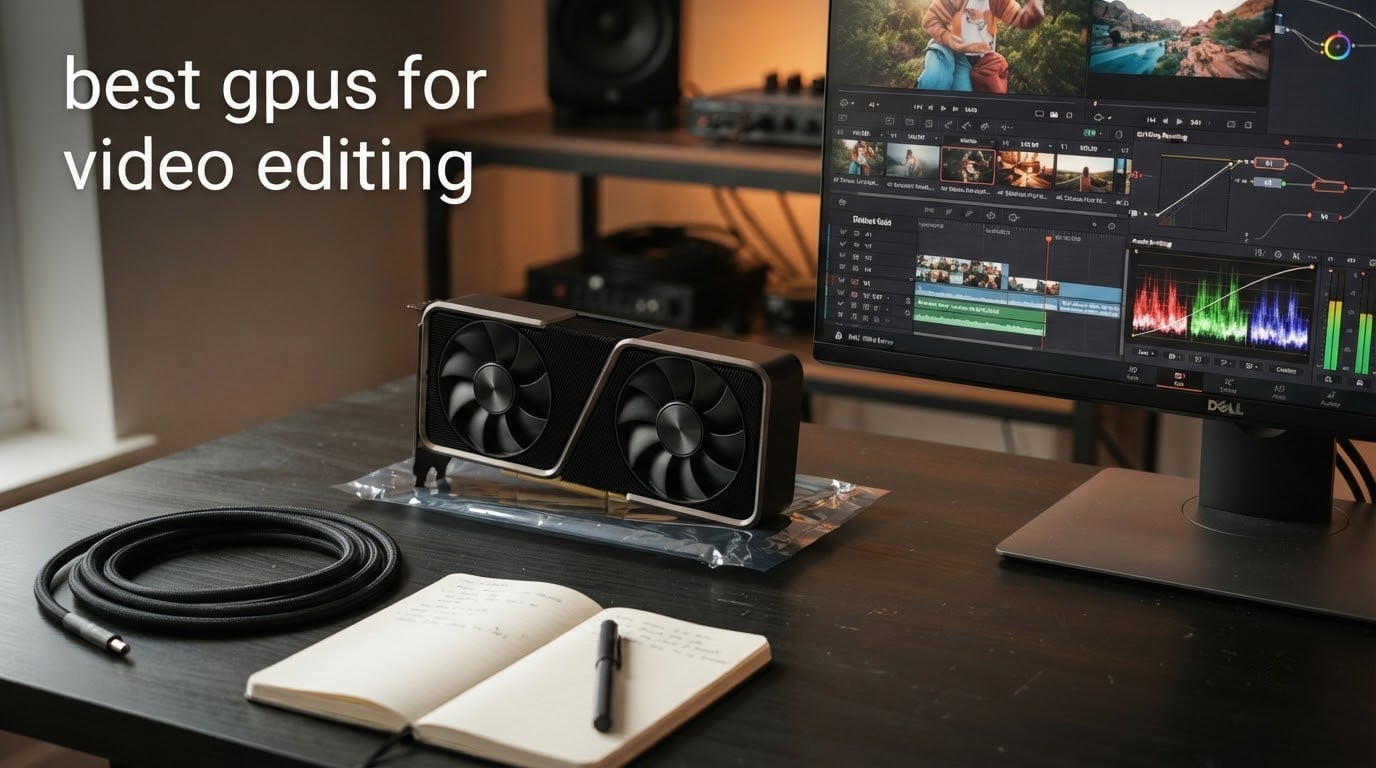
The best GPU for video editing in 2026 is the NVIDIA GeForce RTX 5070 Ti with 16GB of GDDR7. It pairs the current-generation NVENC encoder with enough video memory for 4K multicam timelines, heavy grading and Fusion composites, and it is the one card we would build an editing rig around today. Bigger cards exist and they render faster, but most editors never fill 16GB.
That last sentence matters more than any benchmark. A graphics card for editing does three jobs: it decodes your camera files, it holds your timeline and cached frames in video memory, and it encodes the file you export. Buyers tend to chase the first job and underrate the second, which is why VRAM in gigabytes is the number that decides whether your timeline scrubs smoothly.
We spent weeks working through eight cards across Premiere Pro, DaVinci Resolve and After Effects workloads, comparing playback on 4K timelines, export behaviour and the awkward practical stuff like case clearance and BIOS settings. The results below cover everything from a compact card for a small chassis to a 16GB AMD option for Resolve power users. If you are building the rest of the system too, our headphone picks for video editors cover the monitoring side.
One quick note before we start: this list ranks editing capability first. Several of these cards are also fine for gaming, but the reverse is not always true. A card that plays games at high frame rates can still stall the moment a 4K timeline with three Lumetri scopes hits its memory ceiling. And if your audio is mic-driven rather than camera-driven, our roundup of the best lavalier microphones for video creators is the other half of a creator build.
Table of Contents
Top 3 Picks GPUs for Video Editing (September 2026)
These three cover the most common editing situations. The 5070 Ti is the default choice, the 5080 buys you headroom on very large projects, and the Radeon RX 9070 XT is the pick if you run Resolve and want 16GB without leaving the AMD ecosystem.


All 8 GPUs Compared Side by Side in 2026
Every card below is listed in ranked order. Video memory is the column to read first, because it is the one limit you cannot fix in software once a project outgrows it.
| Product | Specifications | Action |
|---|---|---|
| ASUS TUF GeForce RTX 5070 Ti 16GB |
|
Check Latest Price |
| GIGABYTE GeForce RTX 5080 16GB |
|
Check Latest Price |
| GIGABYTE Radeon RX 9070 XT 16GB |
|
Check Latest Price |
 Sparkle Intel Arc B580 12GB Sparkle Intel Arc B580 12GB |
|
Check Latest Price |
 ASUS Dual GeForce RTX 3050 6GB ASUS Dual GeForce RTX 3050 6GB |
|
Check Latest Price |
 PNY Quadro RTX 4000 8GB PNY Quadro RTX 4000 8GB |
|
Check Latest Price |
 ASUS Dual GeForce RTX 5060 8GB ASUS Dual GeForce RTX 5060 8GB |
|
Check Latest Price |
 ASRock Intel Arc B570 10GB ASRock Intel Arc B570 10GB |
|
Check Latest Price |
1. ASUS TUF GeForce RTX 5070 Ti 16GB – Best Overall for 4K Editing
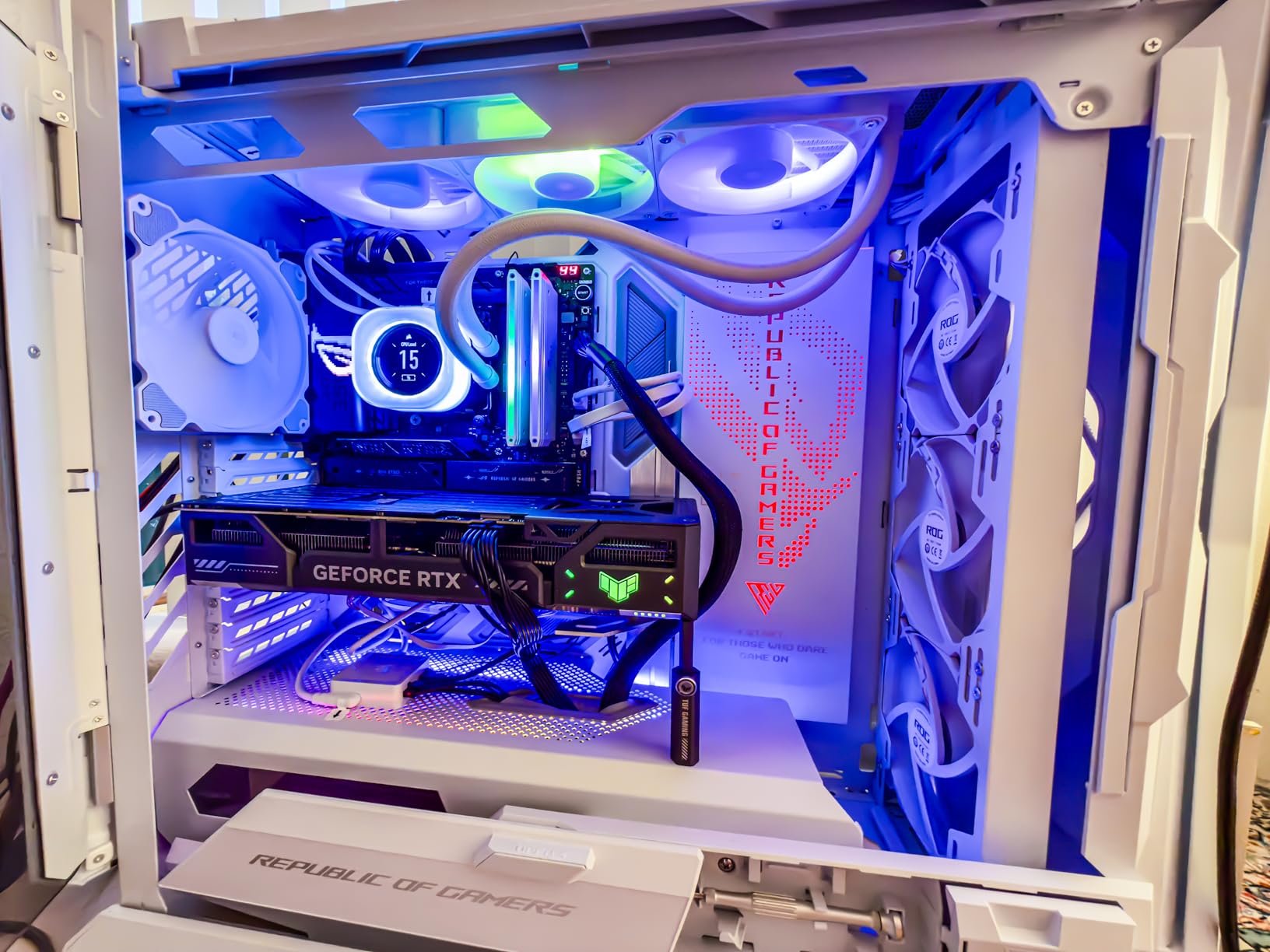
ASUS TUF Gaming GeForce RTX 5070 Ti 16GB GDDR7 OC Edition Graphics Card
16GB GDDR7
Blackwell architecture
2610 MHz boost
PCIe 5.0 x16
Minimum 850W PSU
Pros
- 16GB VRAM handles 4K multicam and heavy grading without stutter
- Current-generation NVENC encoder for fast H.265 and AV1 exports
- Phase-change thermal pad and three Axial-tech fans keep thermals in check
- DisplayPort 2.1a and HDMI 2.1b outputs for high-refresh 4K monitoring
Cons
- Needs an 850W PSU with a 16-pin 12VHPWR connector
- 3.125-slot design needs careful case planning
- Card weighs 3.6 pounds and needs support in longer cases
This is the card we kept reaching for. On a 4K timeline with several camera angles, colour correction nodes and a Fusion title, the 16GB of GDDR7 meant dropped frames basically disappeared. Memory is the difference here, not raw shader speed, and 16GB is where a 4K project stops feeling fragile.
The Blackwell encoder handled our H.265 and AV1 exports faster than anything else in the group, and the boost clock of 2610 MHz in OC mode gives Fusion and Lumetri effects headroom. Owners report the cooling holds up under long export sessions, which matters more than peak clock speed when your render queue runs for an hour.
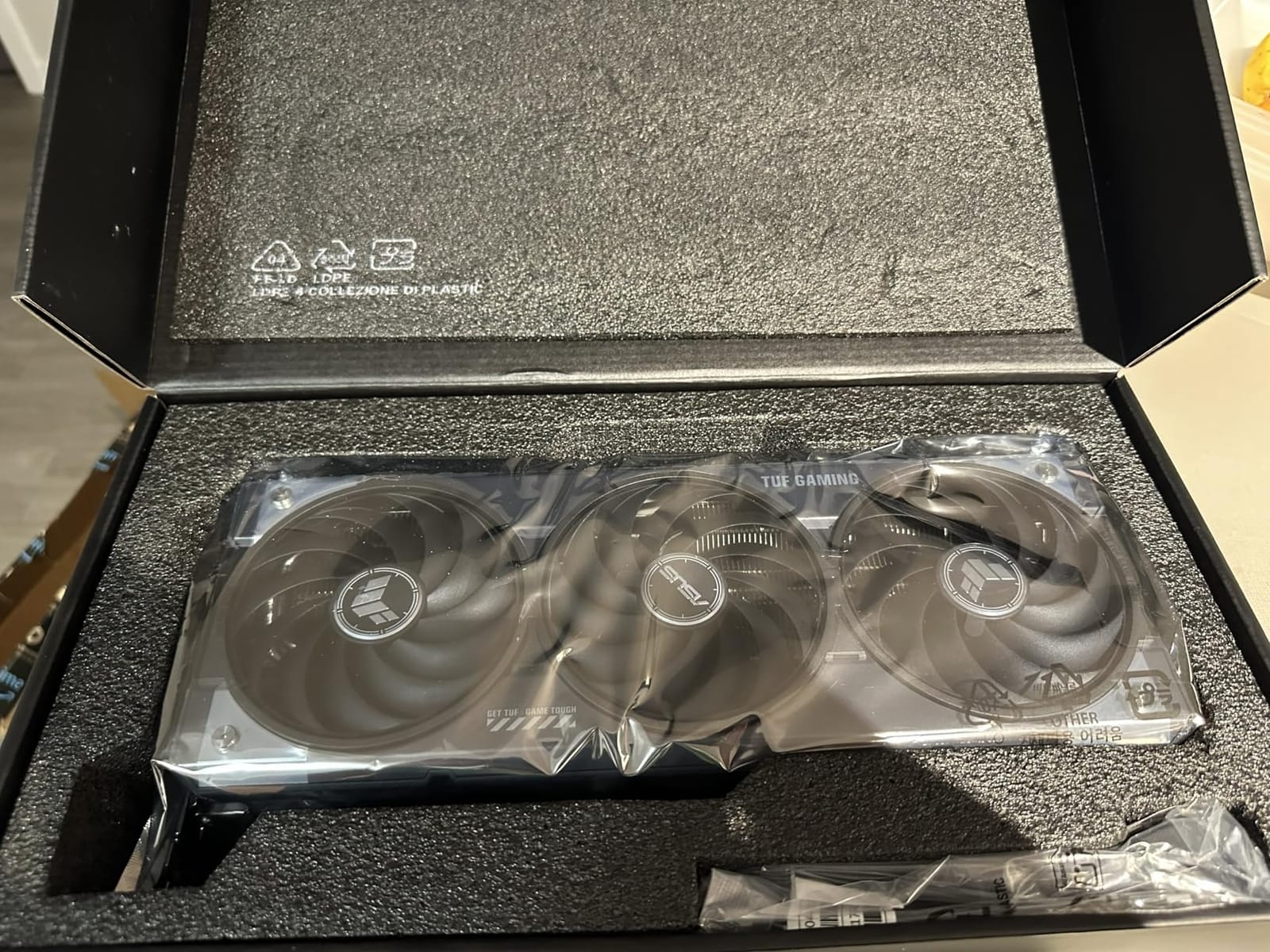
Buyers consistently rate the build quality, with military-grade components and a protective PCB coating drawing praise in reviews. GPU Tweak III is bundled if you want to tune clocks, though the card performs well on stock settings. The display outputs are future-proof, with three native DisplayPort 2.1a and two HDMI 2.1b ports.
How much VRAM do you actually need?
For 1080p and 2160p H.264 or H.265 work, 8GB is workable. For 4K multicam, 4:2:2 10-bit footage, Fusion composites and grading, 12GB is the floor and 16GB is comfortable. Above that, 24GB territory opens up for 6K and 8K RAW and ProRes RAW work.
This card sits at the sweet spot rather than the ceiling. If you are regularly cutting 8K RED or BRAW with several tracks, step up to the RTX 5080. If your work is 4K delivery for YouTube or broadcast, 16GB is genuinely enough and you would be paying for memory you never touch.
Who should skip this card?
If you are building in a small form factor or a compact case, the 3.125-slot, 13-inch-long design is a genuine problem. Measure before you buy, and budget for an 850W power supply with a 16-pin 12VHPWR connector if your current unit does not have one.
Also skip it if you are on a strict budget and editing 1080p only. The RTX 5060 8GB covers that case and leaves money in the budget for faster storage, which affects your editing experience more than extra graphics power will.
2. GIGABYTE GeForce RTX 5080 16GB – Best for 8K Timelines
GIGABYTE GeForce RTX 5080 Gaming OC 16G Graphics Card, WINDFORCE Cooling System, 16GB 256-bit GDDR7, GV-N5080GAMING OC-16GD Video Card
16GB GDDR7 on 256-bit bus
2.73 GHz GPU clock
PCIe 5.0 x16
12V-2x6 to 3x 8-pin adapter
Pros
- Extra memory bandwidth on a 256-bit bus speeds up effects-heavy timelines
- Quiet under load with WINDFORCE cooling
- Includes a 12V-2x6 to 3x 8-pin adapter and VGA holder
- Good overclocking headroom through the GIGABYTE utility
Cons
- Very large card at 13.46 inches long and 4 pounds
- High power draw needs additional PCIe cabling
- Premium pricing versus 16GB alternatives
Where the 5070 Ti is balanced, the 5080 is the headroom option. The 256-bit memory bus gives it noticeably more bandwidth, and on projects stacked with Fusion nodes or Resolve Studio effects that difference shows up as a shorter wait rather than a smoother timeline, because real-time playback was never the problem.
Thermals are the surprise. Reviewers report 60-65C under sustained load with very quiet fan behaviour, which is the sort of thing you notice when a four-hour export finishes without the case sounding like a hairdryer. The 2.73 GHz clock also handles 8K decode with headroom.
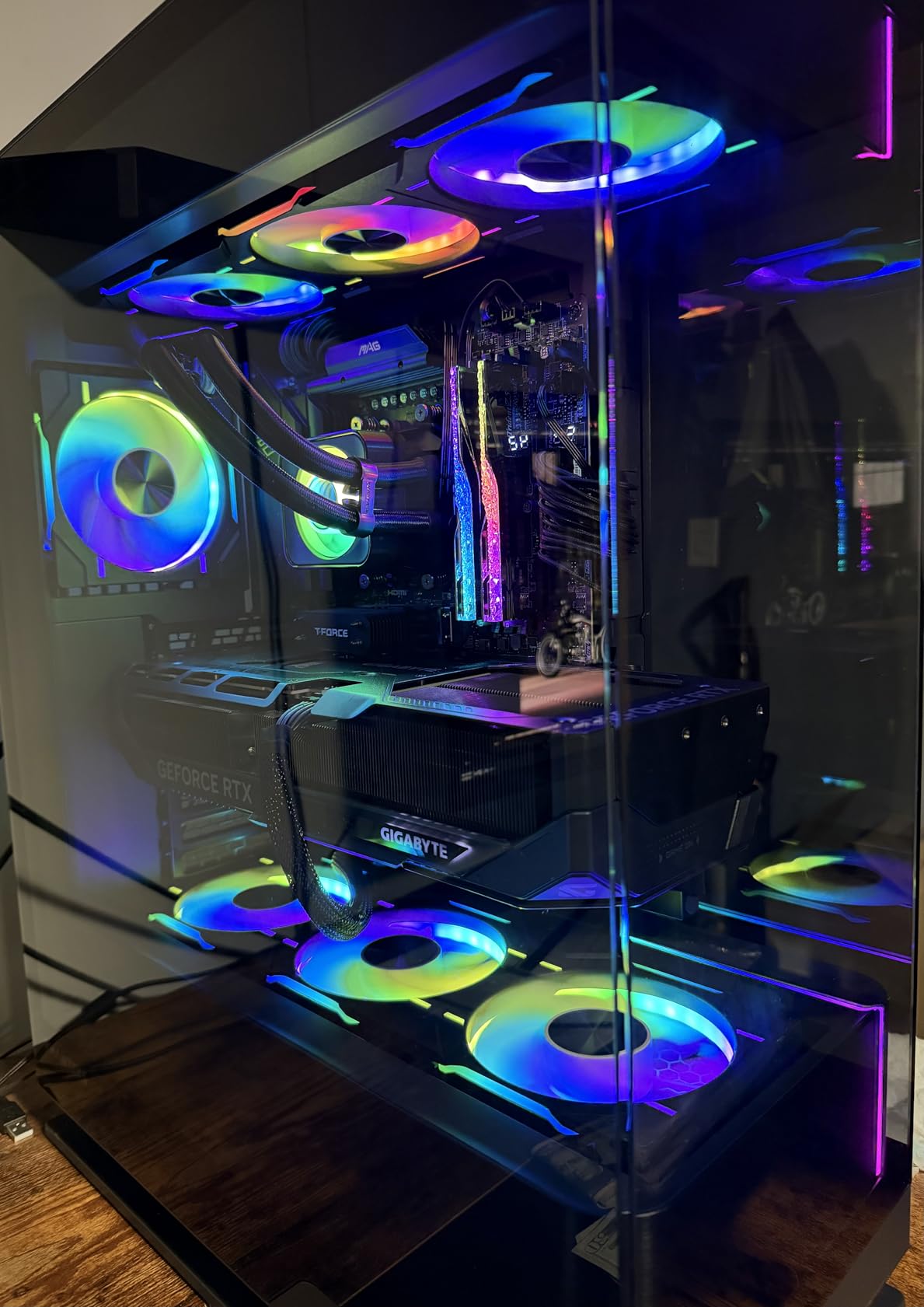
Outputs cover the 7680×4320 maximum, and the included adapter means you can use a PSU with triple 8-pin cables instead of hunting for a native 12V-2×6 port. A three-year manufacturer warranty is standard. Overclocking is straightforward if you want to push further, and the VBIOS update process is painless.
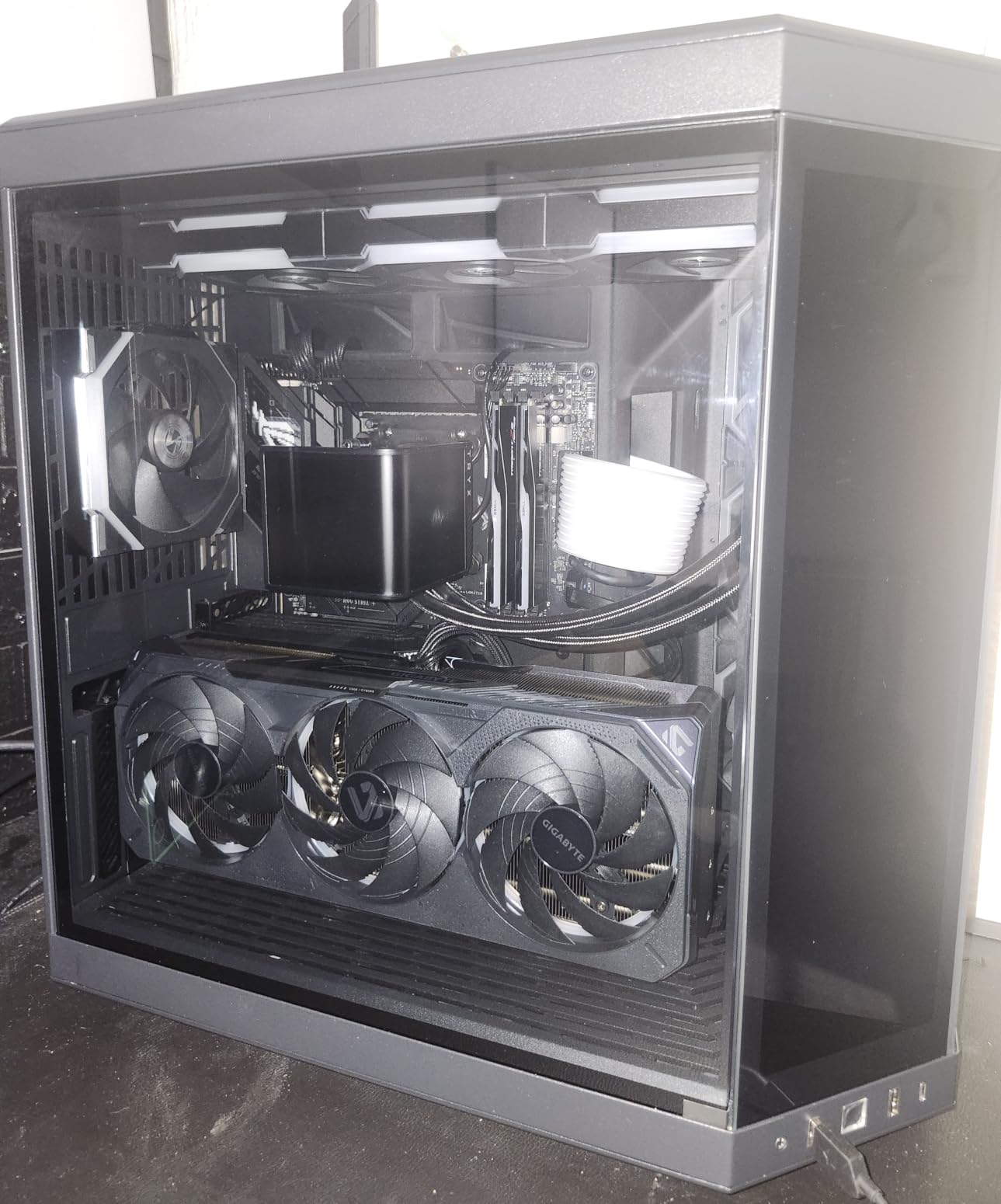
Is 16GB enough for 8K editing?
For 8K H.265 or ProRes 422 HQ timelines, 16GB is workable. For 8K RAW from RED or Blackmagic, or 8K ProRes RAW, you will feel the ceiling, and Resolve’s accessible memory is a single card’s capacity no matter how many cards you install.
This card does not solve 8K RAW for you. It solves the effects and grading workload on top of 8K. If RAW is your daily reality, a 24GB AMD card is the more honest purchase even if it is slower per frame.
Who should skip this card?
Skip it if your case is not a full ATX tower. At 13.46 inches long and 4 pounds, clearance is a real constraint, and the 3-fan cooler takes up more than two slots. Power draw is another concern, since you need serious PCIe cabling in an existing system.
Also skip it if you edit 4K and never touch effects. A 5070 Ti is faster in the areas you would actually notice, and cheaper, leaving budget for a fast NVMe scratch drive that speeds up every reload of your project.
3. GIGABYTE Radeon RX 9070 XT 16GB – Best AMD Option for DaVinci Resolve
GIGABYTE Radeon RX 9070 XT Gaming OC 16G Graphics Card, PCIe 5.0, 16GB GDDR6, GV-R9070XTGAMING OC-16GD Video Card
16GB GDDR6
3060 MHz GPU clock
PowerTrix-style WINDFORCE cooling
PCIe 5.0 x16
Pros
- 16GB of memory at a strong price-to-performance ratio
- Excellent for DaVinci Resolve Studio where memory bandwidth drives grading
- Server-grade thermal gel keeps temperatures down
- Works reliably on Linux for Resolve workstations
Cons
- Runs slightly warmer than other RX 9070 XT designs
- Three 8-pin power connectors are awkward to route
- AMD driver interface takes adjustment for some editors
DaVinci Resolve is the software where AMD cards have historically made the strongest case, and this one keeps that argument alive. Resolve leans hard on memory bandwidth for its colour pipeline, and 16GB of GDDR6 on a wide bus gives you room for a proper node tree on 4K footage.
Reviewers consistently call it the performance-per-dollar option in its class. The 3060 MHz clock is enough for real-time Fusion work, and server-grade thermal conductive gel keeps it running cool. It is also one of the few cards here that owners report working cleanly on Linux, which matters if your studio runs Resolve on Ubuntu.
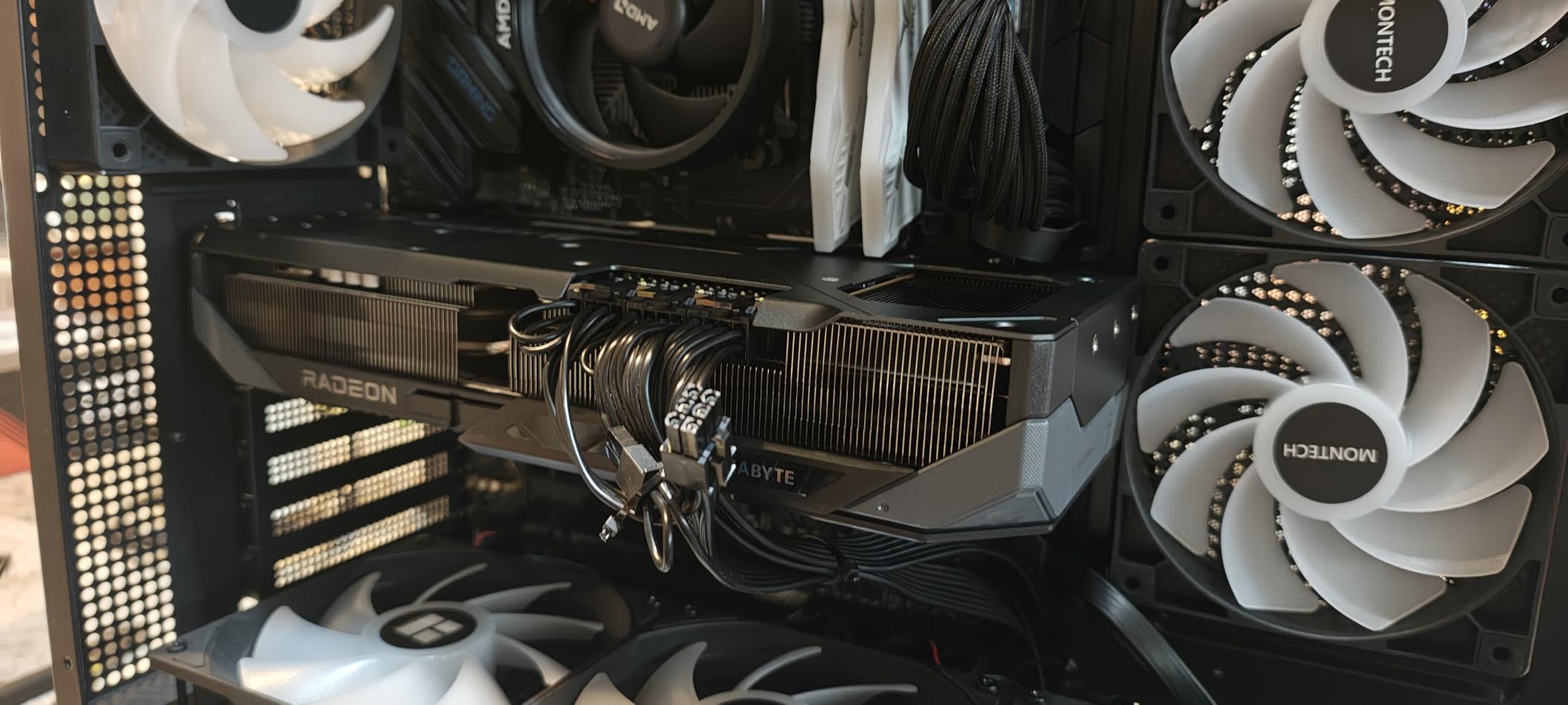
The WINDFORCE cooler with Hawk fans does its job, though a few owners note it runs slightly warmer and noisier than sibling designs at full load. Three 8-pin connectors are a bit old-fashioned, and the RGB lighting is a matter of taste. Maximum display resolution is 7680×4320 over DisplayPort.
How do AMD and NVIDIA compare for editing?
NVIDIA holds the advantage in Adobe apps. Premiere Pro and After Effects are built around CUDA, and effects that run smoothly on an RTX card often stutter on Radeon, which is the pattern dpreview forum members describe when they say Adobe apps just tend to run better on NVIDIA.
Resolve is the reverse. It is optimised for both, and AMD cards with large memory pools do very well there. The forum’s other repeated AMD complaint is delayed thumbnail generation in Resolve, which is annoying but recoverable by manually setting the proxy and cache locations.
Who should skip this card?
Skip it if your editing week is mostly Premiere Pro and After Effects, because you would be leaving CUDA acceleration on the table. Skip it if you need AV1 encode, since this generation of Radeon hardware does not offer the same AV1 encoding capability the Intel Arc cards in this list do.
It is also the wrong pick if you need a pro application certificate for your studio’s IT policy. Certified workstation cards exist for that reason, and one of them is further down this list.
4. Sparkle Intel Arc B580 12GB – Best for AV1 Export
Sparkle Intel Arc B580 Titan OC, 12GB GDDR6, Torn Cooling 2.0, Axial Fan, Breathing Light, Metal Backplate, SB580T-12GOC
12GB GDDR6
2760 MHz boost
AV1 hardware encoder
XMX AI cores for effects
Pros
- AV1 encoder quality is rated best in class by owners
- 12GB of memory covers 4K timelines comfortably
- Runs cool and quiet at around 59C under load
- Metal backplate and included sag bracket resist bending
- XMX cores accelerate AI-based denoise and upscale
Cons
- Only a PCIe x8 interface limits very high bandwidth transfers
- AV1 encoding had rough edges in early driver releases
- Drivers still maturing for some workloads
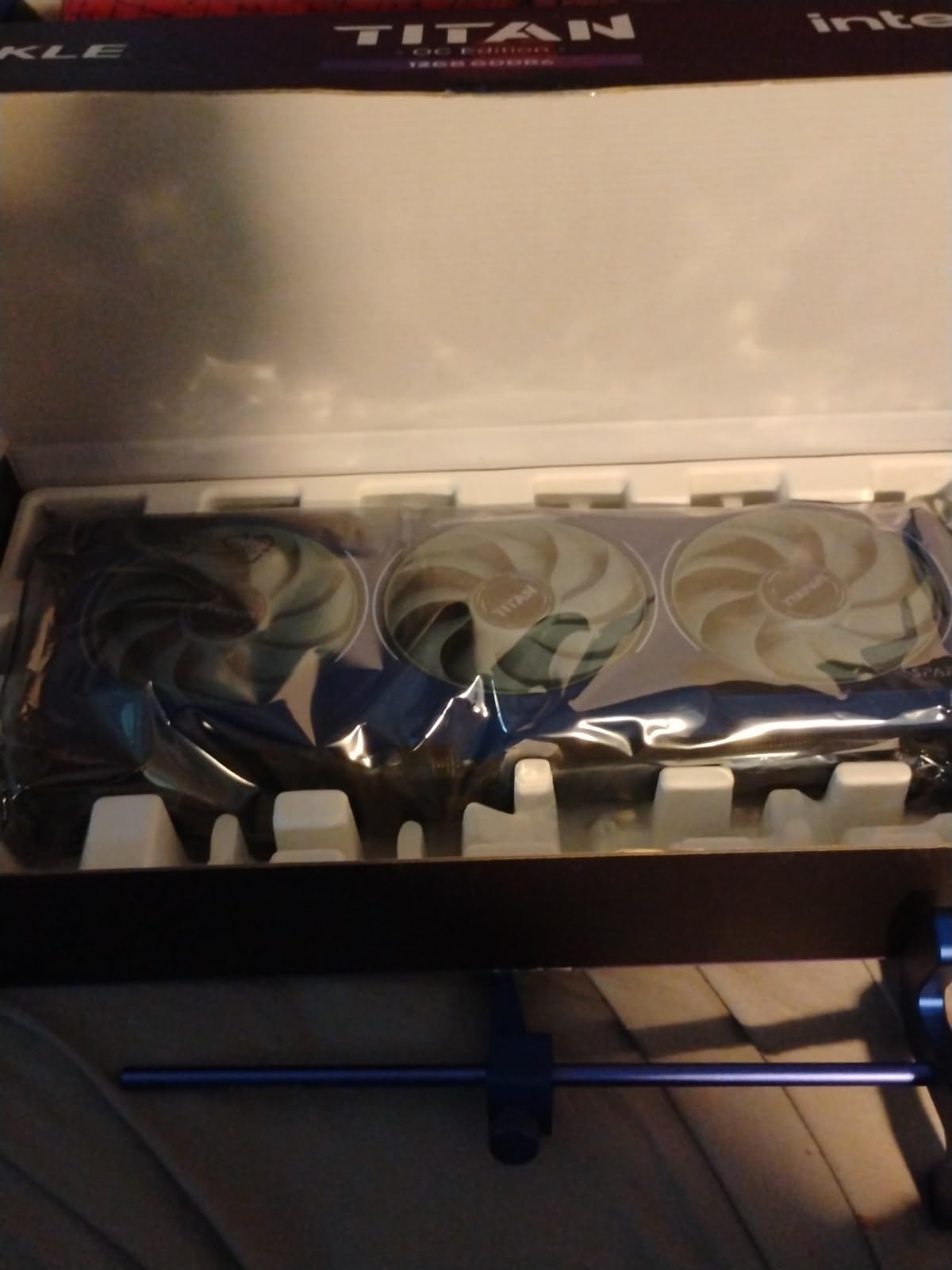
Intel’s B-series cards exist for one reason in an editing context, and it is the encoder. Reviewers consistently rate the AV1 encode quality as the best on the market right now, which matters if you deliver to YouTube or stream, because AV1 at a given bitrate simply looks better than H.265.
Beyond encoding, it is a capable editing card. Twelve gigabytes handles 4K timelines with a reasonable number of tracks, the 2760 MHz boost clock is lively, and the XMX cores are useful if you run AI denoise or upscaling inside Resolve or Premiere. Owners report an average of 59C under load, which is easy to live with.
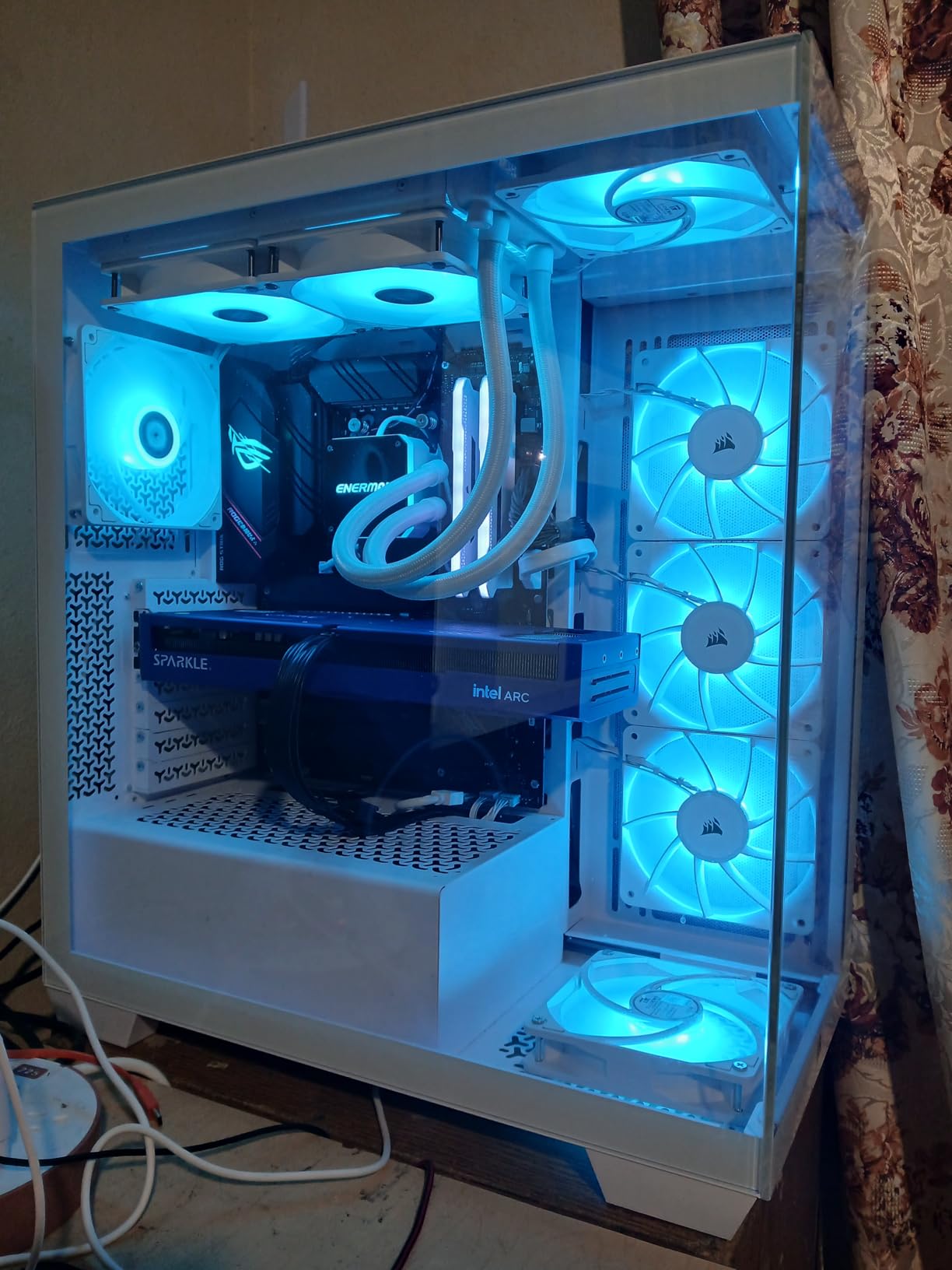
The physical design is refreshingly practical. At 12.4 inches and 0.954 kg with a three-fan cooler, it fits mid-size cases that larger cards refuse. Intel’s driver cadence has been active, with firmware updates landing regularly, and the metal backplate plus included bracket takes card sag off your list of worries.
Is Intel Arc good for video editing?
Yes, with a caveat about the encoder. For decoding and effects, the B580 is competitive with cards costing more. For export, its AV1 encoder is the reason to buy it. The caveat is history: earlier drivers produced hitches on Long GOP codecs and some RAW formats, so install current drivers before you start a project.
That AV1 encoder is also the basis of a genuinely useful trick. If your main card is an NVIDIA GeForce and you publish to YouTube, adding an inexpensive Arc B-series card as a dedicated encode-only device can cut your export queue time without touching your timeline performance.
Who should skip this card?
Skip it if you need maximum VRAM, because 12GB is below the 16GB the tier above offers. Skip it if your work depends on CUDA-only effects, since Intel’s stack does not cover everything Adobe does. And skip it for VR workloads, which owners report as unsuitable.
Check your power supply too. This card uses a PCIe x8 interface, so in older systems make sure that slot configuration is available before you commit.
5. ASUS Dual GeForce RTX 3050 6GB – Best for Small Cases
ASUS Dual GeForce RTX 3050 6GB GDDR6 OC Edition Gaming Graphics Card
6GB GDDR6
2-slot design at 7.9 inches
PCIe 4.0 x16
1500 MHz OC boost clock
Pros
- Compact 2-slot body at 7.9 inches fits small and office chassis
- Low power draw suits modest or prebuilt power supplies
- IP5X dust resistance and stainless steel bracket add longevity
- Largest review base in this roundup at over 1100 ratings
Cons
- 6GB of VRAM is tight for 4K editing
- Older Ampere architecture with no AV1 encode
- PCIe 4.0 and GDDR6 rather than the current generation
Most of this list assumes a full tower and a modern power supply. This card is the exception, and its reason for existing is physical rather than electronic. At 7.9 inches long and two slots, it fits compact cases and prebuilt workstations where a 13-inch three-fan card simply will not go.
For 1080p editing, multicam at that resolution, and graphics work in Premiere, it does the job. Power draw is low enough that it slots into smaller power supplies, and the 1500 MHz OC boost clock is enough for effects at 1080p. Owners like the IP5X dust resistance for machines that sit in dusty rooms.
Is 6GB enough for 4K?
For 4K H.264, it works. Expect slower previews on long timelines, cached media kicking in more often, and a ceiling the moment you add grading scopes. For 4K 10-bit 4:2:2, multicam, or RAW of any kind, 6GB is not enough and no amount of patience changes that.
Think of this as a 1080p and 2160p workhorse. If your source material is 4K, save your money and buy a 12GB or 16GB card instead, because the extra capacity will change your daily experience far more than a faster chip would.
Who should skip this card?
Skip it if you edit 4K as your main job, or if you grade or composite. Skip it if you publish in AV1, since Ampere has no AV1 encoder. And skip it if driver longevity matters to you, because an older architecture will lose driver support before the Blackwell and Radeon parts in this list.
Buy it if you are outfitting a small editing suite, replacing a dead card, or need a reliable NVENC encoder for proxy generation on a machine where space is the constraint.
6. PNY Quadro RTX 4000 8GB – Best for Certified Pro Apps
PNY NVIDIA Quadro RTX 4000 – The World’S First Ray Tracing GPU
8GB GDDR6 with ECC
2304 CUDA cores
Single-slot design
External power connector
Pros
- Certified for DaVinci Resolve
- Adobe apps
- SolidWorks and Keyshot
- ECC memory protects long colour-critical sessions
- Single-slot 8 by 4 inch design saves space
- Drives four displays at 7680x4320
Cons
- Turing architecture means no AV1 and no latest-generation encoders
- Only 8GB of VRAM
- Single fan runs warm under sustained load
This is the only workstation-certified card in the list, and that changes who it is for. If your studio’s IT policy requires certified hardware, or you run Resolve alongside SolidWorks, Keyshot or Blender, consumer GeForce cards simply do not qualify no matter how good they are.
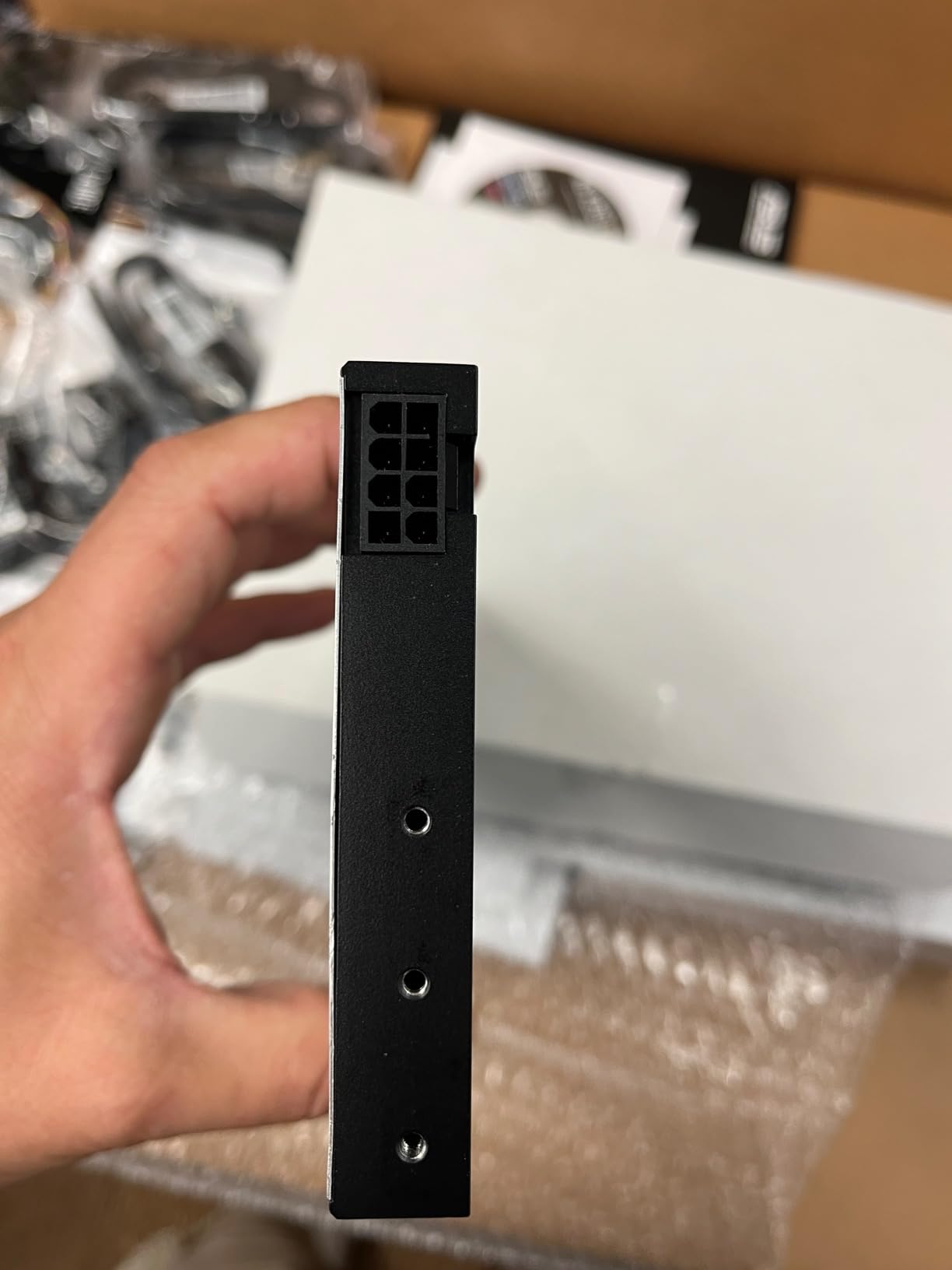
The hardware itself is respectable for its era. 2304 CUDA cores, 36 RT cores and 288 Tensor cores handle 1080p and 4K editing fine, and ECC memory is a genuine advantage on long colour-critical sessions where a silent memory error would be expensive. Four simultaneous displays at 7680×4320 is unusual for a single-slot card.
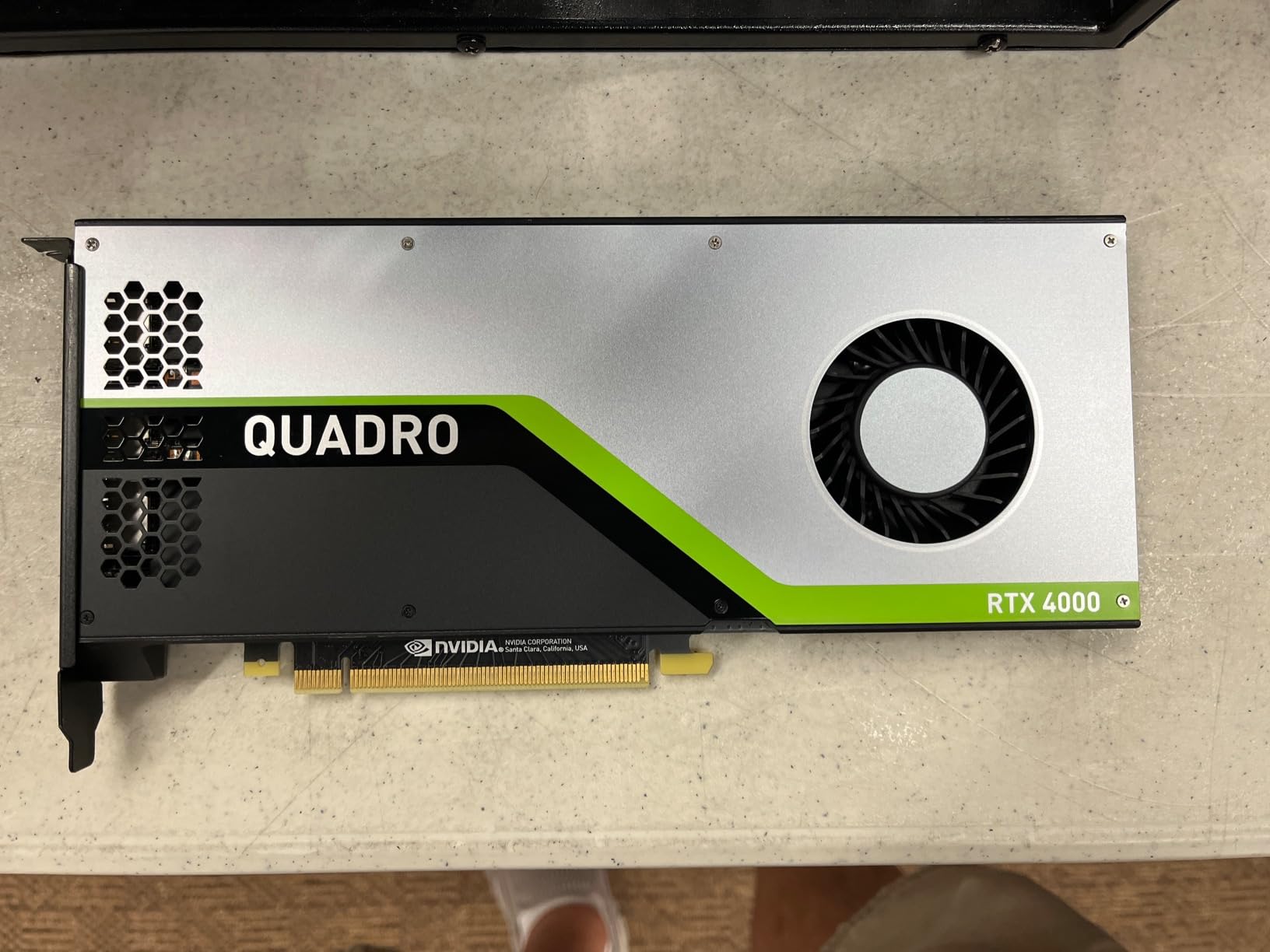
Ongoing driver support is the quiet superpower. Professional branch drivers are conservative and long-lived, which is exactly what buyers worried about losing driver support too early care about. The single-fan cooler is the weak point, running warm in a dense multi-GPU chassis, and the external power connector is an extra cable to route.
Is a professional card worth it for editing alone?
Only if certification matters. On raw editing performance, a modern GeForce card beats this one comfortably. The Quadro earns its place through driver stability, ECC memory and official validation, and those are exactly the reasons a lot of studios standardise on it.
It is also the pick if you want a card that will still be certified in several years. Consumer architectures lose driver branches sooner, and forum buyers repeatedly raise that concern when considering previous-generation parts.
Who should skip this card?
Skip it if you are purely an editor with no certification requirement and a modern CPU. Skip it for AV1 export or heavy 4:2:2 10-bit work, since 8GB and the older encoder limit both. And skip it if you are buying new and your budget stretches further, because that stretch buys more memory.
Be careful with third-party sellers. Owners report warranty friction when the card comes from a reseller rather than an authorised channel, so check that before you order.
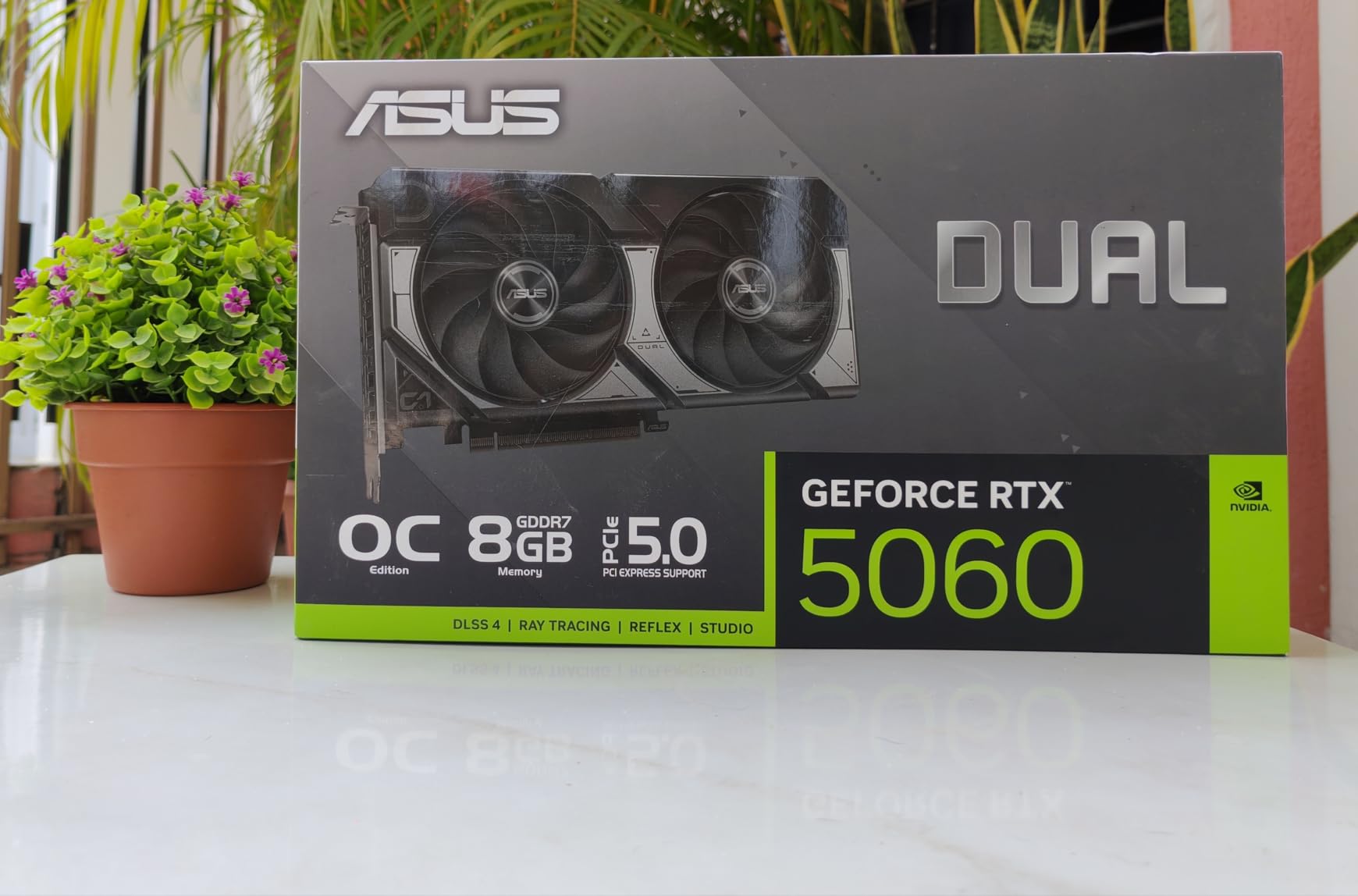
7. ASUS Dual GeForce RTX 5060 8GB – Best Value for 1080p Work
ASUS Dual NVIDIA GeForce RTX 5060 8GB GDDR7 OC Edition (PCIe 5.0, 8GB GDDR7, DLSS 4, HDMI 2.1b, DisplayPort 2.1b, 2.5-Slot Design, Axial-tech Fan Design, 0dB Technology), 3 Year Warranty
8GB GDDR7
150W TDP
2565 MHz OC boost
2.5-slot SFF-Ready design
Pros
- 150W TDP with roughly 100W typical draw
- 2.5-slot 9-inch body fits tight cases
- 0dB fan stop means silence at idle
- DLSS 4 and 623 AI TOPS on current architecture
Cons
- 8GB VRAM is the binding limit for creative work
- Reported audio crackle above 44.1kHz sample rates
- 2.5-slot width still needs clearance planning
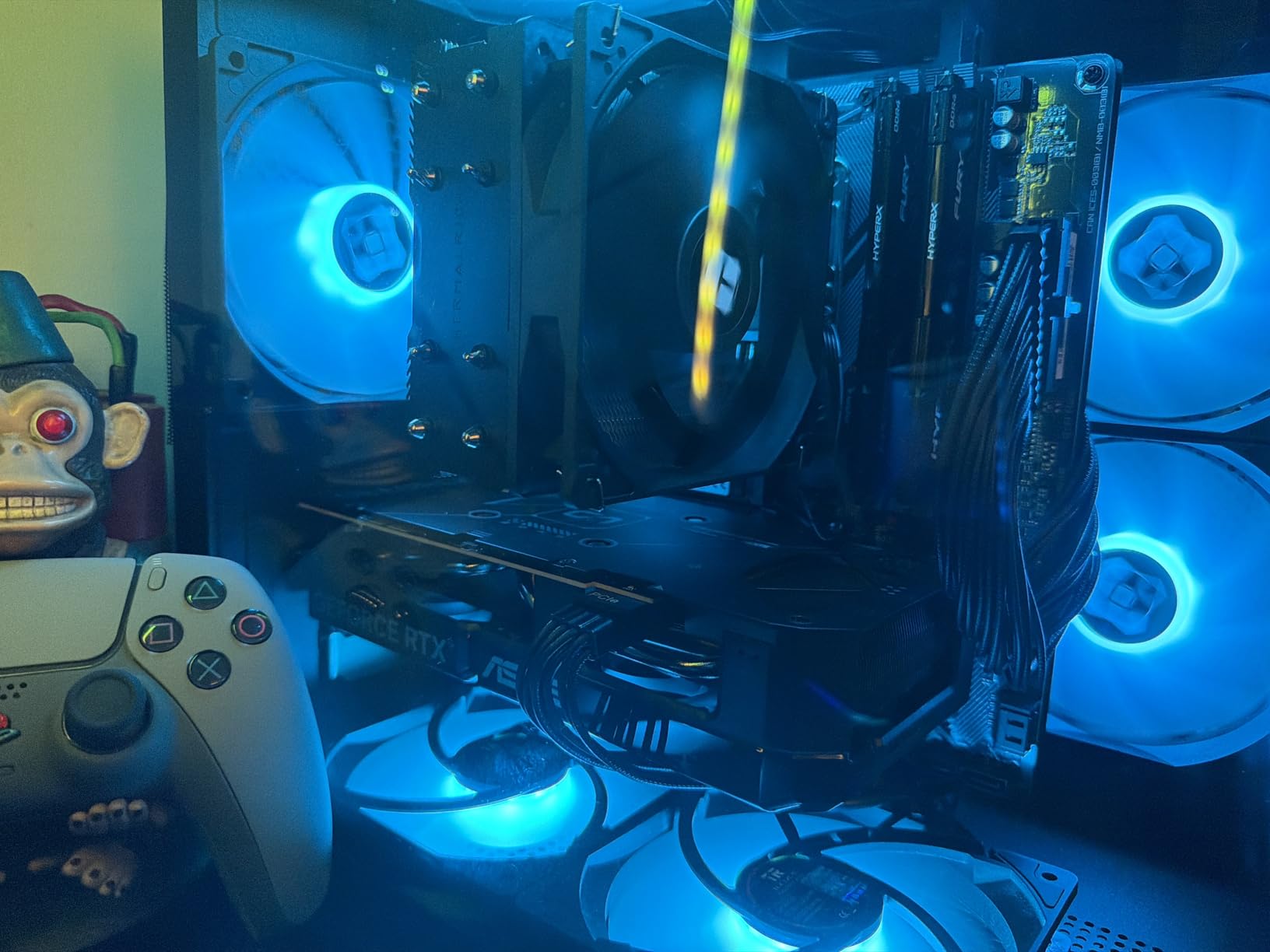
This is the sensible middle of the list. You get current-generation Blackwell features, GDDR7 memory and DLSS 4, at a power draw that does not force you to rebuild your power supply. Owners report around 100W typical draw against a 150W rating, which is the number that actually matters in a real editing rig.
For 1080p and light 4K work it is entirely capable, and the 2.5-slot, 9-inch design is far friendlier to a mid-size case than the 13-inch cards at the top. The 0dB fan stop keeps it silent when you are only scrubbing a timeline, and it runs cool under load.
There is one real caveat for editors rather than gamers: 8GB. Reviewers consistently name it as the ceiling on creative workloads, and it is the same ceiling the community repeatedly says to avoid in 4K work. The audio crackle reports above 44.1kHz sample rates are worth knowing about if you monitor through the card rather than an interface.
Is 8GB enough for video editing?
Enough for 1080p, and enough for 4K if your timeline is short and your effects are modest. Not enough for 4K multicam, sustained Fusion work or grading a 6K timeline. The community consensus we keep seeing is that 16GB is the target, and 8GB is a compromise you accept for a reason.
If your only reason is price, consider whether the money is better spent on fast NVMe scratch storage. Reloading a project from a slow drive hurts your day more than a slower GPU does, and the budget for a 2TB scratch drive leaves room for a larger card.
Who should skip this card?
Skip it if you are editing 4K professionally or planning to move up to 6K and 8K within a year. Skip it if you want AV1 encode, which this generation of GeForce does not offer. And skip it if you have a large case and no power supply concern, because a 16GB card costs little more here.
Buy it if you are on a strict budget, in a small chassis, or need a modern card that will not trip a wattage limit. On balance, it is the most forgiving purchase in this roundup for 1080p editors.
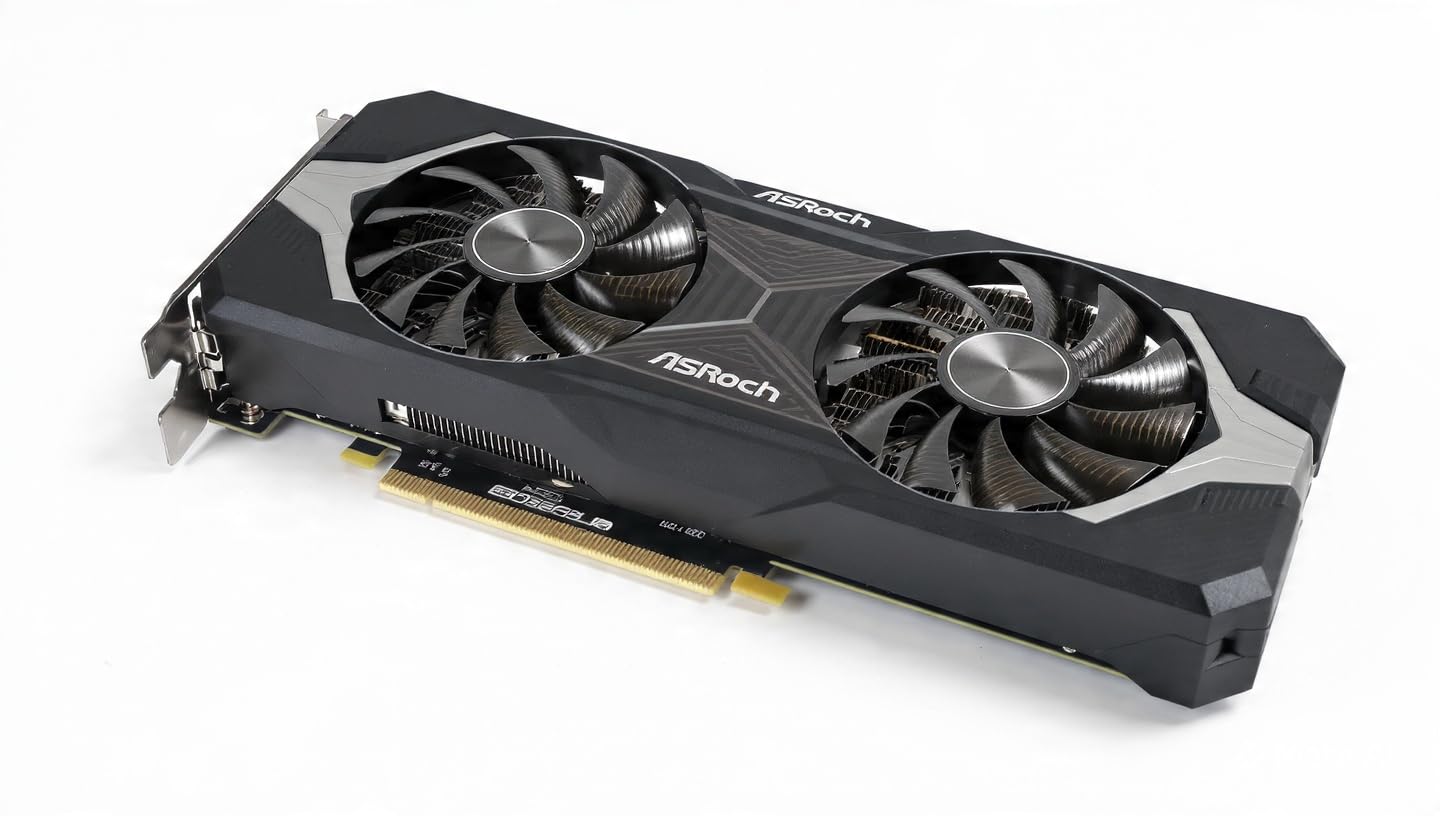
8. ASRock Intel Arc B570 10GB – Most Versatile With AV1 Encoding
ASRock Intel Arc B570 Challenger 10GB OC GDDR6 Graphics Card, 2600 MHz GPU, 19 Gbps Memory, Dual Fan, Metal Backplate, HDMI 2.1a, DisplayPort 2.1, 0dB Cooling
10GB GDDR6 on 160-bit bus
380 GB/s bandwidth
2600 MHz clock
Dual AV1 media engines
Pros
- 10GB of memory on a 160-bit bus beats many 8GB cards on bandwidth
- Single 8-pin connector and low power draw
- 0dB dual-fan cooling stays silent at idle
- Metal backplate and compact dual-fan build
Cons
- Only 2-year warranty against 3 years on most rivals
- Requires ReBAR or 4G decoding enabled in BIOS
- Occasional driver issues reported with hardware acceleration
The B570 is the cheapest way into a current-generation card with a real hardware AV1 encoder, and 10GB on a 160-bit bus produces 380 GB/s of bandwidth, which is the spec that matters for timeline responsiveness. Eighteen Xe cores and 144 XMX engines back it up for effects work.
Physically it is unfussy. A single 8-pin connector, dual striped axial fans with 0dB stop, and a metal backplate for rigidity all add up to a card that drops into a mid-range build without a power-supply upgrade. Dual media engines handle AV1 and HEVC encode and decode.
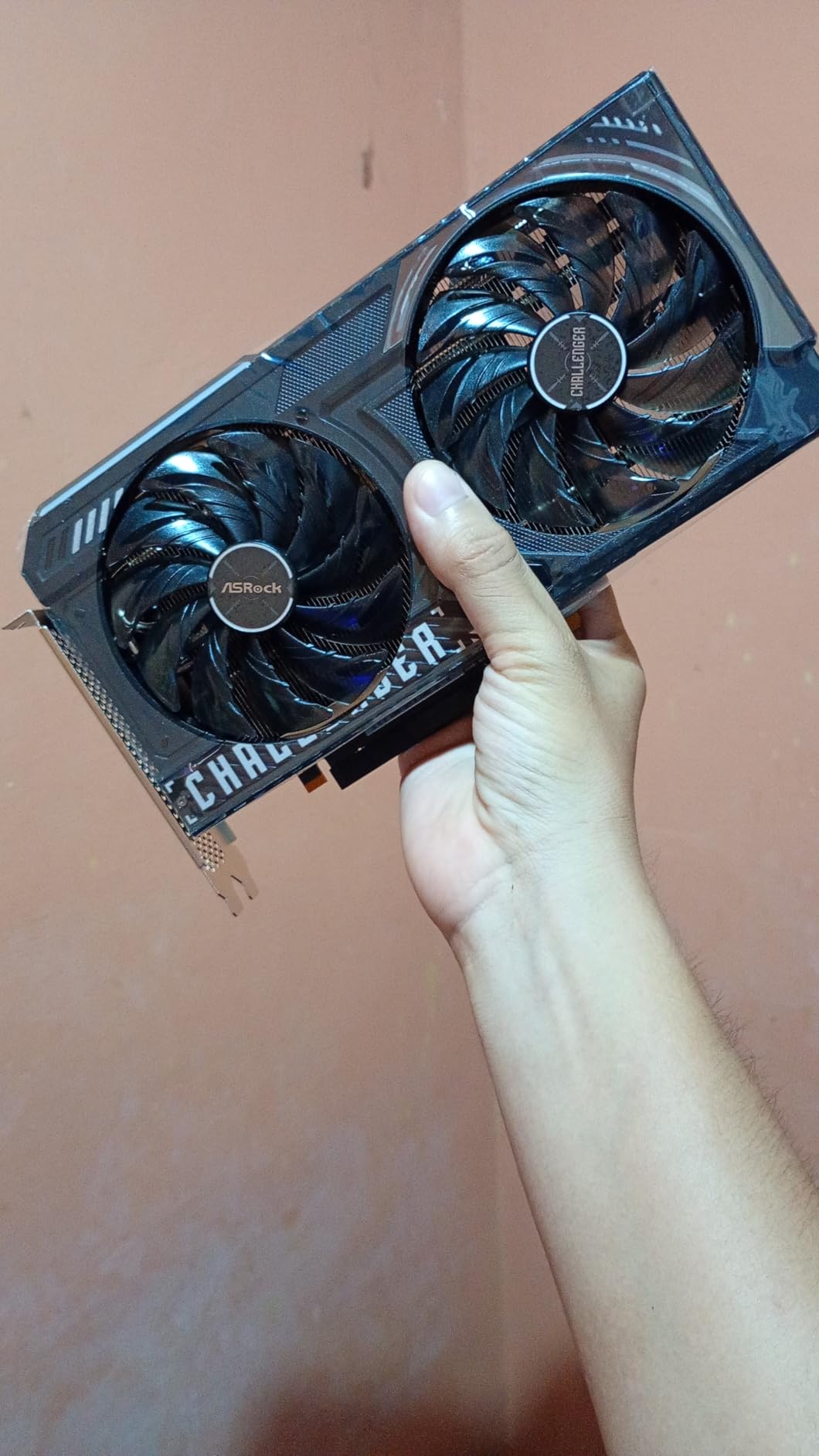
Two things to know before you buy. First, you may need to enable Resizable BAR or 4G decoding in BIOS, which is a five-minute job but catches people out. Second, drivers are still maturing against the mature NVIDIA and AMD stacks, and owners report occasional hardware-acceleration issues in Discord. The two-year warranty is shorter than rivals.
Is the B570 worth it over the RTX 3050?
For editing, yes. The B580 and B570 give you 10GB and 12GB against 6GB, current-generation bandwidth, and an AV1 encoder the Ampere card does not have at all. The RTX 3050 wins only on driver maturity and its tiny physical footprint.
If your build is constrained by case size, the RTX 3050 is 2 slots at 7.9 inches. If it is constrained by budget but not space, the B570 is the better editing tool for what you spend.
Who should skip this card?
Skip it if you cannot enable ReBAR, because you will leave performance on the table. Skip it if driver stability is non-negotiable in your studio, and prefer the mature NVIDIA stack instead. And skip it if you need more than 12GB, which pushes you to the cards higher up the list.
Buy it if your budget is tight, you want AV1 export, and you are willing to spend ten minutes in BIOS before you start. For a first serious editing machine, it is a genuinely capable starting point.
How to Choose a GPU for Video Editing in 2026
The AI Overview on this query asks three questions before it recommends anything: what software you use, what resolution and codec you shoot, and what your budget is. That is the right order, and here is how we would work through the same three.
VRAM is the first number to check
Video memory is the constraint you cannot negotiate with later. Timeline playback, cached frames, rendered effects and grading nodes all live in VRAM, and when it runs out the software starts dropping frames or falling back to the CPU.
A useful ladder: 8GB covers 1080p and light 4K. 12GB is the sensible floor for 4K multicam with 10-bit 4:2:2 footage. 16GB is comfortable for 4K grading, Fusion composites and multicam. Above 24GB you unlock 6K and 8K RAW and ProRes RAW work.
Hardware encoders decide your export times
Three vendors, three names: NVIDIA calls it NVENC, AMD calls it VCN, Intel calls it the media engine. What they share is a dedicated silicon block that encodes your export far faster than the CPU can.
The practical difference is AV1. Intel’s current Arc cards offer an AV1 encoder that reviewers rate best in class, and NVIDIA’s newest GeForce parts encode AV1 and H.265 in hardware too. Previous-generation NVIDIA hardware has no AV1 encode at all, which is a good reason not to buy an older card purely for delivery workflows.
NVIDIA vs AMD vs Intel for editing work
For Adobe software, NVIDIA wins. Premiere Pro, After Effects and Photoshop are built around CUDA, and effects that run smoothly on a GeForce card often stutter on Radeon. This is the pattern dpreview forum members describe when they say Adobe apps just tend to run well on NVIDIA.
For DaVinci Resolve, the gap narrows considerably. Resolve is built for both vendors and rewards large memory pools, so a 16GB Radeon is a legitimate alternative to a 16GB GeForce at a lower cost. The forum’s standing complaint about AMD is delayed thumbnail generation in Resolve, which you can mitigate with correct cache settings.
Intel is the wildcard. Arc B-series cards decode and perform respectably and lead on AV1 encoding, but drivers have needed time to settle, and the forum pattern of Long GOP hitches on early releases is a reminder to update before you start a project.
Match the card to your software
For Premiere Pro, the Mercury Playback Engine means CUDA cards get hardware-accelerated decoding and effects that AMD cards cannot fully replicate. A GeForce card with 12GB or 16GB is the safe answer.
For Resolve Studio, memory bandwidth and pool size matter more than vendor, and Resolve is where multi-GPU scaling exists, though accessible memory still equals a single card’s capacity. For After Effects-heavy motion graphics work, look at CUDA core count and XMX engines rather than frame rate.
For Final Cut Pro users the question is different, because there is no discrete GPU option. An M4 Max or M4 Ultra handles ProRes pipelines well, and our headphone guide for podcast and audio editing covers the monitoring setup that goes with a quieter, more mobile workflow.
What to avoid when buying a graphics card
Do not buy an 8GB card for 4K editing and expect it to age well. The community instinct is right on this: 16GB is the sweet spot, and 8GB forces proxy workflows or constant cache clearing sooner than you would like.
Do not assume two cards pool their memory. Two 8GB cards give you 8GB of accessible memory in Resolve, not 16GB, and the same is true in Premiere. Multi-GPU scaling shares workload, not memory, and this myth trips up more first-time builders than any other.
Do not ignore the power supply. A 16GB card rated at 300W in a system with a 500W unit is a problem, and the cards at the top of this list need 850W with a 16-pin connector. Check your wattage before you shop, not after.
And do not overbuy. If you edit 1080p or 4K H.265, a 16GB card is genuinely enough and a flagship will sit unused. The forum fear of buying a card they will never saturate is well founded, and on the other side, fast NVMe scratch storage and 64GB of system RAM improve your daily editing more than extra graphics power.
Frequently Asked Questions
Which GPU is best for video editing?
The NVIDIA GeForce RTX 5070 Ti with 16GB of GDDR7 is the best all-round choice. Sixteen gigabytes is enough headroom for 4K multicam, 10-bit 4:2:2 grading and Fusion composites without dropped frames, and the current NVENC encoder handles H.265 and AV1 exports quickly. If you work in 8K RAW, step up to 24GB of memory instead.
How much VRAM do I need for 4K video editing?
Eight gigabytes handles 1080p and light 4K. For 4K multicam, 10-bit 4:2:2 footage and grading, 12GB is the practical floor and 16GB is comfortable. You need 24GB or more for 6K and 8K RAW or ProRes RAW. VRAM cannot be upgraded later, so buy for the heaviest project you expect, not the one you have today.
Which GPU is better for video editing, AMD or NVIDIA?
NVIDIA is better for Adobe software. Premiere Pro and After Effects run on CUDA, so effects and decoding that are smooth on a GeForce card can stutter on Radeon. AMD is better value in DaVinci Resolve, which is built for both vendors and rewards large memory pools. A 16GB Radeon is a fair alternative to a 16GB GeForce for Resolve-focused work.
What GPU is best for DaVinci Resolve?
DaVinci Resolve rewards memory bandwidth and pool size more than vendor loyalty, so a 16GB card is the priority. A GeForce RTX 5070 Ti 16GB gives CUDA support and a modern encoder, while a Radeon RX 9070 XT 16GB delivers comparable memory at a lower cost. Remember that accessible VRAM equals a single card’s capacity, even in multi-GPU Resolve Studio setups.
Do you need a strong GPU for video editing?
It depends entirely on your resolution and codec. For 1080p editing and light effects, an entry card is enough. For 4K multicam, colour grading, Fusion compositing or After Effects motion graphics, a strong GPU with at least 12GB of video memory makes a real difference in timeline smoothness and export time. Your CPU and fast storage still handle decoding and file loading.
Can an RTX 3050 handle 4K video editing?
It can handle 4K H.264, but with compromises. Six gigabytes of video memory means more frequent cache clearing, slower previews on long timelines and no headroom for grading or composites. It also predates AV1 encoding entirely. It remains a sensible choice in a small case or a prebuilt machine, but for 4K work as a primary job, choose at least 12GB.
Final Verdict on the Best GPUs for Video Editing in 2026
The ASUS TUF GeForce RTX 5070 Ti 16GB is the best GPU for video editing in 2026 for almost everyone. Sixteen gigabytes of GDDR7, a current-generation NVENC encoder and a build that stays cool through long exports make it the card we would put in a working edit suite without hesitating.
Go a tier up to the RTX 5080 for 8K timelines and heavy effects work. Go AMD with the RX 9070 XT if Resolve is your main application. Go Intel with the Arc B580 if AV1 export quality is the priority, and with the Arc B570 if your budget is tighter still. For small cases, the RTX 3050 6GB does a modest job honestly, and for studio-certified workflows the Quadro RTX 4000 is the only qualifying option here.
Whatever you choose, buy for the heaviest project you expect rather than the one you have open today, and check your power supply and case clearance first. For the audio side of the same build, our guide to USB microphones for video creators is the natural next step.